Manage your incentive programs
See every incentive program your economic development organization administers or tracks, filter and search the list, review budget progress, and add a new program with its designation and status.
Before you start
- Programs is available to economic development organization (EDO)
accounts. On a site selection account there's no Programs item in the
sidebar, and opening
/programsdirectly shows the portal's "page not found" screen rather than an explanation — nothing is wrong with your account. - Everyone on an EDO account can add and edit programs. The gear button next to Add Program, which manages program types, providers, and incentive types, is limited to account admins.
- A program is a funding program your organization administers or tracks — local, state, or federal — with a status, an optional budget, and one or more incentives underneath it (for example, a grant or a tax credit). Incentives are what you actually award; the program is the umbrella they sit under.
Steps
Review the programs list
-
Open Programs from the main navigation.
-
Four stat cards at the top summarize the current list: Total Programs, Total Available Funds, Total Awarded, and Remaining Balance. These numbers reflect whatever the Search programs... box and filters currently show — not necessarily every program on the account.
-
Use the Search programs... box to filter by program name, provider, or description.
-
Use the Designation and Status filters to narrow the list further. Each opens a checklist — Designation covers Local, State, and Federal; Status covers Draft, Active, Inactive, and Archived — with a Select all control at the top that flips to Deselect all once everything is checked. A badge on the button counts the boxes you've ticked. When any filter is active, a Clear filters button appears to reset both at once.
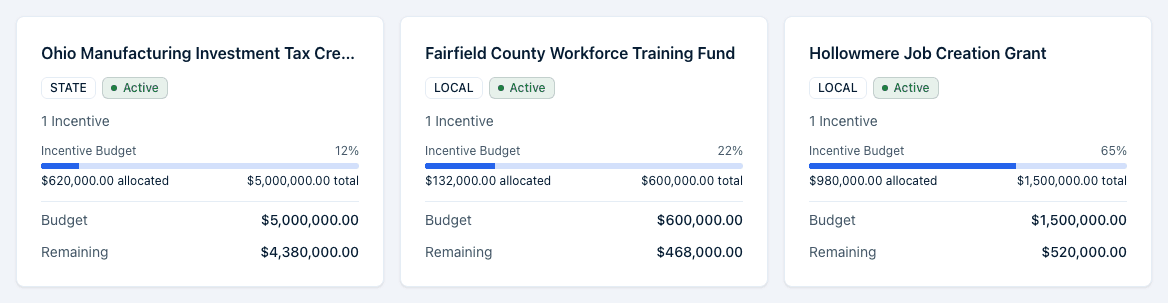
-
Click Budget Overview to expand a panel listing every program currently shown, each with a progress bar comparing its allocated amount to its budget. Collapse it again by clicking the header a second time. When your search and filters match nothing, the panel reads "No programs to display" and the grid below reads "No programs match your filters"; on an account with no programs at all you get the "No programs yet — Add your first program to start tracking government incentives and budgets." empty state with its own Add Program button.
-
Click a program card to open that program's detail page, where you manage its incentives, contact, and other details.
Read a program card
Each card shows:
- The program name and its Designation badge (Local, State, or Federal) and status badge (Draft, Active, Inactive, or Archived).
- A program type badge, if one is set.
- The provider name, if one is set.
- The number of incentives under the program.
- An Incentive Budget progress bar comparing the amount allocated across the program's incentives to their combined budget, when an incentive budget is set.
- Budget and Remaining, showing the program's own total budget and what's left of it, when a program budget is set.
Add a program
- Click Add Program.
- Fill in the Add Program dialog. Program Name and Designation
are required; everything else is optional at creation:
- Program Type — pick an existing type or choose Create new to add one inline.
- Designation — Local, State, or Federal.
- Status — Draft, Active, Inactive, or Archived (defaults to Draft).
- Program Provider — pick an existing provider or create one inline.
- Description, Start Date, End Date.
- Industries — select one or more industries the program targets, or select All Industries — an entry in the shared industry list that replaces any individual industries you'd picked. A program with no industries at all simply has no Industry row on its detail page.
- Click Create Program. If Program Name or Designation is missing you'll get a "Program Name is required" or "Designation is required" message and the dialog stays open. You can add more detail, including incentives, from the program's detail page afterward.
What happens next
- A new program appears on the Programs list immediately with zero incentives; it doesn't yet contribute to Total Awarded until you add incentives with allocated amounts.
- Setting a program's status to Archived doesn't delete it or its incentives — it stays on the list and can be filtered by Status like any other program.
- Total Awarded on the stat cards is the sum of the allocated amounts on the incentives under the programs currently shown, not a count of incentives or a separate approval step.
- A program's page also shows extra figures — Committed, In pipeline, a count of linked awards, and a Linked Projects card — fed by the incentive awards recorded on projects in Compliance.
Common questions
Q: Why don't the totals match all my programs? A: The four stat cards at the top only summarize the programs currently matching your search and filters. Click Clear filters and clear the Search programs... box to see totals across every program on the account.
Q: Can a member add a program? A: Yes. Add Program is available to any signed-in user on the account, not only account admins. The gear menu next to Add Program, which manages program types, providers, and incentive types, is limited to account admins.
Q: What is the difference between Budget and Incentive Budget? A: Budget (with Remaining) is the program's own total budget, if you've set one. Incentive Budget is a separate bar comparing the combined budget of the program's incentives to how much of that has been allocated. A program can have one, both, or neither, depending on whether you've set a program-level budget and whether its incentives have budgets of their own.
Q: Why can't I find Programs in the navigation? A: Programs is only available to economic development organization (EDO) accounts. If you're on a site selector account, or if your organization hasn't had Programs turned on, you won't see it.
Related
Last updated on