Work an opportunity
Open an opportunity's detail page to review its summary, contacts, economic impact, metrics, tasks, and notes, work its Responses, Documents, and Incentives tabs, and — as an account admin — use the Actions menu to edit it, request responses, generate a form link, or delete it.
Before you start
- An opportunity is a project your team is pursuing. The UI mostly calls it "opportunity," though some dialogs and the pipeline board say "project" instead — they mean the same thing.
- There's no Opportunities item in the sidebar. You reach an opportunity's detail page from a card on a pipeline's board or table, from a linked contact or organization, from a response that's been connected to it, or by promoting a response into a new opportunity (see Review a response). The breadcrumb at the top reads Pipelines followed by the opportunity's name.
- The Actions button — Edit Opportunity, Update Metrics, Request Responses, Generate Form Link, and Delete Opportunity — is shown only to account admins. Members can read and work the whole page (contacts, metrics cards, tasks, notes, documents) but never see that button. See Roles and permissions.
Steps
Read the summary
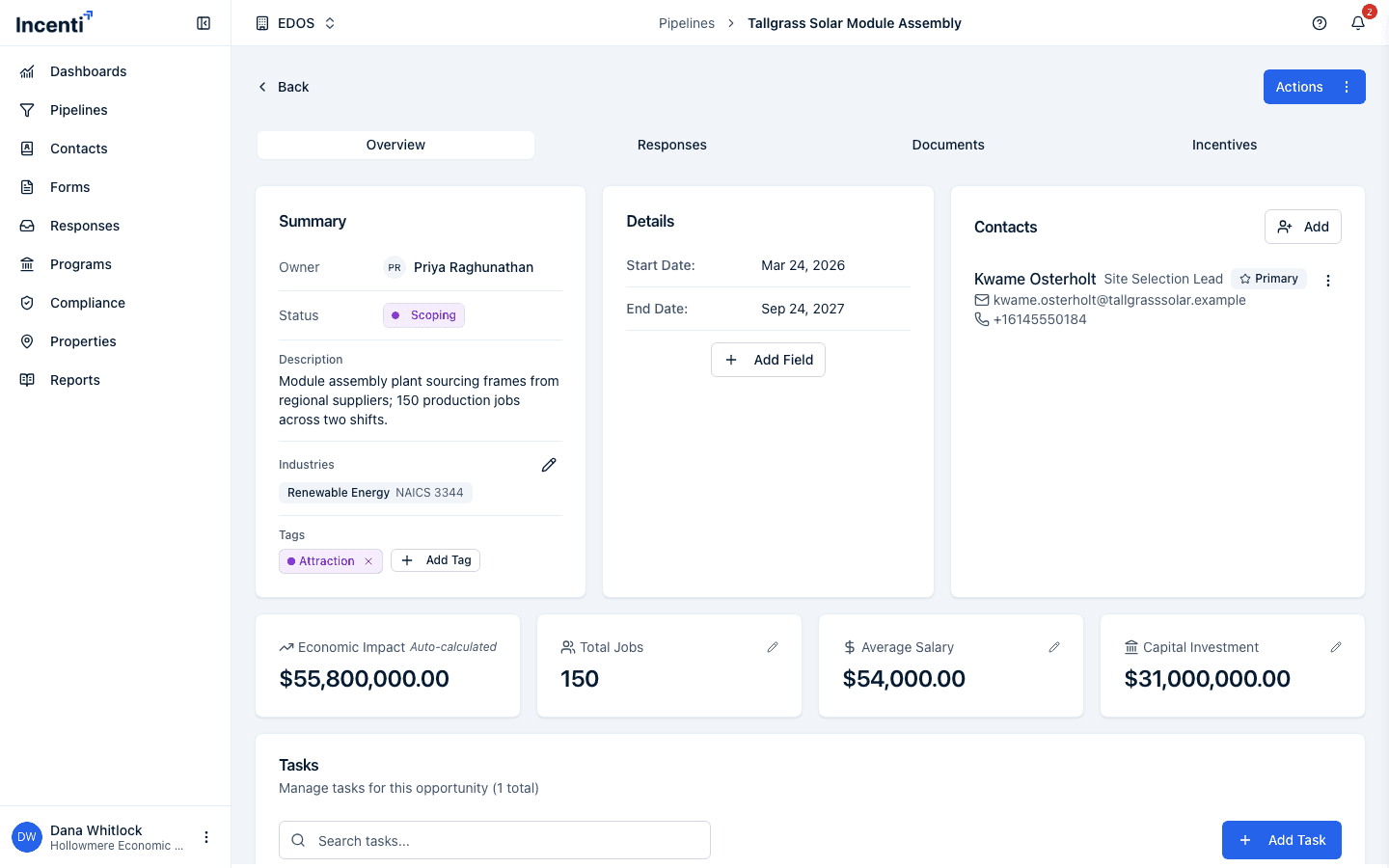
The Summary card shows the opportunity's Owner ("Unassigned" when nobody owns it), its Status, an optional Description (the row is hidden when there isn't one), its Industries, and its Tags.
The Status list differs between economic development organizations and site selection firms, and every status belongs to an Active, Inactive, or Closed category — see Opportunity statuses for both lists.
Status is a separate field from the column the opportunity's card sits in on its pipeline board. Dragging a card to a different column changes only its pipeline position, not this Status field, so check both if you're expecting one to reflect the other.
Review Details and add custom fields
The Details card shows the opportunity's Start Date and End Date, plus any custom fields you've added. Click Add Field to add one, entering a Field Name and a Value.
Manage contacts
The Contacts card lists the people linked to this opportunity. Click Add (or Add Contact when the card is empty) to link an existing contact — search with "Search contacts...", or create a brand-new contact inline from the same dialog. On an existing row, open Contact actions to Set as primary (a Primary badge appears next to that contact, and you'll see "Primary contact updated") or Remove it from the opportunity ("Contact removed from project").
The first contact you add is not made primary automatically — set one yourself if you want the card to show it.
Promoting a response into a new opportunity doesn't copy the respondent into this card. If you want the person who submitted the form listed here, add them with Add Contact.
Track economic impact
Four cards below the summary track the deal's projected impact: Economic Impact (labeled "Auto-calculated"), Total Jobs, Average Salary, and Capital Investment. Click any of the three editable cards to open a dialog where you update all three figures at once; saving recalculates Economic Impact.
Economic Impact is Total Jobs × Average Salary + Capital Investment. It stays blank (—) until both Total Jobs and Average Salary have values: capital investment on its own isn't enough to produce a figure. Amounts use the opportunity's currency, falling back to your account's currency, then US dollars.
The Economic Impact, Total Jobs, Average Salary, and Capital Investment cards are shown only on economic development organization accounts. On a site selection account the Overview tab goes straight from the Summary, Details, and Contacts cards to your account's custom metric cards and the Tasks table.
Read the custom metric cards
If your account has defined custom metrics for opportunities, a row of cards below the summary shows one card per metric — the metric's display name with its current value, formatted as a number, an amount, a percentage, text, or true/false. A metric with no value yet shows —.
Account admins update them with Actions → Update Metrics ("Update the custom metric values for this opportunity"), which lists every metric your account has defined and gives each one a Clear value button. If no metrics exist yet, the dialog says so and points you to your account administrator. See Custom metrics for how the definitions are created.
Review connected properties
When responses linked to this opportunity have properties attached, a Properties card appears above the Tasks table with a map and the count of properties connected to this opportunity's responses. The card only shows for accounts that have the properties module turned on, and only when there's at least one connected property.
Manage tasks
The Tasks card lists the tasks tied to this opportunity, with Add Task to create one. Tasks live only on an opportunity — there's no account-wide task list, and no email or reminder is ever sent for one. See Tasks on an opportunity for the fields, defaults, notifications, and the "Incenti AI" rows you may see on older opportunities.
Add notes
The Notes card works the same way here as it does on a contact or organization page — see Add notes to contacts, organizations, and opportunities for the full picture of adding, linking, editing, and removing notes. Adding a note here notifies the opportunity's owner.
Work the Responses, Documents, and Incentives tabs
- Responses lists the form responses connected to this opportunity — each row shows the form, its status, the submitter, and when it was submitted, and opens the response with a link back here. Once any of them has been scored, a Score column shows each response's percentage; hover over it for the per-criterion breakdown. Compare responses at the top of the card opens every response to one form side by side (a menu lists the forms when there's more than one) — see Compare responses side by side. Before anything is connected it reads "No form responses yet — Form submissions will appear here." Open Review a response for what you can do from there.
- Documents lists files uploaded to this opportunity plus every document attached to a response connected to it, with an Upload Document button and columns for title, description, type, uploader, and upload date. That's why files you never uploaded here can appear in the list.
- Incentives only appears once your account's Compliance module is turned on; it doesn't show for every account. When it's available, it's where you record and track incentive awards tied to this opportunity.
Use the Actions menu
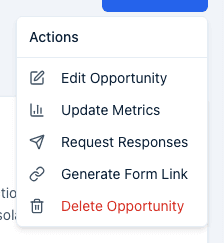
Account admins click Actions at the top of the page for:
-
Edit Opportunity — updates the Project Name, Description, Start Date, Status, and Owner. Editing Status here doesn't move the opportunity's card to a different pipeline column.
-
Update Metrics — your account's custom metric values for this opportunity, described above.
-
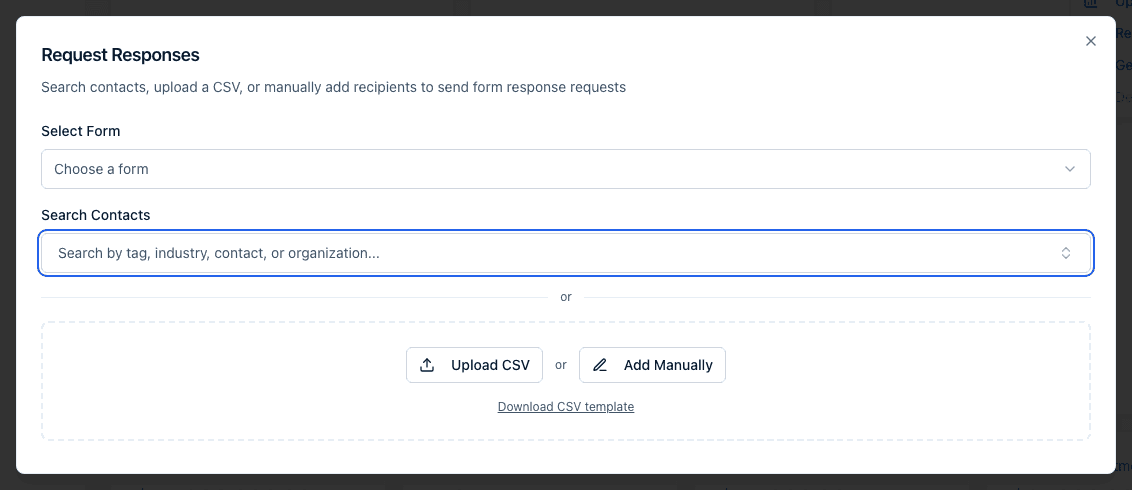
Request Responses — emails a form request to contacts and, for anyone not already in your CRM, adds them as contacts first. See Request responses from contacts for the whole flow and what recipients receive.
-
Generate Form Link — see below.
-
Delete Opportunity — asks you to confirm first.
Two known issues in this menu:
Due Date isn't saved by Edit Opportunity. The dialog shows a Due Date field, but the value is dropped when you click Save — the opportunity keeps whatever due date it already had. Today a due date can only be set when the opportunity is first created, from a pipeline board's New opportunity dialog.
Delete Opportunity reports a failure that didn't happen. After you confirm, the opportunity is deleted, but the page stays where it is and shows "Failed to delete opportunity". Go back to Pipelines and you'll see it's gone. Both are fixes we have queued.
Generate a form link
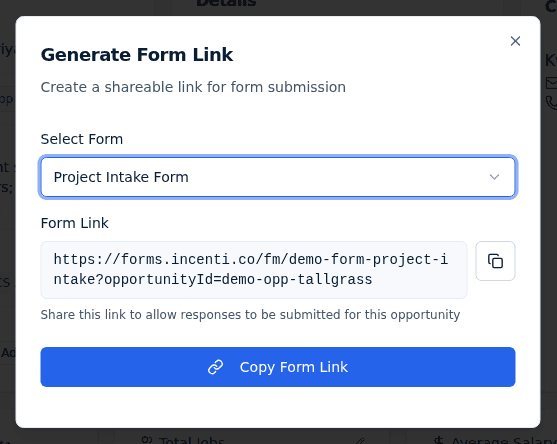
Generate Form Link gives you a public link to a form that is pre-tied to this opportunity, so any response submitted through it is connected here automatically. Pick a form under Select Form, then click Copy Form Link (or the copy icon next to the link itself) — you'll see "Link copied to clipboard!". Nothing is emailed; you share the link yourself.
Before copying, we check that the form is actually ready to receive answers:
- Blockers stop the copy: the form isn't Active (it's still a draft, or it's been closed or archived), or it has no fields yet. You'll see "Resolve the following before sharing this form link:" and have to fix the form first.
- Warnings don't: if the form doesn't capture a contact, you'll see "You can copy now, but you may want to address these first:" with a Copy anyway button. Responses submitted through a form with no contact capture arrive without a contact attached.
How an opportunity connects to everything else
- Responses connect through Request Responses, Generate Form Link, Connect on a response's own page, or by promoting a response into a new opportunity.
- Documents are either uploaded on the Documents tab or inherited from a connected response.
- Contacts are linked by hand on the Contacts card — nothing links them for you.
- Properties only arrive through a connected response that has properties attached.
- Programs are never linked to an opportunity directly; the connection is an incentive award, which needs the Compliance module.
- Tasks and notes are created on the opportunity itself; a note can also be attached to contacts and organizations at the same time.
Who gets notified
These are in-app notifications in the bell only — there's no email for any of them, and you're never notified about your own action:
- Opportunity assigned — the new owner, when an opportunity is created with an owner or reassigned to them.
- Status updated — the owner, when the Status field changes through Edit Opportunity. Dragging the card to another board column does not notify anyone.
- New note — the owner, when someone adds a note to the opportunity.
- Document uploaded — the owner, when a document is attached.
- New task assigned / Task completed — see Tasks on an opportunity.
See Notifications and the bell.
What happens next
- Editing the Status field notifies the owner; moving the card on a board doesn't.
- Sending a response request emails each recipient a link to the selected form. Nothing appears on the Responses tab until a recipient actually opens the form and submits it.
- Generating a form link doesn't send anything — it's a link you copy and share yourself. Any response submitted through it is connected to this opportunity the same way a response request's is.
- Deleting an opportunity hides it from pipelines and lists. Despite the error toast, the delete has already gone through.
Common questions
Q: I don't have an Actions button on my opportunity — where is it? A: Actions is shown only to account admins. Members can still edit the Details card, add contacts, tasks, notes, and documents, but editing the opportunity itself, updating metrics, requesting responses, generating a form link, and deleting are admin-only. Ask an admin on your account, or ask them to make you one.
Q: I set a Due Date in Edit Opportunity and it didn't stick. A: That's a known bug — the Edit Opportunity dialog drops the Due Date on save. A due date can currently only be set when the opportunity is created from a pipeline board's New opportunity dialog. We're fixing it.
Q: Deleting said "Failed to delete opportunity" but the opportunity is gone. A: Also a known bug. The delete succeeds; only the message is wrong. Go back to Pipelines and refresh — the opportunity won't be there.
Q: Why is Economic Impact blank when I've entered capital investment? A: Economic Impact is Total Jobs × Average Salary + Capital Investment, and it stays blank until both Total Jobs and Average Salary have values. Fill in those two and the figure appears.
Q: There are documents on the Documents tab that I never uploaded here. A: The tab merges documents uploaded to the opportunity with documents attached to any response connected to it, so files sent in by a respondent show up here too.
Q: I moved a card to the Won column on the board — why does the opportunity's status still say something else? A: The board column and the Status field on the opportunity's Summary card are tracked separately. Moving a card changes only its pipeline position; open Edit Opportunity to change the Status field itself.
Q: I don't see an Incentives tab on this opportunity — why not? A: The Incentives tab only shows up once your account's Compliance module is enabled. If you believe it should be on, check with your account administrator.
Related
Last updated on