Pipelines: board, table, and statuses
Create a pipeline from scratch or a template, move opportunities through its statuses on the board or table, and manage statuses, archiving, and deletion from pipeline settings.
Before you start
- A pipeline is an ordered set of statuses (the board's columns) that opportunities move through. The UI mostly says "opportunity"; pipeline cards and dialogs also say "project" for the same thing.
- The Pipelines page lists every pipeline your account has created. Turn on Show archived to include archived ones; an archived pipeline carries an Archived badge. Before you've made any, the page reads "No pipelines yet — Create your first pipeline from scratch or start from a template."
- Everyone on your account — admins and members alike — can create pipelines, edit statuses, and move opportunities between them.
Steps
Create a pipeline
-
On the Pipelines page, click New pipeline.
-
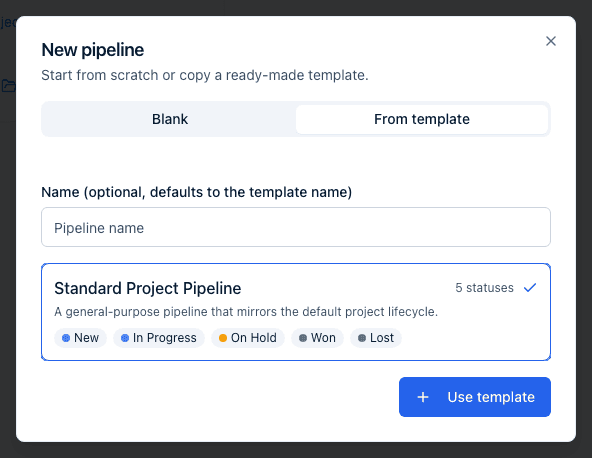
In the New pipeline dialog, choose Blank or From template.
- Blank asks for a Name and an optional Description. It starts with a single "New" status you build on from there.
- From template lists ready-made templates — currently the Standard Project Pipeline (New, In Progress, On Hold, Won, Lost) — and lets you give the new pipeline its own Name (optional; defaults to the template's name).
-
Click Create pipeline (Blank) or Use template (From template). You're taken straight to the new pipeline's board.
A blank pipeline needs a name ("Name is required"); the template tab needs a template picked ("Pick a template"). A template is copied once, at creation: the new pipeline's statuses are yours to rename, recolour, reorder, or delete, and later changes to the template never reach pipelines already created from it. Templates themselves can't be edited or added to from the portal.
Manage a pipeline from its card
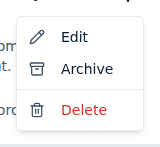
Each card on the Pipelines page has a ⋮ menu with three items:
- Edit — opens the Edit pipeline dialog to change the Name and Description, then Save.
- Archive, or Restore on a card that's already archived.
- Delete — asks "Delete pipeline?" and reminds you that a pipeline can only be deleted once it has no opportunities.
The card itself shows the pipeline's name, its description, and how many statuses and projects it holds.
Work the board
Each pipeline's Board shows its statuses as columns, in order. A column header shows its color, label, and opportunity count; click the label to rename the column inline. Click the ⋮ menu on a column for Move left, Move right, Archive, or Delete.
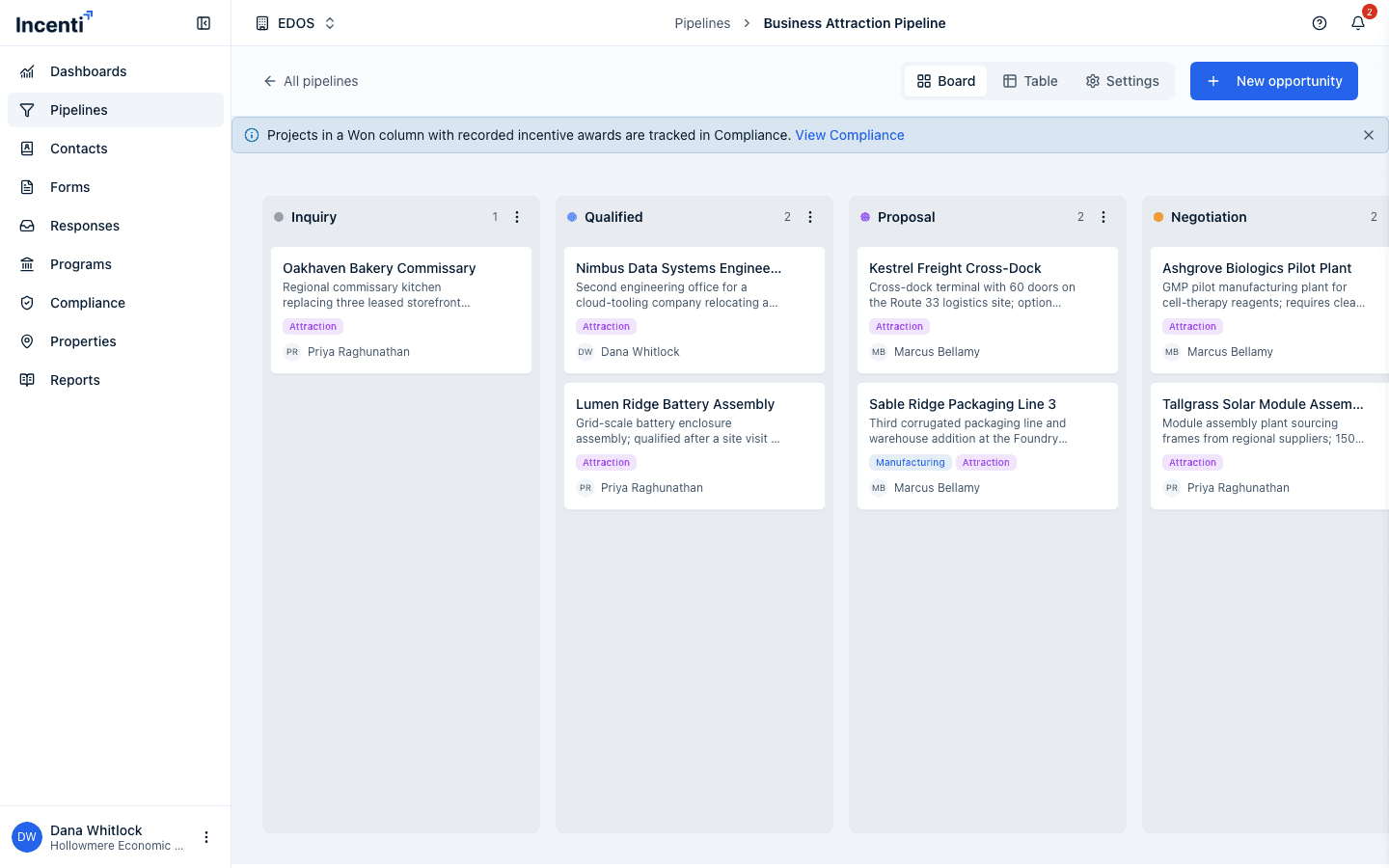
Drag a card to another column to change which status it's in, or drag it up or down within a column to reorder it there — both save automatically as you drop. Moving a card only changes its pipeline status; it does not change the opportunity's separate Status field (Scoping, Due Diligence, Site Visits, and so on), which you set from the opportunity's own page.
Each card's ⋮ menu offers Move to another pipeline, which opens the Move opportunity dialog: pick a Destination pipeline and a Status in it, then move ("Pick a destination pipeline and status" if you leave either empty). Archived pipelines aren't offered as destinations, though you can always move an opportunity out of an archived pipeline.
Moving between pipelines changes only the column the card sits in. The opportunity's own Status field comes along unchanged — see Opportunity statuses.
An info banner above the board reads "Projects in a Won column with recorded incentive awards are tracked in Compliance," with a link to Compliance; dismiss it with its close button.
Click Add status at the end of the columns to add a new column, giving it a Label, a Category (Active, Inactive, or Closed), and a Color.
Click New opportunity (top right) to create an opportunity directly into a column of your choice: pick the Column, then enter a Project Name, Description, Start Date, Due Date, and Owner, and click Submit. Owner is required ("You must provide an owner."), and there's no Status field here — the new opportunity starts at your account type's first status, which you can change afterwards from the opportunity's Actions → Edit Opportunity. This dialog is also the only place a Due Date can currently be set.
Work the table
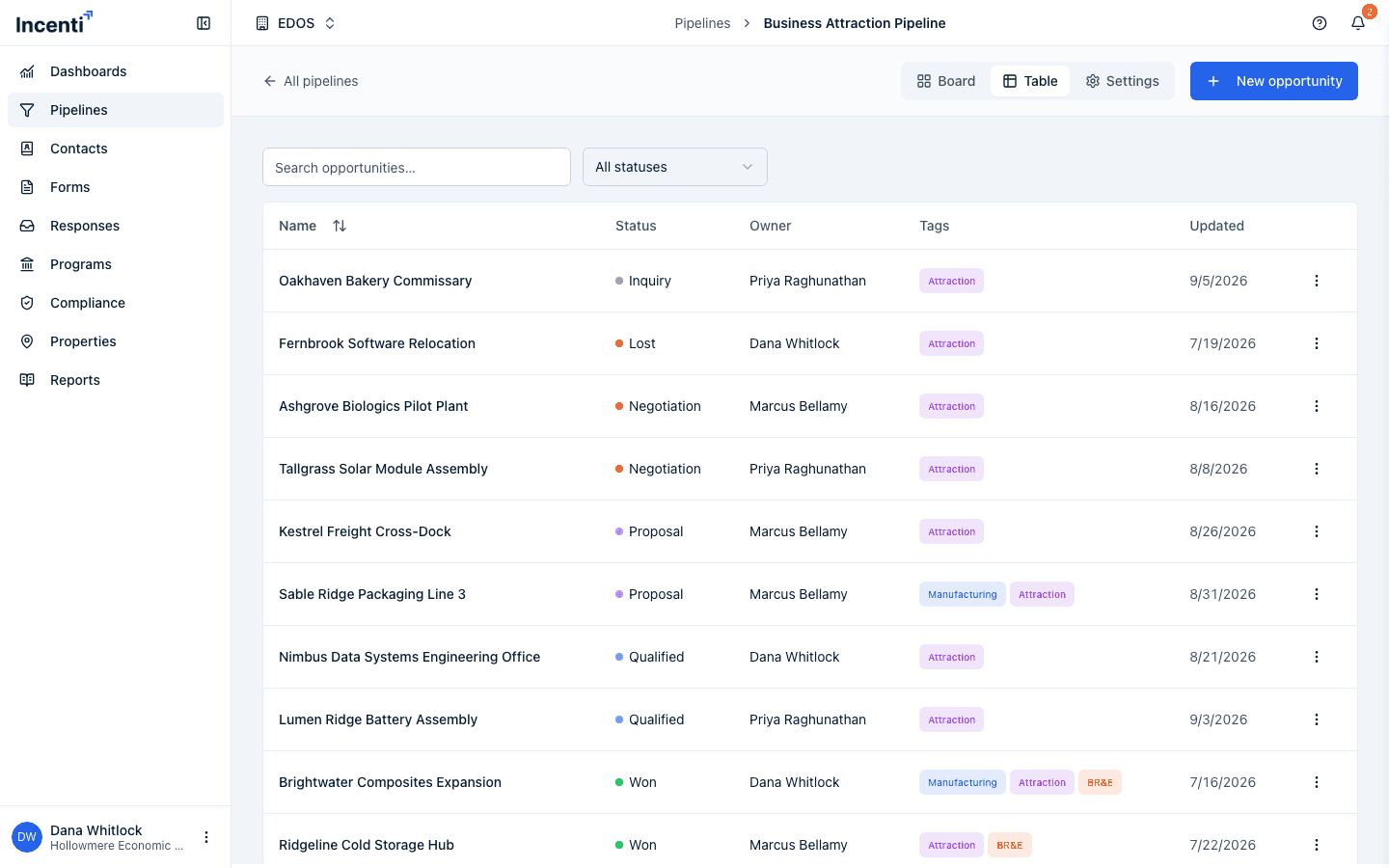
Switch to Table for a sortable list of the pipeline's opportunities instead of columns. Search opportunities… matches the opportunity name only — not the owner, the tags, or the description — and the All statuses dropdown narrows the list to one column. Click the Name column header to sort alphabetically. Columns show Name, Status, Owner, Tags, and Updated. Each row's ⋮ menu offers Move to another pipeline, opening the same dialog as on the board.
Manage pipeline settings
Open Settings to rename or describe the pipeline, and to manage its statuses.
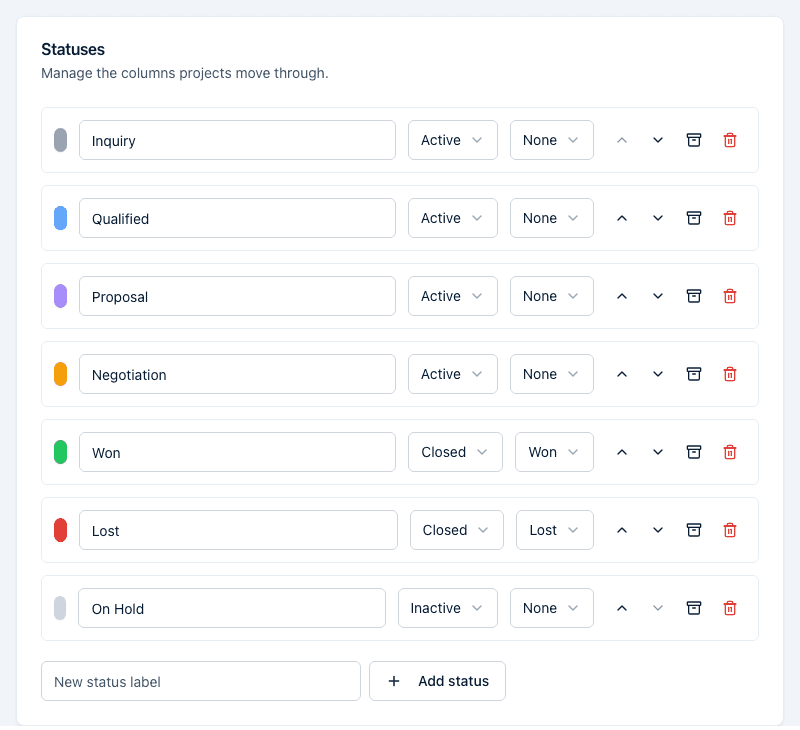
For each status, you can:
- Click its color dot to change color, and edit its label directly.
- Set Category to Active, Inactive, or Closed.
- For a Closed status, set Outcome to None, Won, or Lost. Marking a status Won is what makes its opportunities show up in Compliance.
- Reorder it with the up/down arrows.
- Archive it (hides it from the board without deleting it — archived statuses stay on any opportunities that already have them, and can be restored from the Archived statuses list at the bottom of this card).
- Delete it. If it still has opportunities on it, you're asked to pick another status to move them to first; an empty status deletes immediately.
To add a column from here, type its name in New status label at the bottom of the list and click Add status; set its category, outcome, and color in the row that appears.
Archive or delete a pipeline
The Danger zone card at the bottom of Settings has two actions:
- Archive pipeline archives it immediately — there's no confirmation step. An archived pipeline's board becomes read-only (you'll see "This pipeline is archived. The board is read-only." at the top), and it no longer offers New opportunity.
- Delete pipeline asks you to confirm ("Delete pipeline?"). A pipeline can only be deleted once it has no opportunities left in it.
To restore an archived pipeline, go back to the Pipelines page, turn on Show archived, and choose Restore from the pipeline card's ⋮ menu — or click Restore pipeline in that pipeline's own Settings Danger zone card.
What happens next
- Dragging a card to a different column saves in the background as soon as you drop it; if the save fails, the card snaps back and you'll see an error toast.
- Marking a column's Outcome as Won immediately re-checks every opportunity already sitting in it against Compliance, so awards recorded on those opportunities appear there without you having to touch each one.
- Deleting a status that still has opportunities moves all of them to the status you picked before the delete completes.
- Moving an opportunity to another pipeline keeps its Status field and re-checks it against Compliance. Nobody is notified about the move.
Common questions
Q: I dragged a card to "Won" but the opportunity's status still says something else — is that a bug? A: No. The pipeline column and the opportunity's Status field (on the opportunity's own page) are separate. Moving a card changes only its column; update the Status field from the opportunity page if you also want that to change.
Q: I archived a pipeline by mistake — how do I get it back? A: Open the pipeline's Settings and click Restore pipeline in the Danger zone, or go to Pipelines, turn on Show archived, and choose Restore from the pipeline's ⋮ menu. Archiving has no confirmation step, so nothing else needs to be undone.
Q: Can I search the Table view by owner or tag? A: No. The table's search box matches the opportunity name only. Use the All statuses dropdown to narrow by column, and sort by clicking a column header.
Q: Can I edit a pipeline template, or set a default pipeline? A: Neither. Templates are fixed starter layouts and a new pipeline copies one at creation — after that the pipeline is entirely yours to change, and template updates never flow into it. There's also no "default" pipeline: an opportunity created from a board belongs to that board's pipeline.
Q: Why won't a status or pipeline delete? A: A status with opportunities on it needs a destination status chosen first; a pipeline can't be deleted while it still has any opportunities in it. Archiving is the alternative when you want to stop using something without requiring it to be empty first.
Related
Last updated on