Tags
Create account-wide colored tags, put them on contacts, organizations, and opportunities, change or remove them, and filter the Contacts list by tag.
Before you start
- Tags are account-wide labels with a color. The same tag can be put on contacts, organizations, and opportunities, and creating or editing one from anywhere in the app changes it everywhere.
- Tag names are unique within your account, so there's never a second tag with the same name.
Steps
Manage the account's tags
-
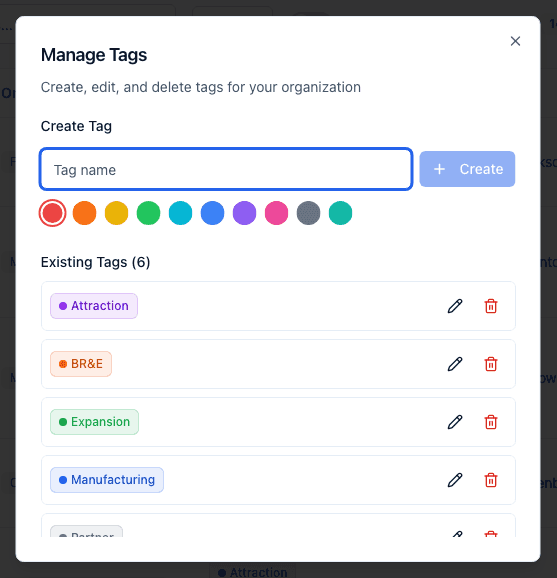
On the Contacts page, click Manage Tags.
-
Under Create Tag, type a name and pick a color swatch, then click Create. If a tag with that name already exists, you don't get a duplicate or an error: the existing tag is reused and repainted in the color you just picked, everywhere it already appears. A tag you deleted earlier comes back the same way, with everything it was on still attached.
-
Under Existing Tags, click the pencil icon on any tag to rename it or change its color, or the trash icon to delete it (click it again to confirm within a few seconds).
Add a tag to a contact, organization, or opportunity
-
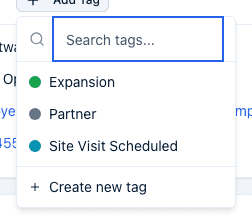
On a contact, organization, or opportunity's page, click Add Tag.
-
Search the list of existing tags, or click a tag to add it directly.
-
To add one that doesn't exist yet, click Create new tag, type a name, pick a color, and click Create — this both creates the tag and adds it to the record in one step.
Change or remove a tag on a record
Each tag chip on a record has its own controls: click its color dot to Change color for tag name, which changes that tag's color everywhere it appears (not just on this record); click the × to Remove tag name from this one record only, leaving the tag itself and its appearance on other records untouched.
Filter by tag
Click the Tags filter button above the Contacts list, then check one or more tags. A contact shows if it has any of the checked tags (not all of them). Click Clear to reset the filter.
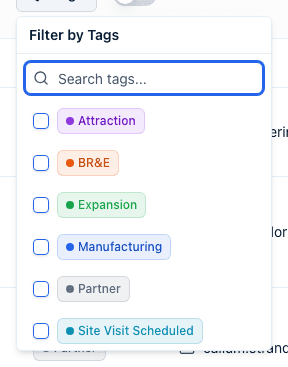
The Organizations tab has the same Tags filter above its own list. Those two lists are the only places you can filter by tag. Tags show as a column on the pipeline Table view and as small badges on board cards, so you can read an opportunity's tags at a glance, but neither the board nor the table can be filtered by them — the table filters by status only. The contacts search box also matches tag names, so typing a tag name into Search contacts... finds everyone carrying it.
What happens next
- Deleting a tag removes it from every contact, organization, and opportunity it was on — those records aren't affected otherwise, they simply lose the tag.
- Changing a tag's color (from Manage Tags or from a chip's color dot) updates it everywhere that tag appears, immediately.
Common questions
Q: If I delete a tag, does it delete the contacts or opportunities that had it? A: No. Deleting a tag only removes the tag itself and its assignment from whatever it was on. The contacts, organizations, and opportunities that had it are untouched.
Q: Can I target contacts by tag when requesting responses? A: Yes. The Request Responses dialog's search box ("Search by tag, industry, contact, or organization…") matches on tags along with the other fields, so you can pull in everyone carrying a given tag.
Q: I created a tag that already existed and my colours changed. What happened? A: Tag names are unique per account, so creating a tag with a name that's already in use doesn't make a second one — it reuses the existing tag and applies the color you chose to it everywhere it appears. If you only wanted this record tagged, pick the tag from the list instead of creating it again.
Q: Can I filter a pipeline board or table by tag? A: No. Tag filtering exists on the Contacts and Organizations lists only. Board cards and the pipeline table show tags but can't be narrowed by them.
Q: Why does checking two tags in the filter show more contacts, not fewer? A: The Tags filter is an "any of" match — checking multiple tags shows every contact that has at least one of them, not only contacts that have all of them.
Related
Last updated on