Review a response
Open a response's detail page to read its answers, change its status, connect it to an opportunity, check its CRM sync, export it, or remove it.
Before you start
- You need a response to open — from the responses list, click any row.
- What you can do here depends on whether your account owns the form the response was submitted to (you'll see the full set of actions below) or your account submitted the response to someone else's form. A respondent never sees status actions, the score, CRM sync, conflicts, opportunity links, or the owner's documents — those belong to the receiving account.
- Everyone on the owning account can do everything on this page. There is no separate admin permission for accepting, declining, scoring, or removing a response.
Find your way around the workspace
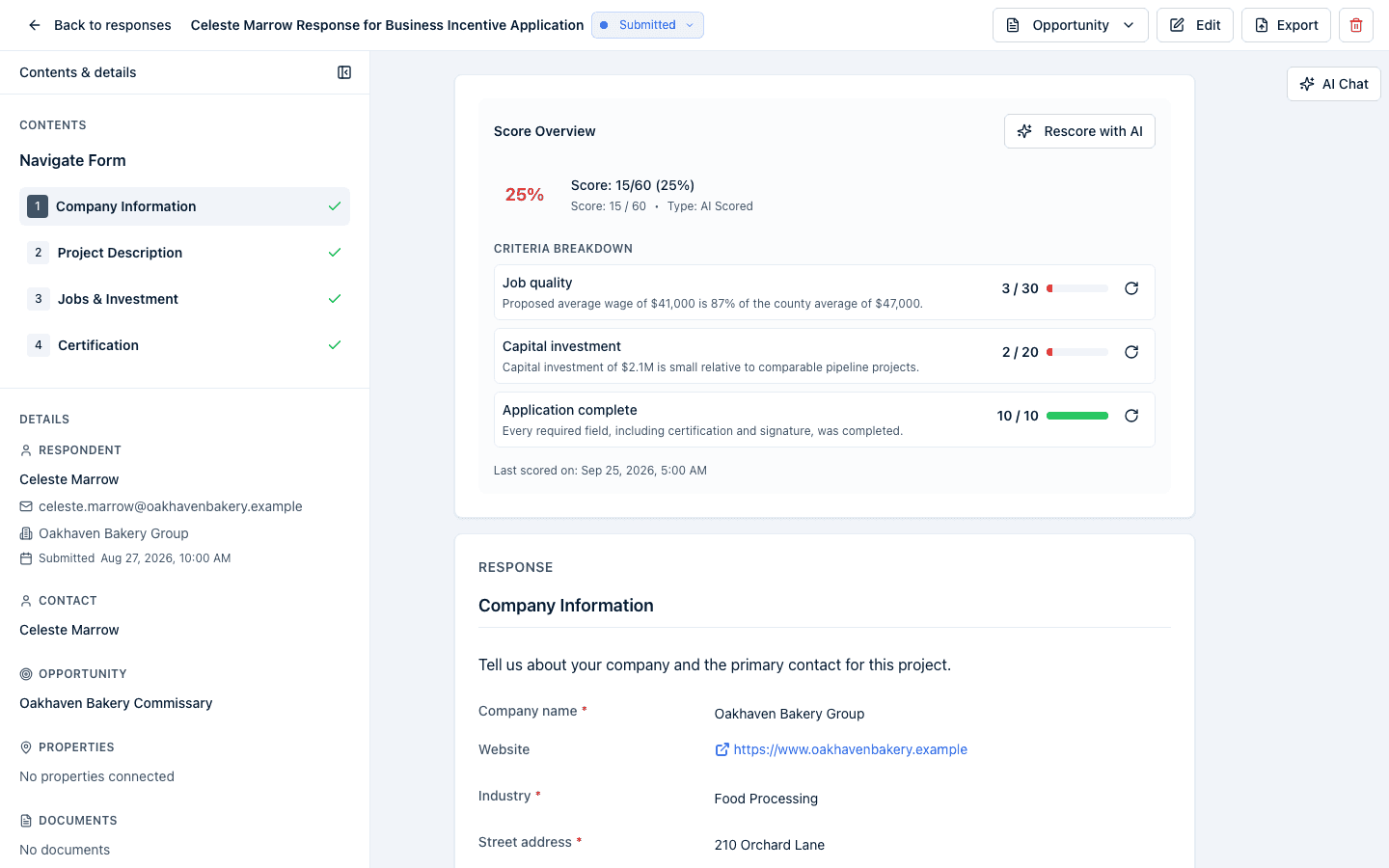
A response opens full screen, without the portal's side navigation, so the answers get the room. Three regions:
- Header. A back button that names where you came from — Back to responses, or
Back to opportunity, Back to contact, Back to property, or Back to
account — then the response's title and its status, then the action buttons.
- On a response sent to your account, the title reads Name Response for Form (the respondent's name or email, or Response #N for Form when the form captured neither). The status badge has a small arrow: it's the Change Status control — see Change status. The buttons are Opportunity, Edit, Export, and the red remove icon.
- On a response your account sent, the title reads Form Response for Organization, the status is a plain badge, and the buttons are Autofill with AI, Edit, Save for reuse, and Export.
- While a response is still Pending or In Progress, Edit and Export are hidden on both sides — there's nothing submitted yet. The account filling it in sees the fill controls instead; see Fill in a response you're answering.
- Middle. The answers, page by page, under Response. If any were filled in automatically or read from a document, a Show sources toggle appears (outside edit mode only) so you can see where each one came from. A response created from an uploaded document also has a Form / Document toggle above the answers that swaps in the original file — see Upload a completed response.
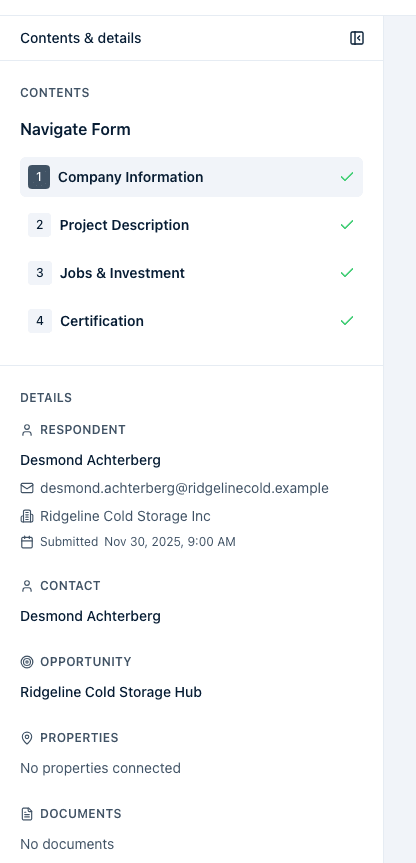
- Left rail — Contents & details. Open it with the Contents button in the left gutter. Contents lists the form's pages with their sections underneath, with a checkmark on each one that's complete; click to jump. Details holds everything linked to the response: Respondent, Contact, Opportunity, Properties (every connected property, with a Primary badge when there are several and Used for autofill on one that autofill drew from), Documents (the original upload and any derived copies, each with a download link), Saved answers used, and CRM sync (the sync badge, the retry button, and any conflicts).
- Right rail — AI Chat. Open it with the AI Chat button in the right gutter. It docks beside the answers instead of covering them — see Ask AI about your responses.
Both rails remember whether you left them open, separately for responses you're reviewing and responses you're filling in. On a phone or narrow window they open as sheets over the page instead.
While you're editing or filling in a response, a Next required button appears in the header with a count of the required questions still empty; click it (or press Alt+N, Option+N on a Mac) to jump to the next one.
If the form scores responses (or this one already has a score), a Score Overview card above the answers shows the percentage and the breakdown by criterion — see Score responses with AI.
CRM sync status, retry, and conflicts
Every submitted response is put through your CRM automatically: contacts, organizations, addresses, properties, industries, and uploaded files are created or topped up from the answers. The badge in the CRM sync block at the bottom of Details (left rail) tells you how that went:
- Sync pending — the background job hasn't finished yet.
- Synced — the whole pipeline completed.
- Sync failed — it gave up after retrying. A circular-arrow Retry CRM sync icon appears next to the badge; clicking it opens Retry CRM Sync? and Retry Sync runs the whole pipeline again from the stored answers.
When the CRM already held a different value for something the respondent submitted, a CRM sync conflicts table appears under the badge: "These submitted values were not applied because the CRM already had different data." It lists each one under Record, Field, Existing value (kept), and Submitted value (discarded). Nothing is overwritten automatically — if you want the submitted value, edit the contact, organization, or property record yourself. The full matching rules are in CRM sync and conflicts.
Change status
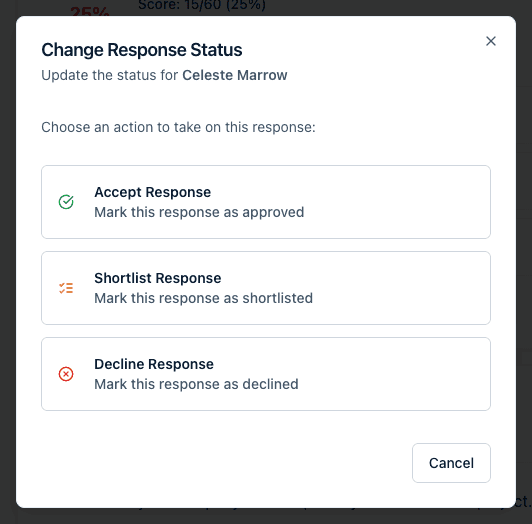
Click the status badge beside the response's title to open the Change Response Status dialog. The badge is only clickable — it shows a small arrow — for the receiving account, and only while the response isn't already Accepted or Declined. (On a document response whose status you're still setting yourself, the badge is the status dropdown instead, and a separate Change Status button sits beside it.) Choose Accept Response, Shortlist Response, or Decline Response, then confirm.
- Accepting can also tick Decline all other responses to decline every other response to the same form in one go.
- Each action offers Send approval email notification, Send shortlisted email notification, or Send declined email notification. Leave it unticked to change the status without emailing anyone.
- Declining — on its own, or as part of "decline all other responses" — lets you type a reason.
Accepted and Declined are final: neither can be changed afterwards. Shortlisted is not — a shortlisted response can still be accepted or declined later.
What the applicant receives
When you tick the email box, the response's primary contact gets an email with the subject Response Status Update for your form's name, headed Response Approved, Response Shortlisted, or Response Declined. A decline shows your reason under Reason:. When you use Decline all other responses without typing a reason, those responses are declined with the automatic reason "Another response was accepted", and those applicants are only emailed if you also ticked Send declined email notification. Once the batch finishes you get an email and an in-app notice confirming how many status updates were delivered.
Connect the response to a project or contact
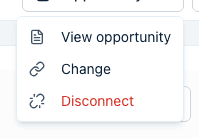
If your account owns the form, an Opportunity dropdown lets you Connect to opportunity (link to an existing one) or Promote to opportunity (create a new one from this response). Once connected, the same dropdown offers View opportunity, Change, and Disconnect — which asks "Disconnect this response from its opportunity?" first.
A response's primary contact, opportunity, and connected properties are linked from Details in the left rail.
Edit, export, or remove
- Edit makes the answers editable. See Edit a response and fix field types.
- Save for reuse (only on responses your account submitted) saves selected answers into your Answers Library.
- Export downloads the response — see Export responses.
- The red trash icon (owner only, furthest right) opens Remove Response: "Are you sure you want to remove this response? This action cannot be undone." Removing a response does not delete the contact, organization, or property the submission created — those are ordinary CRM records once they exist.
Fill in a response you're answering
A response your account is answering and hasn't submitted yet — one on your Submitted tab that's still Pending or In Progress, or a document you uploaded to fill in — opens ready to type into. There's no Edit, Save changes, or Cancel:
- Answers save automatically a moment after you stop typing. The header shows Saving… and then Saved; if a save fails it shows Not saved — keep editing to retry.
- The response moves from Pending to In Progress as soon as you answer something.
- An empty question that your records or your Answers Library can answer shows a Use chip underneath — see Autofill a response.
- Once every required question is answered, Submit appears in the header. Clicking it sends the response, exactly as submitting the public form would.

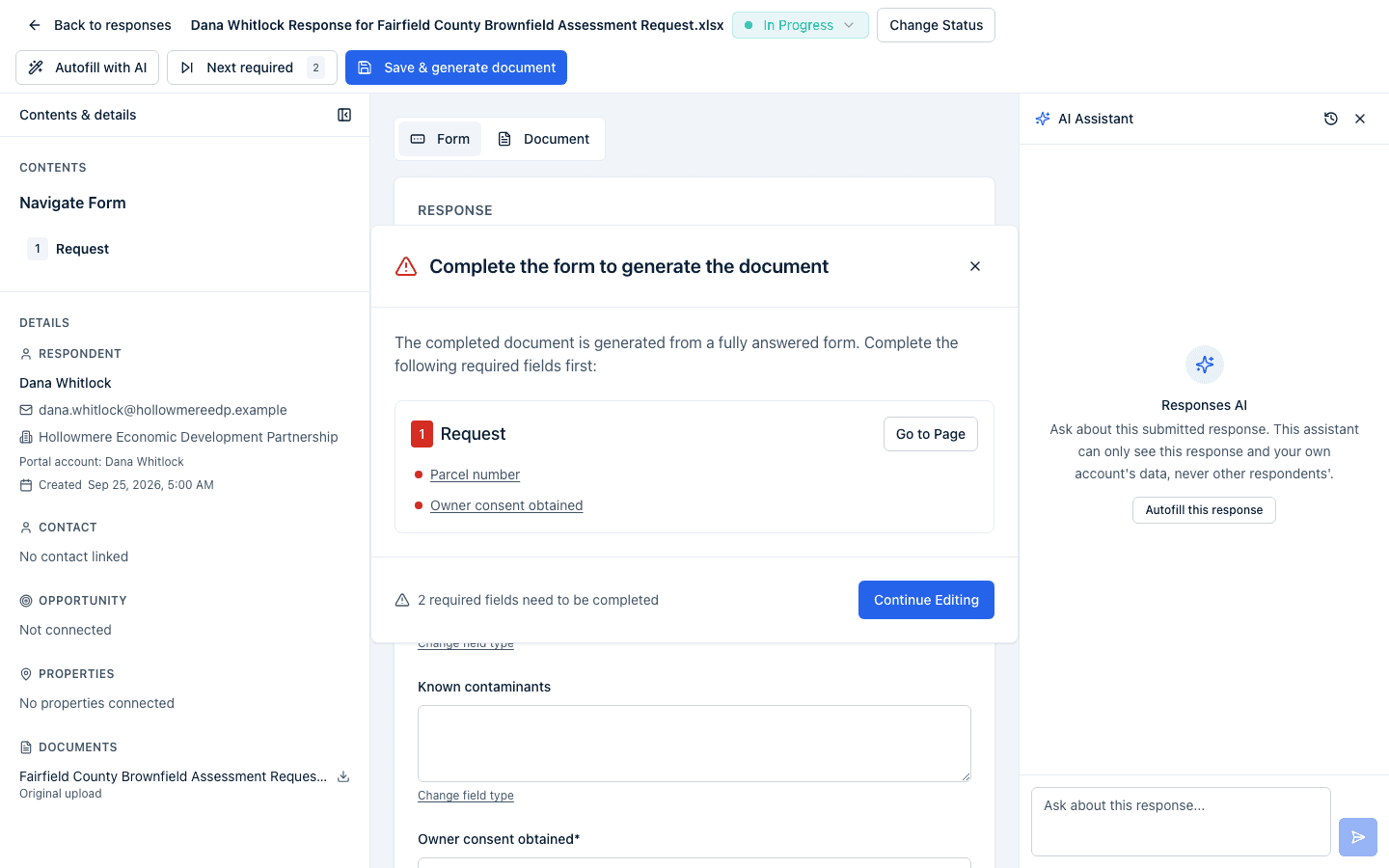
A response created from a document works the same way, except that it has no Submit: the status dropdown in the header moves it through Pending, In Progress, Ready for Submission, and Submitted directly, and Save & generate document writes your answers into the original file. Choosing Ready for Submission or Submitted checks every required field first. If any are empty, a Cannot mark as status yet dialog lists them by page — click a question to jump straight to it, Go to Page to open that page, or Continue Editing to close it. The same dialog, titled Complete the form to generate the document, appears if you click Save & generate document with required questions still empty. Autosave never checks, so a partial draft is always kept.
What happens next
- A status change is saved immediately; the email, when you asked for one, goes out in the background, one send at a time.
- Retry CRM sync puts the badge back to Sync pending and re-runs the whole submission pipeline; refresh the page to see where it lands.
- Saving edited answers on a document-sourced response regenerates the filled copy of the original document in the background.
- The Score Overview's Score with AI button queues scoring in the background; the score appears here and in the list once it finishes.
Common questions
Q: Why can't I change this response's status? A: The status badge is only clickable (with a small arrow) for the account that owns the form, and only while the response hasn't already been marked Accepted or Declined — those are treated as final. A shortlisted response can still be accepted or declined.
Q: Can I go back from Accepted to Shortlisted? A: No. Accepted and Declined end the review, and the badge stops being clickable. If you accepted the wrong response, accept the right one instead; the wrong one keeps its status.
Q: Will the respondent know I accepted or declined their response? A: Only if you tick the matching notification checkbox in the Change Response Status dialog before confirming. Leaving it unticked updates the status silently.
Q: If I accept one response and decline the others, what reason do the others see? A: The reason you typed, or — if you left it blank — "Another response was accepted". They only receive an email at all if you also ticked Send declined email notification.
Q: What are "CRM sync conflicts" and how do I apply the submitted value? A: They're values from the submission that weren't written because your CRM already had something different in that field. Incenti only ever fills blanks, never overwrites. To take the submitted value, open the contact, organization, or property named in the Record column and edit that field yourself.
Q: How do I retry a failed CRM sync? A: Open Details in the left rail. When the CRM sync badge reads Sync failed, a circular-arrow icon appears beside it. Click it, then Retry Sync in the Retry CRM Sync? dialog.
Q: Why can't I mark this document response as Submitted? A: Required questions are still unanswered. The Cannot mark as Submitted yet dialog lists them — click one to jump to it, answer it, and try again once the header shows Saved.
Q: I'm filling in a response — where's the Save button? A: There isn't one. Your answers save automatically as you type; watch for Saved in the header. Submit appears once every required question is answered.
Q: Why is there no Edit or Export button on this response? A: It's still Pending or In Progress, so nothing has been submitted to edit or export. Once it's submitted, both buttons appear.
Q: Where did the property card and the contact chips go? A: Into the Details section of the left rail. Click Contents in the left gutter if the rail is closed; it stays open next time once you've opened it.
Q: The AI chat used to cover the answers. Can I keep both visible? A: Yes. The chat now docks in the right rail beside the answers on a desktop-width window. On a phone it opens as a sheet over the page.
Q: Does removing a response delete the contact it created? A: No. Contacts, organizations, and properties created by the submission stay in your CRM; only the response is removed, and that can't be undone.
Related
Last updated on