Create a response from a document
Upload a document from the responses list to have it turned into an answerable form, fill it in, and get the answers written back into the original document.
Before you start
- You need access to the Responses area of the portal.
- Have the document you want to fill out ready to upload: PDF, Word (.docx), or a spreadsheet (.xlsx, .xls, .csv, .ods). Legacy .doc files aren't supported — save the file as .docx first. The file must be under 25MB.
Steps
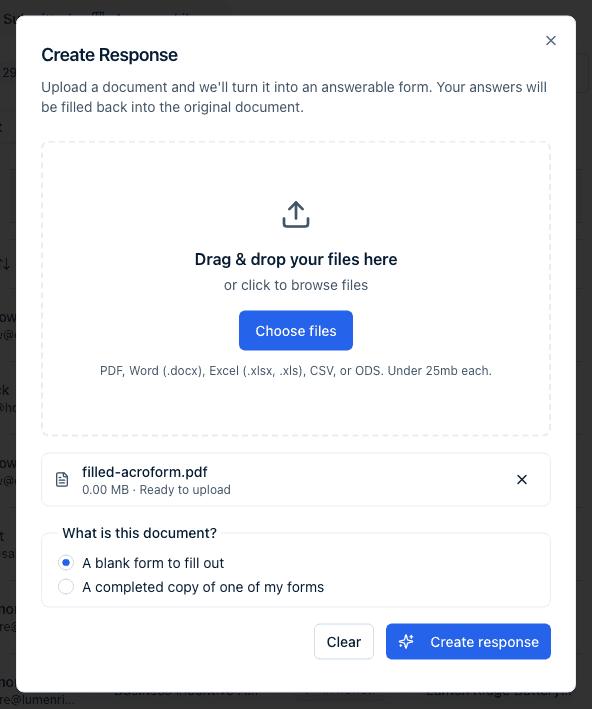
- On the responses list's Received tab, click Create Response.
- Drag and drop your file onto the upload area, or click Choose files to browse. You can drop several; each becomes its own response.
- Under What is this document? (shown once a file is listed), leave A blank form to fill out selected. The other choice, A completed copy of one of my forms, is for a document an applicant returned to you — see Upload a response against an existing form.
- Click Create response (or Create N responses) to upload and start processing.
- You can close the dialog while it processes — reading a document can take a minute or two per file. It says: "This can take a minute or two per file. You can close this dialog — each response will appear in the list when it's ready."
- When it's ready, either come back to the dialog (it shows "Your document is ready to answer" with a Start answering button) or open it from your Submitted tab, where it appears with a way to continue it.
- Answer the generated form's questions, then click Save & generate document.
The Create Response button is on the Received tab and in its empty state; the Submitted tab has Upload Response instead, for a document you already completed — see Upload a completed response. The dialog explains itself as "Upload a document and we'll turn it into an answerable form. Your answers will be filled back into the original document." While it works it shows "Reading your document...", and when it's done it offers Start answering.
What happens next
After upload, the document is read in the background and turned into a one-off form matching its questions. When that finishes, you get a notification in the portal and an email titled "Your document is ready to answer" with a Start answering button, and the response shows up, ready to continue, in your Submitted tab.
Only users on the account that uploaded the document can answer the generated form. The response lives in your account's Submitted tab and is not visible to any other account.
As you answer and save, there is no separate submit button for this kind of response — instead a status dropdown next to the response lets you move it through Pending, In Progress, Ready for Submission, and Submitted yourself, forwards or backwards. Moving to Ready for Submission or Submitted checks that every required question is answered first; if something is missing, a Cannot mark as status yet dialog lists the questions by page, and clicking one jumps to it. Save & generate document runs the same check. Your answers also save automatically as you type (the header shows Saving… then Saved) without any check, so partial drafts always save. While you fill it in, the Contents rail on the left ticks off each page as it's completed and the Next required button in the header jumps to the next empty required question.
If the document scan read a question's answer type wrongly — the classic case is a blank "City: ______" line turned into a dropdown with nothing to pick — you can correct it in place. See Edit a response and fix field types.
Every time you save your answers, the original document is regenerated in the background with your answers written into it — an AcroForm PDF or a spreadsheet (.xlsx) is filled in place; a Word document is filled using its own anchors; other PDFs get your answers overlaid onto the original layout, and if none of those apply, a PDF rendition of the completed form is generated instead. Download the latest filled copy from Export on the response's detail page.
What does not happen for these responses
A response you create from your own document behaves differently from a form someone else filled in for you:
- Nobody on your account is emailed or notified when you mark it Submitted. You answered your own document, so the "new response received" notice is suppressed.
- No contacts or organizations are created. Names, emails, and company details you type into a document response are never turned into CRM records, and no addresses, properties, or industries are ingested from it either.
- It isn't scored. The one-off form behind a document response has scoring switched off and no criteria, so Score Overview never appears.
- It's private to your account. Only users on the account that uploaded the document can open, answer, or export it.
Common questions
Q: What file types can I upload to create a response? A: PDF, Word (.docx), and spreadsheet files (.xlsx, .xls, .csv, .ods), each under 25MB. Legacy .doc files are rejected — re-save them as .docx first.
Q: How long does it take before I can answer the document? A: The dialog says this can take a minute or two. You don't need to keep the dialog open — you'll be notified and the response will be ready in your Submitted tab.
Q: Can someone else on my account finish answering the document I uploaded? A: Yes. Anyone on the account that uploaded the document can open the response from the Submitted tab and continue answering. Users outside your account cannot.
Q: Will my team get an email when I mark my document response Submitted? A: No. Because you answered a document your own account uploaded, the new-response notification is deliberately suppressed. Nothing is emailed to anyone.
Q: Will the names and emails I type into the document be added to my contacts? A: No. Contact, organization, address, property, and industry creation are all skipped for responses created from a document — only a form someone else submits to you feeds your CRM.
Q: Why is there no Score Overview on my document response? A: The one-off form generated behind it has scoring turned off and no criteria, so there is nothing to score against.
Q: Where do I get the filled-in version of my original document? A: Open the response and click Export — once a filled copy has been generated, it's offered there as the Completed document.
Related
Last updated on