Score responses with AI
Find scores on the responses list and a response's detail page, run AI scoring on one or many responses, understand how the percentage is worked out, and filter by score.
Before you start
- Scoring must already be turned on for the form, with at least one criterion defined. That's done from the form builder's Settings tab, under Scoring Configuration — see Form scoring criteria and AI scoring.
- You need access to the Received tab of the responses list, or the detail page of a response submitted to a scoring-enabled form. Respondents never see scores on their own submissions.
Find a response's score
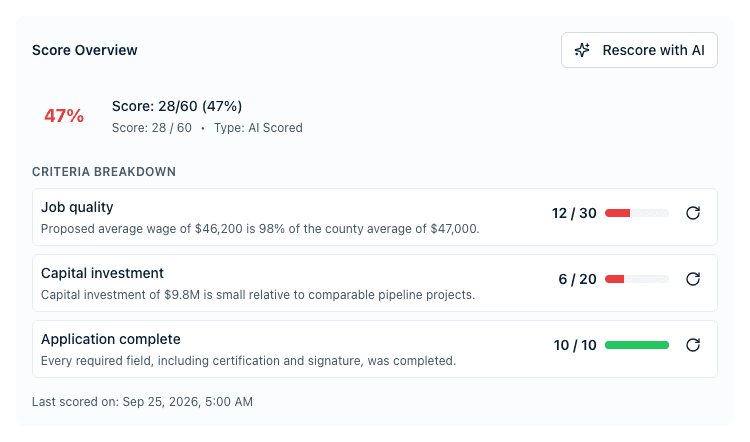
On a response's detail page, Score Overview shows the overall percentage, the raw score in the form "Score: 65/80 (81%)", and the scoring type — AI Scored for a score the assistant produced, Manual otherwise. Below it, Criteria Breakdown lists each criterion by name with its own score, a short explanation, and a progress bar. A Scoring Notes section and a "Last scored on" timestamp appear when the score record has them. A response that hasn't been scored shows "Not scored yet" instead.
On the Received tab of the responses list, a Score column appears once at least one response in the list has been scored. Click the Score column header to sort by it; click again to reverse the direction. The same Score column appears on an opportunity's Responses tab once any of its responses has been scored.
Hover over any score percentage — on the responses list, on an opportunity's Responses tab, or in the comparison table — to see the raw score and each criterion's points without opening the response.
How the score is worked out
Every criterion is scored on the same 0–10 scale, whatever its type. A Numeric (1-10) criterion gets a judgement anywhere on that scale; a Pass/Fail criterion gets 10 or 0 and nothing in between.
Each criterion's 0–10 result is then multiplied by its weight, and its maximum is scaled the same way. Weights are relative to each other:
| Weight | Counts as | Maximum for that criterion |
|---|---|---|
| Low (0.5x) | half a Medium | 10 points |
| Medium (1x) | the baseline | 20 points |
| High (1.5x) | one and a half Mediums | 30 points |
| Critical (2x) | two Mediums | 40 points |
The overall percentage is the total of every criterion's weighted score divided by the total of their maximums. So one Critical and two Medium criteria give a maximum of 40 + 20 + 20 = 80, which is the "/ 80" in the raw score.
What the AI reads
Each criterion is judged on its own. The assistant is given that criterion's AI Prompt plus the answers from the fields listed in its Connected Fields — and only those. A criterion with no connected fields is judged against the whole response. Answers written by respondents are treated strictly as data to assess, never as instructions.
Which criteria are used
If the response is connected to an opportunity that has its own scoring criteria override, those criteria replace the form's for that response. Otherwise the form's criteria apply. This is worth checking when two responses to the same form come back with different criteria in their breakdowns.
When a criterion fails
If the model call for one criterion fails, its row shows a score of -1 with the explanation "Failed to score this criterion due to technical error". A failed criterion is left out of both the total and the maximum, so the percentage still reflects only the criteria that were actually judged. Click that criterion's Rescore using AI icon to try it again.
Score a single response
On a response's detail page, click Score with AI in the Score Overview section (or Rescore with AI if it already has a score), then confirm in the dialog. The dialog tells you what it will do: "This response will be scored with AI against the form's scoring criteria", or, when rescoring, that a new score version is appended and the existing history is kept. While the job runs, the section shows "Scoring in progress — results will appear here when ready."
To rescore just one criterion, click the small circular refresh icon (Rescore using AI) on that criterion's row, then confirm Rescore with AI. This updates only that criterion and returns immediately rather than running in the background.
Score several responses at once
- On the Received tab, check the boxes next to the responses you want to score, or click Select All (N) to select every row on the page that can still change — responses already Accepted or Declined are skipped, and the button shows how many it will select.
- Click Score with AI in the toolbar above the table.
- Confirm in the Score with AI? dialog, which tells you how many will be scored for the first time versus rescored.
You can score at most 50 responses in one batch; a larger selection is refused with "You can score at most 50 responses at once."
The toast that follows says exactly what was queued — for example, "Scoring queued for 12 responses (9 scored for the first time, 3 rescored) — 2 skipped (scoring is not enabled or has no criteria on their forms)". Responses on forms without scoring turned on, or without criteria, are always skipped.
Filter the list by score
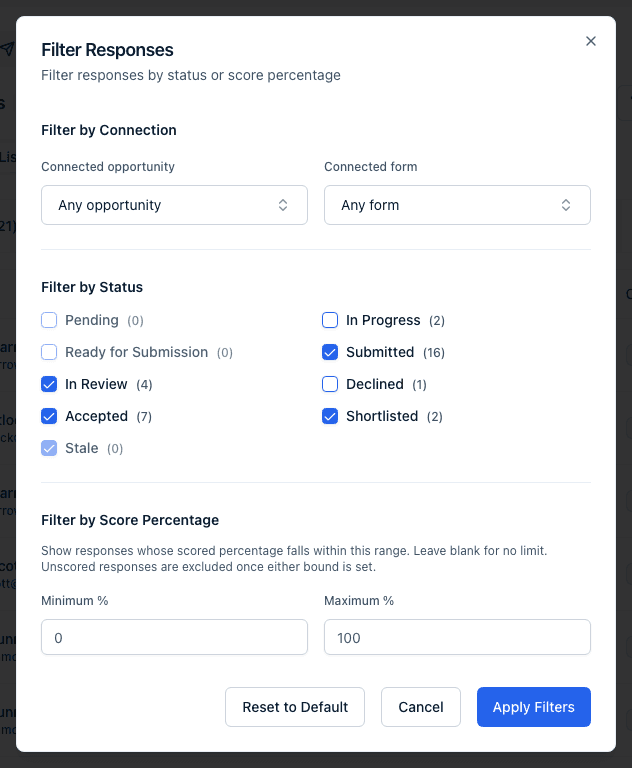
Open Filter on the Received tab, then use the Minimum % and Maximum % inputs under Filter by Score Percentage and click Apply Filters. Setting either bound excludes responses that haven't been scored yet. Clear both fields (or click Reset to Default) and apply again to remove the filter.
The List / Compare toggle above the Received tab's table opens Compare, which lays one form's responses out side by side, with a Score row and one row per criterion above the answers when any response to that form has been scored. It asks you to choose a form if the list isn't filtered to one yet. See Compare responses side by side.
What happens next
- Scoring runs in the background, at most five responses at a time. When a response finishes, an in-app notification titled "Scoring complete" goes to the owner of the opportunity the response is connected to, or to the receiving account's admins when there is no connected opportunity. The score then shows in Score Overview and in the list's Score column.
- Rescoring a whole response appends a new score version rather than replacing the old one — score history is kept.
- Rescoring a single criterion is immediate: it doesn't go through the background queue and sends no notification.
- A response submitted to a scoring-enabled form is scored automatically on arrival — but only if it has no score yet. Once a score exists, scoring is only ever re-run by the Rescore with AI button, the bulk action, or an answer edit made through the AI chat.
Common questions
Q: Why wasn't a new submission scored automatically? A: One of three reasons: scoring isn't turned on for that form, the form (or the connected opportunity's override) has no criteria, or the response already had a score — automatic scoring never replaces an existing one. Use Rescore with AI to run it again deliberately.
Q: Does the AI see the whole application or only the fields I connected? A: Only the fields listed in that criterion's Connected Fields. A criterion with no connected fields is the exception — it sees every answer on the response.
Q: I set scoring criteria on the opportunity — which criteria win? A: The opportunity's. When a response is connected to an opportunity that carries a scoring-criteria override, that override replaces the form's criteria for that response.
Q: A criterion says "Failed to score this criterion due to technical error" — what now? A: The model call for that one criterion didn't come back. It shows as -1 and is left out of both the score and the maximum, so your percentage isn't dragged down by it. Click the Rescore using AI icon on that row to try it again.
Q: I selected responses and clicked Score with AI, but nothing seems to have happened. A: Scoring runs in the background rather than immediately. Read the toast — it tells you how many were queued and how many were skipped — then watch for the "Scoring complete" notification.
Q: Why don't I see a Score column on my responses list? A: It only appears once at least one response in the current list has been scored. If none of the form's responses have been scored yet, score one first from its detail page or with the bulk Score with AI action.
Q: Why can't I select more than 50 responses to score at once? A: 50 is the maximum batch size. Select 50 or fewer, run Score with AI, then repeat for the remaining responses.
Related
Last updated on