Answers Library: save and reuse answers
Save answers from a response into your Answers Library, add or edit entries by hand, and let the AI suggest them when filling out future forms.
Before you start
- You need access to the Responses area of the portal.
- The Answers Library holds reusable answers for your whole account — legal name, EIN, standard narratives, certifications — so you don't retype the same information on every form. It's separate from the responses themselves; see Received and Submitted responses for those.
Save answers from a response
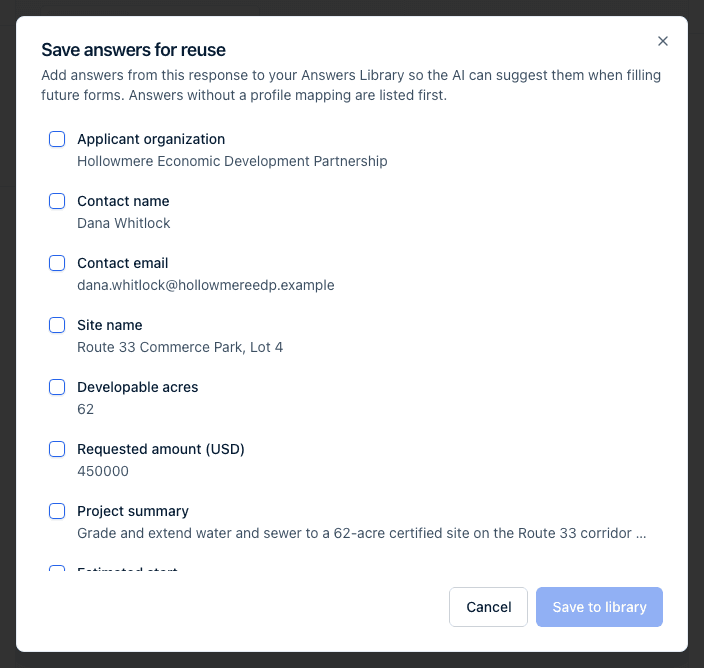
- Open a response your account submitted, from the Submitted tab of the Responses list. Save for reuse only appears on your own submissions — a response on your Received tab holds another organization's answers — and not while you're still filling one in.
- Click Save for reuse in the header.
- In the Save answers for reuse dialog, check the answers you want to keep. Nothing is checked to start with. Answers that don't map to a profile field are listed first; an answer already saved under the same label is badged In library, and one that maps to a profile field is badged Mapped.
- Click Save to library (the button counts your selection, for example Save 2 to library).
- If any of the selected answers collide with an answer that's already saved under the same label, the dialog switches to a Replace existing answers? step listing them. Click Replace to overwrite those entries with the new values, or Keep existing to close the dialog without changing them.
Save answers read from an uploaded document
When you open a response right after uploading a completed document, a banner at the top of the answers says how many answers were read — "We read 8 answers from your document" — with a Save reusable answers button. Clicking it opens the same Save answers for reuse dialog with every answer read from the file already checked, so one click on Save N to library turns a past application into autofill material. Close the banner with Not now to skip it; Save for reuse in the header does the same thing later.
Add or edit an entry by hand
- Open the Responses page and click the Answers Library tab.
- Click Add Answer, or click the pencil icon on an existing row to edit it.
- Fill in a Label (the question or prompt, e.g. "Legal entity name") and a Value (the answer to reuse), then click Add answer (or Save changes when editing).
A label can be up to 500 characters and a value up to 10,000 — longer text is refused with "Label is too long" or "Value is too long". Both are required. Adding an entry whose label matches one you already have is refused with "An answer with this label already exists" rather than overwriting it.
There's no bulk import: entries are added one at a time, or harvested from a response with Save for reuse.
Find, edit, or delete an entry
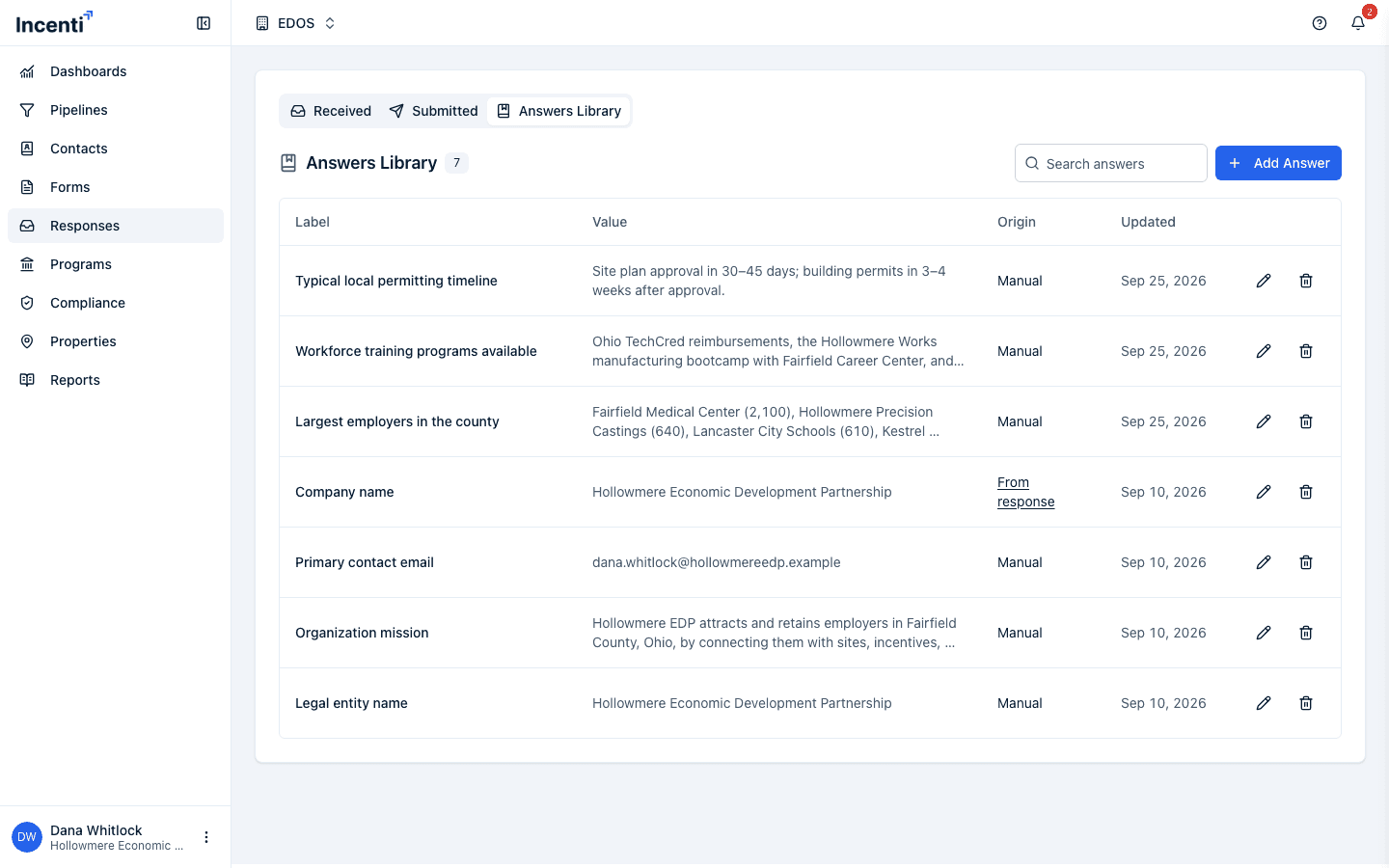
On the Answers Library tab (which shows "No saved answers yet." until you add something), use the Search answers box to filter by label. Each row shows the answer's Label, a preview of its Value, its Origin (Manual for one you typed in directly, or From response — which links back to the response it was harvested from — for one saved with Save for reuse), and when it was last Updated. Click the pencil icon to edit a row, or the trash icon to delete it; a confirmation dialog appears before the delete goes through.
Save an answer the AI wrote
When the responses AI chat applies a change to an answer, the Proposed changes card turns into a short summary with a Save "label" to library button next to each answer it wrote. Click it to keep that answer for future forms — a toast confirms "Saved to Answers Library".
If an entry with the same label already exists, the button is replaced inline by "An answer with this label already exists. Replace it?" with Replace and Keep existing buttons, exactly like the Save for reuse dialog's conflict step.
What happens next
- Saving a new entry, or confirming a replacement, updates the Answers Library immediately — the new or changed row appears in the table right away.
- Entries you save don't automatically fill anything by themselves. While you fill in a response, an empty question worded like one of your entries shows that entry's value in a Use chip underneath — one click puts it in (see Autofill a response). When you use the AI chat on a response, it can also look up your Answers Library and suggest a saved answer for a matching question; you still confirm the suggestion before it's applied, and the applied answer's source is labeled From Answers Library followed by the entry's label, so you can see where it came from.
- Entries are keyed on the wording of their label, so renaming one afterwards leaves its key on the old wording. Saving an answer later under the new wording therefore creates a second entry rather than updating the renamed one. Delete whichever you don't want.
- Deleting an entry only stops it from being suggested going forward; it doesn't change any answer already filled in on a response.
Common questions
Q: I saved an answer under the same label as one that already exists — did it overwrite the old one? A: Not without asking first. If a saved answer's label matches one you already have, the dialog shows a Replace existing answers? step and only overwrites the ones you confirm with Replace; anything you leave alone (Keep existing) is untouched.
Q: Is there a limit on how long a saved answer can be? A: Yes — a label can be up to 500 characters and a value up to 10,000. Anything longer is refused with "Label is too long" or "Value is too long".
Q: Can I import a spreadsheet of answers in bulk? A: No. Add entries one at a time with Add Answer, or harvest several at once from a response with Save for reuse.
Q: Why did saving an answer create a second entry instead of updating the old one? A: An entry is matched on the wording of its label. If you renamed an entry, it kept the key from its original wording, so a later save under the new wording is treated as a new question. Delete the duplicate you don't want.
Q: Can other people on my team see and use the answers I save? A: Yes — the Answers Library is shared across your whole account, not private to you. Anyone on your account can see, edit, or delete an entry, and the AI can suggest any saved answer regardless of who added it.
Q: Why didn't the AI use my saved answer when filling out a form? A: The AI matches saved answers to form questions by meaning, so a very differently worded question may not match. You can also always fill in an answer manually, or add a new library entry with wording closer to that question.
Q: Does deleting a library answer remove it from responses that already used it? A: No. Deleting an entry only removes it from future AI suggestions — it has no effect on any response where that answer was already filled in.
Related
Last updated on