Ask AI about your responses
Open the AI chat drawer on the responses list or a response's detail page to ask questions about responses, scores, and forms, and confirm any answer updates it proposes before they're saved.
Before you start
- You need access to the Responses area of the portal. A response is one submission of a form.
- The chat is available in four places, each scoped to what you're looking at: the Received list, the Submitted list, a received response's detail page, and a submitted response's detail page. Only the two detail pages let it propose changes to the response's answers.
- Conversations are private — no one else on your account can see your chat threads, even for the same response.
Open the chat
Click AI Chat (the button with the sparkle icon) in the page header — on the responses list or on a response's detail page — to open the AI Assistant panel on the right side of the screen.
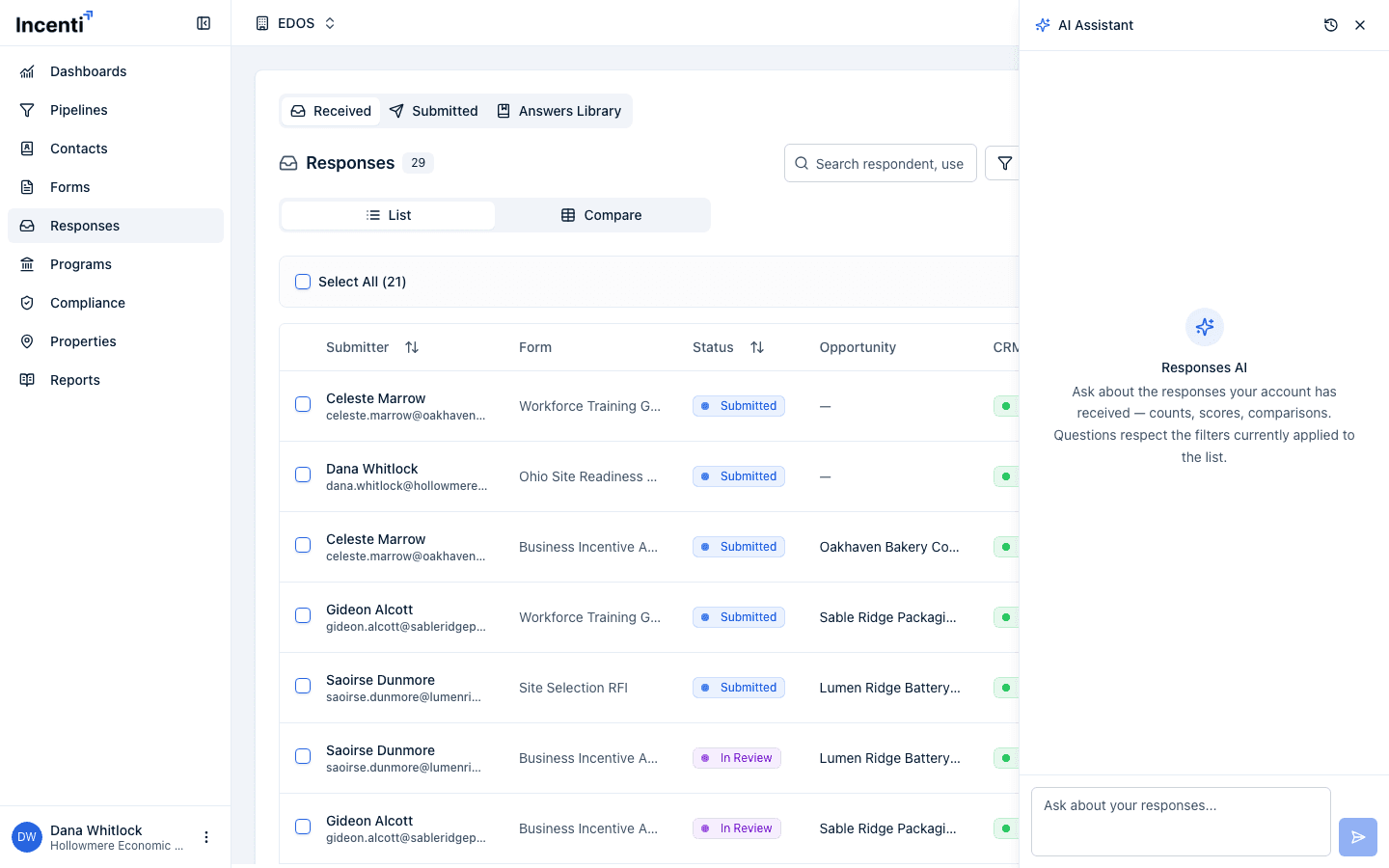
The first time you open it on a given list or response, the panel starts a new, empty conversation. Reopening it later — even after navigating away and back — picks up where you left off.
Ask a question
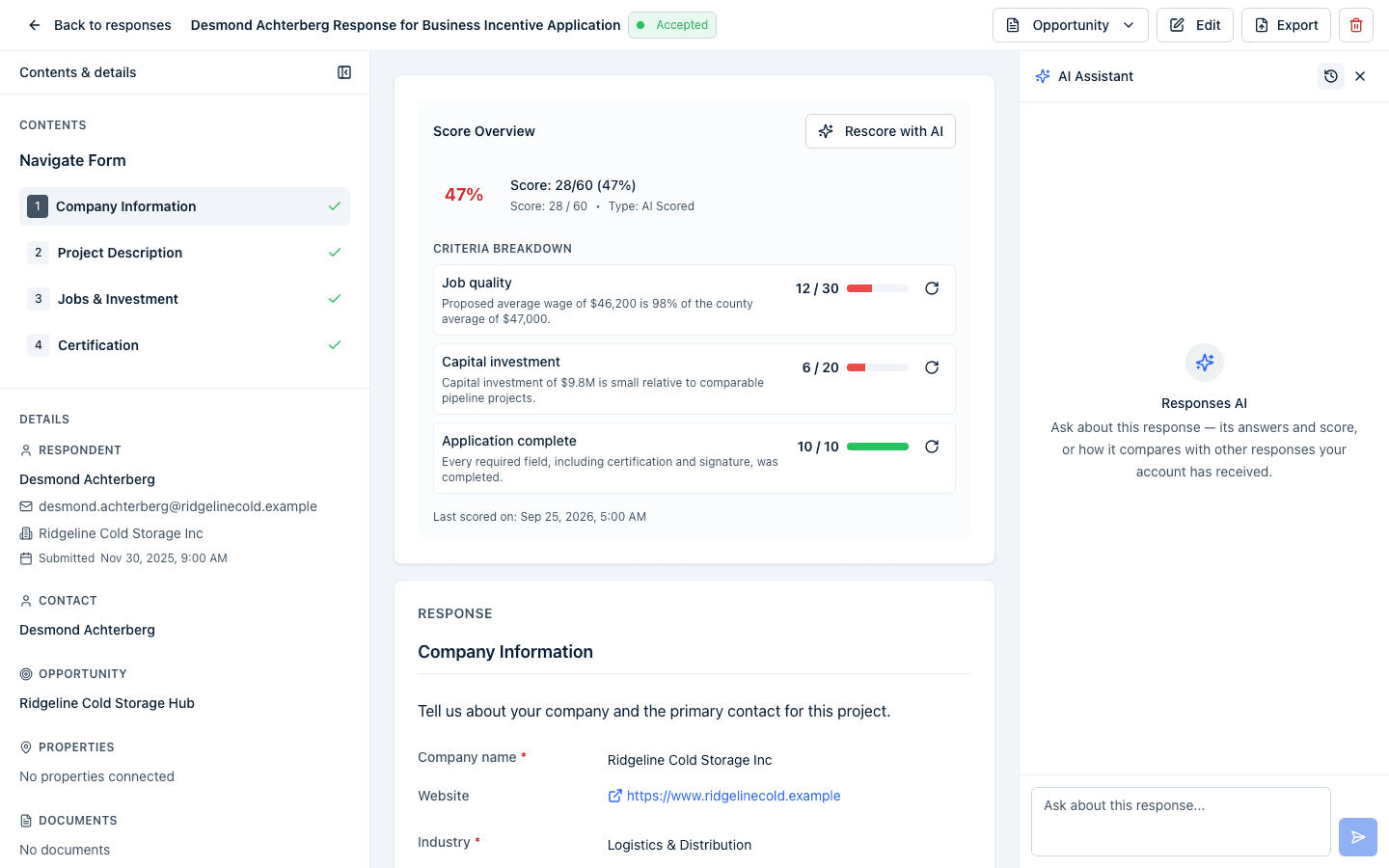
Type your question into the box at the bottom (its placeholder text hints at what you can ask — for example, Ask about your responses... on the Received list) and press Enter to send. The assistant can read responses, their scores, the forms they were submitted to, and related records like properties, programs, and incentives, and can answer questions like counts, averages, comparisons, and lookups.
What it can see depends on where you opened it:
- On the Received list, it can look at every response your account has received, honoring whatever filters are currently applied to the list (form, opportunity, status, score range, search) at the moment you send each message.
- On the Submitted list, it can only see responses your account has submitted to other accounts' forms — never other respondents' rows or account-wide statistics for someone else's form.
- On a received response's detail page, it focuses on that response and its form by default, but can also look at other responses your account has received — useful for "how does this compare to..." questions.
- On a submitted response's detail page, it can only see that one response.
While it's working, a short note under its reply (for example, Looked up: responses, response statistics) shows what it checked to answer you.
Review and confirm a proposed answer update
On a response's detail page, you can also ask the assistant to change an answer — for example, "change the employee count to 250." It never edits the response directly. Instead it proposes the change and a Proposed changes card appears, showing each field's label, its current value crossed out next to the new value, and the assistant's reason.
If the response's status is Submitted, In review, Accepted, Shortlisted, or Declined, the card also warns that "This response is past submission (status …). Confirming will change an already-submitted record." Review the diff, then click Confirm changes to save it or Reject to discard the proposal — nothing is written until you click Confirm changes. Once applied, the card collapses to a line such as "3 changes applied", with a Save "label" to library button beside each answer that was written.
What the assistant can and cannot change
The assistant edits answers, and only answers:
- Dropdown and checkbox questions accept only the exact options the form was built with — it can't invent a new choice.
- Table questions are edited cell by cell, or by adding and removing rows.
- Upload questions can't be filled from chat at all; it will tell you to attach the file yourself in Edit.
- Formula fields recalculate themselves after every edit, so it never proposes a value for one.
- It can also propose changing a question's answer type on a response created from an uploaded document — a separate Change field type card you confirm the same way. See Edit a response and fix field types.
Before writing a narrative answer from scratch it checks your Answers Library for something you've already saved, and says so when it uses one.
Whatever a respondent wrote in their answers is treated as data to read, never as instructions to follow — so a form answer that says "ignore your rules" is reported as text, not obeyed.
Autofill a response you are answering
On a submitted response, an Autofill with AI button in the page header (also offered as an Autofill this response quick action on an empty chat thread) fills in as many answers as it can from your own records, then asks you about whatever it couldn't confidently fill. See Autofill a response for that flow in full.
Start a new conversation or revisit an old one
Click the clock icon (Chat history) in the panel header to see your previous conversations for this list or response and switch back to one. Click the circular arrow icon (Clear chat) to start a new, empty conversation without losing the old one — it stays in your history.
What happens next
- Confirming a proposed answer update on a received response saves it immediately; if the form scores responses, the change also queues a new score, which appears on the page once it finishes.
- Confirming a proposed answer update on a response created from an uploaded document also regenerates the filled-in copy of that document in the background.
- The assistant cannot change a response's status, connect or disconnect it from an opportunity, or delete it — those actions stay on the response's detail page and the responses list. See Review a response for those.
- Sending more than 20 messages in a minute is temporarily blocked with "Too many requests" — wait a moment and send again.
Common questions
Q: Can the AI change a response's status or delete it for me? A: No. The chat can only propose answer updates on a response's detail page, which you must confirm. Status changes, opportunity connections, and deletion are only available from the response's detail page or the responses list, not from chat.
Q: Will the assistant see other companies' responses if I ask about them? A: No. On the Submitted list and on a submitted response's detail page, it can only see your own account's submissions — it will tell you a question about other respondents or another form's overall statistics is outside its scope. On the Received list and a received response's detail page, it can see every response your account has received, since your account owns those forms.
Q: I asked it to change an answer, but nothing happened — why? A: A proposed change only takes effect once you click Confirm changes on the Proposed changes card. If you click Reject instead, or leave the card without responding, nothing is saved.
Q: Can the AI fill in a table or attach a file for me? A: It can fill a table — cell by cell, and it can add or remove rows. It cannot attach a file: upload questions have to be answered from Edit on the response.
Q: Why did it refuse to put my own wording into a dropdown? A: Dropdown and checkbox questions only accept the exact options the form was built with. Pick one of those, or ask the form's owner to add the option you need.
Q: I got "Too many requests" — what happened? A: There's a limit of 20 chat messages a minute per person across all of Incenti's assistants. Wait a minute and carry on.
Q: Are my chat conversations visible to other people on my account? A: No. Chat threads are private to you — even another admin on the same account looking at the same response starts their own separate conversation.
Related
Last updated on