Form scoring criteria and AI scoring
Turn on scoring for a form, define the criteria AI uses to evaluate answers, and run Score with AI on individual or multiple responses from Responses.
Before you start
- You need a form already created — open it from Forms to reach the builder. Scoring is configured per form, not account-wide.
- Scoring criteria are set from the Settings tab. This page covers turning scoring on, defining criteria, and running scoring from Responses; for everything else you can do on a response's detail page, see Review a response.
Steps
Turn on scoring for a form
- Open the form and switch to the Settings tab.
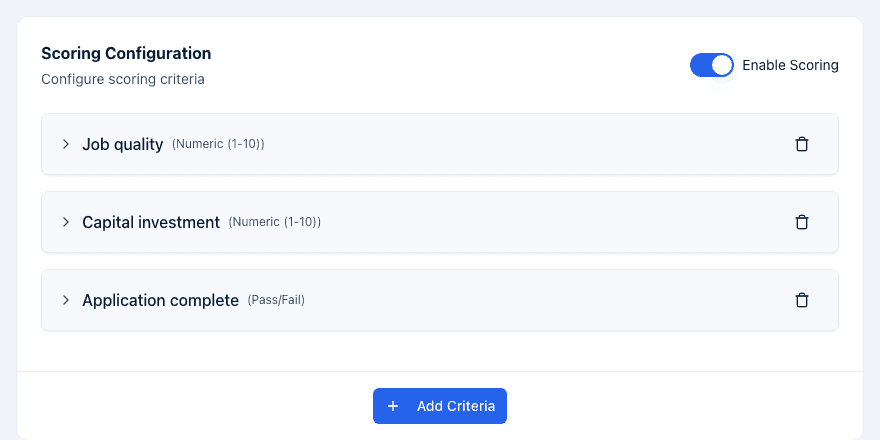
- In the Scoring Configuration section, turn on Enable Scoring.
Define a criterion
- With scoring enabled, click Add Criteria. A new, expanded criterion card appears.
- Fill in Criterion Name* and, optionally, a Description.
- Under Connected Fields, optionally choose which form fields this criterion should evaluate. This is optional — a criterion can also judge the response as a whole.
- Choose a Scoring Type: Pass/Fail or Numeric (1-10). Either way the raw score is on a 0 to 10 scale — Pass/Fail simply awards 10 or 0.
- Choose a Weight: Low (0.5x), Medium (1x), High (1.5x), or Critical (2x). The weight multiplies both the criterion's raw score and its maximum, so a Critical criterion counts twice as much towards the response's overall score as a Medium one, and four times as much as a Low one.
- Write the AI Prompt* — instructions telling the AI how to evaluate this criterion (up to 1,000 characters). This is what the AI actually reads when scoring, so be specific.
- Click a criterion's header row to collapse or expand it. Use the trash icon on a criterion's header to delete it.
You can also add or edit scoring criteria from a single field: open the field on the canvas, expand its Scoring section in Field Details, and use New Criterion to create one scoped to that field, or Add to Existing to connect the field to a criterion you already defined.
How the score is calculated
- The AI scores each criterion from 0 to 10. A Pass/Fail criterion gets 10 or 0 and nothing in between; a Numeric (1-10) criterion gets a whole number in that range. The label says 1-10, but a zero is possible.
- Each criterion's score and its maximum are both multiplied by its Weight.
- The overall score is the sum of the weighted scores over the sum of the weighted maximums, shown as a percentage — Score: total/max (percentage%) in Score Overview.
Because both sides are multiplied, weights only ever change a criterion's share of the total; they can't push a response above 100%.
What the AI reads
For each criterion, the AI is given that criterion's AI Prompt plus the response's answers — narrowed to the fields listed in Connected Fields when you set any, and the whole response when you don't. Connecting fields is therefore how you keep a criterion focused: a "job quality" criterion that only sees the jobs and wages answers scores more consistently than one reading the entire application.
Answers a respondent wrote are always treated as information to evaluate, never as instructions to the AI.
Opportunity criteria win over the form's
If a response is linked to an opportunity that has its own scoring criteria set on it, those criteria are used instead of the form's — the form's criteria are ignored entirely for that response. Check the opportunity before wondering why a response was scored against something you don't recognise.
Save your work
There's no separate save button for scoring settings — the builder autosaves your changes shortly after you stop editing, the same as the rest of the form.
Run Score with AI on a response
- Open Responses and select a response from a scoring-enabled form.
- In the Score Overview section, click Score with AI (or Rescore with AI if the response already has a score).
- Confirm in the dialog that appears.
You can also rescore a single criterion from the criteria breakdown: click the small circular refresh icon on that criterion's row, then confirm Rescore with AI. This updates only that one criterion, and returns immediately instead of running in the background.
Score several responses at once
- On the Responses list, check the boxes next to the responses you want to score, or use Select All to select every row on the current page.
- Click Score with AI in the toolbar that appears above the table.
- Confirm in the dialog, which tells you how many responses will be scored for the first time versus rescored.
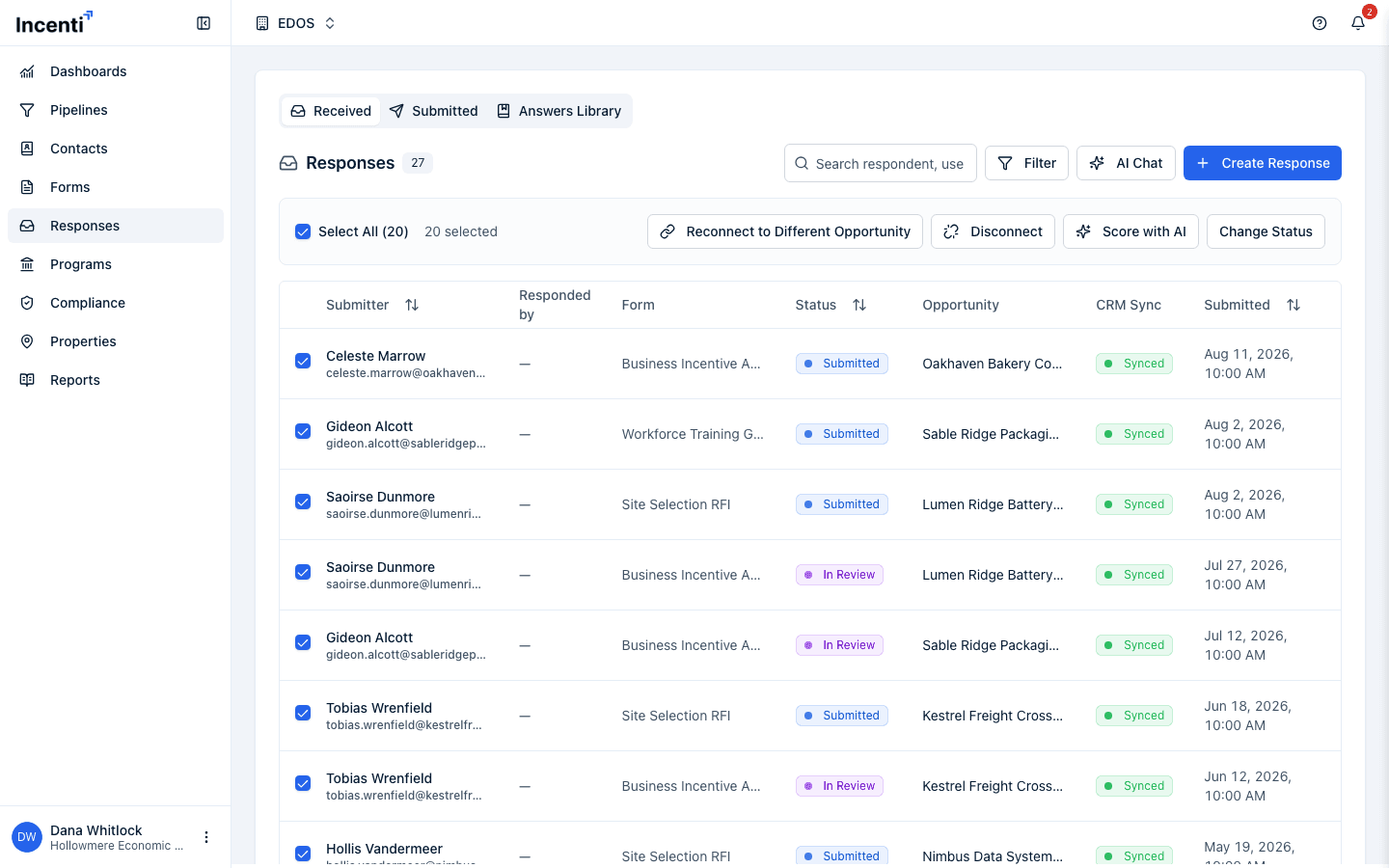
You can score at most 50 responses in one batch; select fewer and repeat if you have more.
What happens next
- Scoring runs in the background. A bell notification titled "Scoring complete" goes to the owner of the opportunity the response is linked to, or — when it isn't linked to one — to your account's admins. There's no email. The score then appears in Score Overview and in the responses list.
- Rescoring a whole response appends a new score version; the existing score history is kept.
- New submissions are scored automatically, but only once. A response is scored on submit when the form has scoring enabled and at least one criterion, and the response doesn't already have a score. Anything with an existing score is skipped, so a later rescore is always something you ask for.
- Scoring runs at most five responses at a time, so a large batch works through in waves.
- A criterion the AI couldn't score shows "Failed to score this criterion due to technical error" in the breakdown instead of a number. It's a technical failure, not a judgement about the answer — rescore that criterion with the small refresh icon on its row, or rescore the whole response.
- Rescoring a single criterion (the small refresh icon) runs immediately and updates just that criterion, without going through the background queue.
Common questions
Q: Why is the Score with AI button greyed out? A: It's disabled only while a scoring request is being queued or a specific criterion is already being rescored. If you don't see the button at all, the form doesn't have scoring enabled, or has no criteria defined yet — turn on Enable Scoring and add at least one criterion in the builder's Settings tab.
Q: Can I re-score after changing criteria? A: Yes. Click Score with AI (shown as Rescore with AI once a score exists) on the response, or select the response from the list and use the bulk Score with AI action. Rescoring appends a new score version instead of replacing the old one.
Q: I edited an answer — does the response get rescored automatically? A: Only when the edit came from the response's AI chat. Answers changed any other way don't automatically trigger a rescore — click Rescore with AI on the response afterward.
Q: What's the difference between rescoring a whole response and rescoring one criterion? A: Rescoring the whole response runs in the background and notifies you when it's done. Rescoring a single criterion (the small refresh icon next to that criterion) runs immediately and updates only that criterion's score.
Q: Does the AI see the whole application or only the fields I connected? A: Only the fields in that criterion's Connected Fields, if you set any. Leave Connected Fields empty and the criterion sees the whole response. Each criterion gets its own slice — connecting fields on one doesn't limit the others.
Q: How is the percentage calculated, and what does Critical (2x) do to the maximum? A: Each criterion is scored 0 to 10, then both that score and its maximum are multiplied by the weight. The overall score is the total of the weighted scores divided by the total of the weighted maximums, shown as a percentage. So Critical doubles a criterion's influence relative to Medium — it raises the maximum as much as the score, and can't take a response over 100%.
Q: One criterion says "Failed to score this criterion due to technical error" — what now? A: That criterion didn't come back from the AI. Click the small refresh icon on its row to rescore just that criterion, or use Rescore with AI to redo the whole response.
Q: I set scoring criteria on the opportunity — which criteria win? A: The opportunity's. When a response is linked to an opportunity that carries its own criteria, those replace the form's criteria completely for that response.
Q: Why wasn't a new submission scored automatically? A: One of three reasons: the form doesn't have Enable Scoring switched on, it has scoring on but no criteria defined, or the response already had a score — automatic scoring never overwrites an existing one.
Q: How many responses can I score at once? A: Up to 50 in a single batch. If you select more, the confirmation dialog tells you and you'll need to select fewer.
Related
Last updated on