Publish and share a form
Activate a form so it accepts responses, copy its public link or embed code, preview it, set a deadline, close it when you're done, and understand the status rules a form can and can't move through.
Before you start
- You need a form open in the builder. From the Publish tab you can see and change whether it's accepting responses and get its public link.
- A form starts out with status Draft and won't accept responses until you activate it.
Steps
Check form status
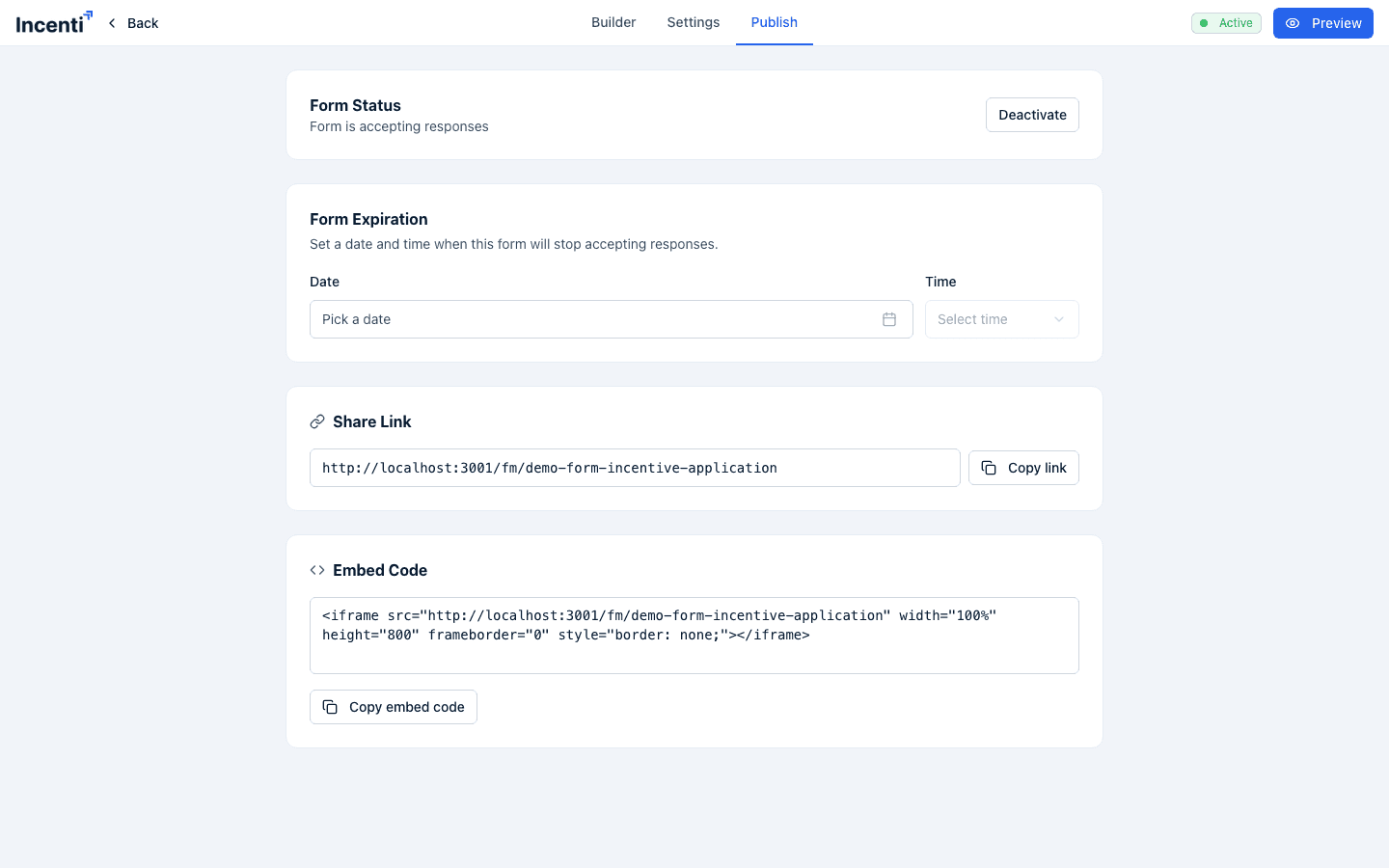
The builder header shows the form's status as a badge: Draft, Active, or Closed, plus an Archived badge if the form has been archived. On the Publish tab, the Form Status card shows whether the form "is accepting responses" or "is not accepting responses," with a button to toggle it.
Activate the form
Click Activate on the Form Status card. A confirmation dialog asks "Activate this form?" — confirm with Yes. A toast reads "Form is now accepting responses." If the form isn't ready (see below), you'll see a warning first.
Status rules
Only three moves are allowed:
- Draft → Active — activating a new form.
- Active → Closed — deactivating, or reaching the expiration.
- Closed → Active — reopening.
A form can never go back to Draft. Once you activate it, its public link exists and the only way to stop responses is to close it. Duplicate the form if you want a fresh draft to work on — see Duplicate, archive, and delete forms.
Resolve "not ready" warnings
Before you share, embed, or activate a form with unresolved issues, a dialog explains what's missing. It's headed Form isn't ready to share when something blocks you, or Heads up before you share when it's only a warning:
- Form is not active — "Activate the form on the Publish tab so it can accept responses." A blocking issue.
- Form has no fields — "Add at least one field to the form before sharing it." A blocking issue.
- Not capturing contact information — "This form isn't capturing an email, so you won't be able to follow up with respondents." A warning, not a blocker. A Set up contact fields button jumps into the builder with a request already typed into the AI assistant to add and map contact fields for you.
Blocking issues only let you Close the dialog or jump to Edit form. Warning-only issues let you proceed anyway, with a button labeled to match what you were doing — Activate anyway or Copy anyway.
Preview the form
Click Preview in the builder header (top right) to open the form exactly as a respondent would see it, in a new tab. Preview doesn't create a saved response draft, skips the "closed form" message, and lets Next through without checking required fields, so you can page through a Draft or Closed form. Submit is disabled. See Forms list: search, filter, and preview.
Get the public link or embed code
On the Publish tab, the Share Link card shows the form's public URL and
a Copy link button; the Embed Code card shows an <iframe> snippet and
a Copy embed code button for putting the form on another page. Copying
either one is blocked by the same readiness dialog described above if the form
isn't ready to share.
Send the form to a list of people
Response requests are sent from an opportunity, not from here: open the opportunity, choose Actions → Request Responses, pick the form, and build your recipient list. The same menu's Generate Form Link copies a link tied to that opportunity when you'd rather send it yourself. Full walkthrough: Request responses from contacts.
Clicking a form's row on the Forms list takes you to that form's responses, not to a form detail page with a Send button. Requests always start from an opportunity.
Set a deadline
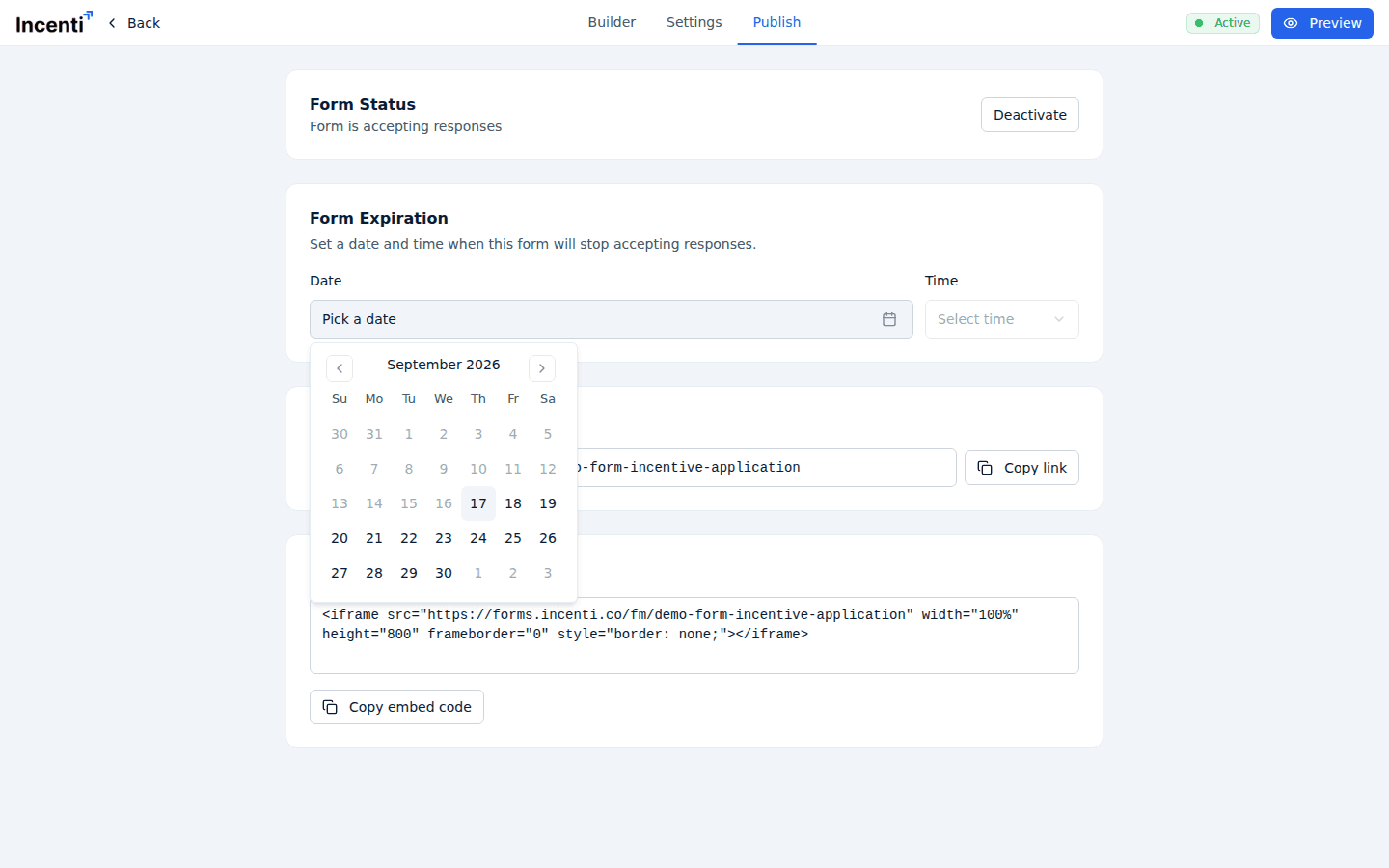
On the Publish tab, the Form Expiration card lets you "Set a date and time when this form will stop accepting responses."
- Date — a calendar with past dates disabled.
- Time — a dropdown of whole hours only, from 12:00 AM to 11:00 PM, defaulting to 5:00 PM. Hours that have already passed today aren't offered, and minutes can't be chosen at all — so the latest you can set for a given day is 11:00 PM.
- Clear — removes the expiration and leaves the form open-ended.
Close the form
Click Deactivate on the Form Status card (shown once the form is Active) to stop it accepting responses. A confirmation dialog asks "Close this form? This will stop the form from accepting new responses." Confirm with Yes and a toast reads "Form is no longer accepting responses."
What happens next
- Activating a form makes its public link live immediately — anyone with the link (or an embedded copy) can submit a response.
- A respondent who opens a Draft form's link sees "This form is not yet available" and a note that it isn't accepting responses yet, rather than the form itself.
- A respondent who opens a Closed form's link (including one that reached its expiration) sees "This form is no longer available" and a thank-you message that it's no longer accepting responses.
- The deadline takes effect for respondents at the exact minute, but the status badge in the builder only flips to Closed when an hourly sweep runs. For up to an hour after a deadline passes, the builder can still show Active while respondents already see the closed message. Nothing is wrong — the form genuinely stopped accepting responses at the deadline.
- When a form expires, your account's admins get a bell notification — "Form expired — "Form name" has expired". There's no email for it, and members who aren't admins aren't notified.
- Reopening a form whose deadline already passed clears the deadline. The form comes back with no expiration at all, so set a new one if you still want one.
- Deactivating a form doesn't delete any responses already submitted, and it doesn't touch drafts people have in progress — it only stops new submissions.
Common questions
Q: What's the difference between Draft, Active, and Closed? A: Draft is the starting status — the form isn't public yet. Active means the form is accepting responses at its public link. Closed means the form existed and may have collected responses before, but isn't accepting new ones now (including once its expiration date passes).
Q: Can I put a form back to Draft? A: No. The only moves are Draft to Active, Active to Closed, and Closed back to Active. If you need a clean draft, duplicate the form — the copy starts as a Draft with its own link.
Q: Can I set a deadline at 11:59 PM? A: No. The Time dropdown offers whole hours only, so the latest option for a given day is 11:00 PM. Pick 12:00 AM the following day if you want to run to the end of the day.
Q: My deadline passed but the form still says Active in Incenti — why? A: Respondents are cut off at the exact minute, but the status badge is updated by a sweep that runs once an hour, so it can lag by up to an hour. Open the public link and you'll see the closed message.
Q: I reopened an expired form — why is my deadline gone? A: Reactivating a form whose deadline had already passed clears the expiration, so the form doesn't immediately close again. Set a new deadline on the Publish tab if you want one.
Q: Who is told when a form expires? A: Your account's admins get a bell notification titled "Form expired". Nobody gets an email, and respondents aren't told anything — they just see the "no longer available" message.
Q: Why does the builder open read-only after I publish? A: Once a form is Active, opening it from the Forms list shows a "This form is live" notice and ignores clicks on the canvas until you press Edit form. That keeps an accidental click from changing a form people are filling in. To see submissions, click the row's Submissions cell; to email the form to people, use an opportunity's Actions → Request Responses.
Q: Can I customize the thank-you message or redirect people after they submit? A: No. Every submitted form shows the same "Thank you!" confirmation, and there is no redirect option.
Q: Can I put my logo and colours on the public form? A: Your account's logo appears at the top of the form when one is set on your account. There's no per-form branding beyond that.
Q: Can I still share or copy the link for a form that isn't ready? A: If the only problem is that the form isn't capturing contact information, yes — you'll see a warning and an "anyway" option to proceed. If the form has no fields or isn't active yet, those are blocking issues and you'll need to fix them first.
Related
Last updated on