Contacts and organizations
Find, create, and manage the contacts and organizations your account works with — including linking contacts to an organization, setting a primary contact, adding custom fields and addresses, and deleting a record.
Before you start
- Contacts belong to your account and everyone on your account can see, create, and edit them — there's no per-user ownership, and admins and members have the same access here.
- An organization is a company, agency, or other entity that one or more contacts belong to (older parts of the app call an organization a "contact group").
- Some contacts and organizations are shared into your account by Incenti. They carry an Incenti Contact or Incenti Organization badge, and their detail page has no Actions button at all — you can't edit or delete them, only view and tag them.
Steps
Find a contact
Open Contacts in the sidebar. The Contacts tab lists every contact with columns for Name, Organization, Tags, Email, Phone, Last Updated, and Created; click a column header to sort by it. A contact's title, when they have one, shows in small text under their name, and the Email and Phone cells are links that open your mail or phone app.
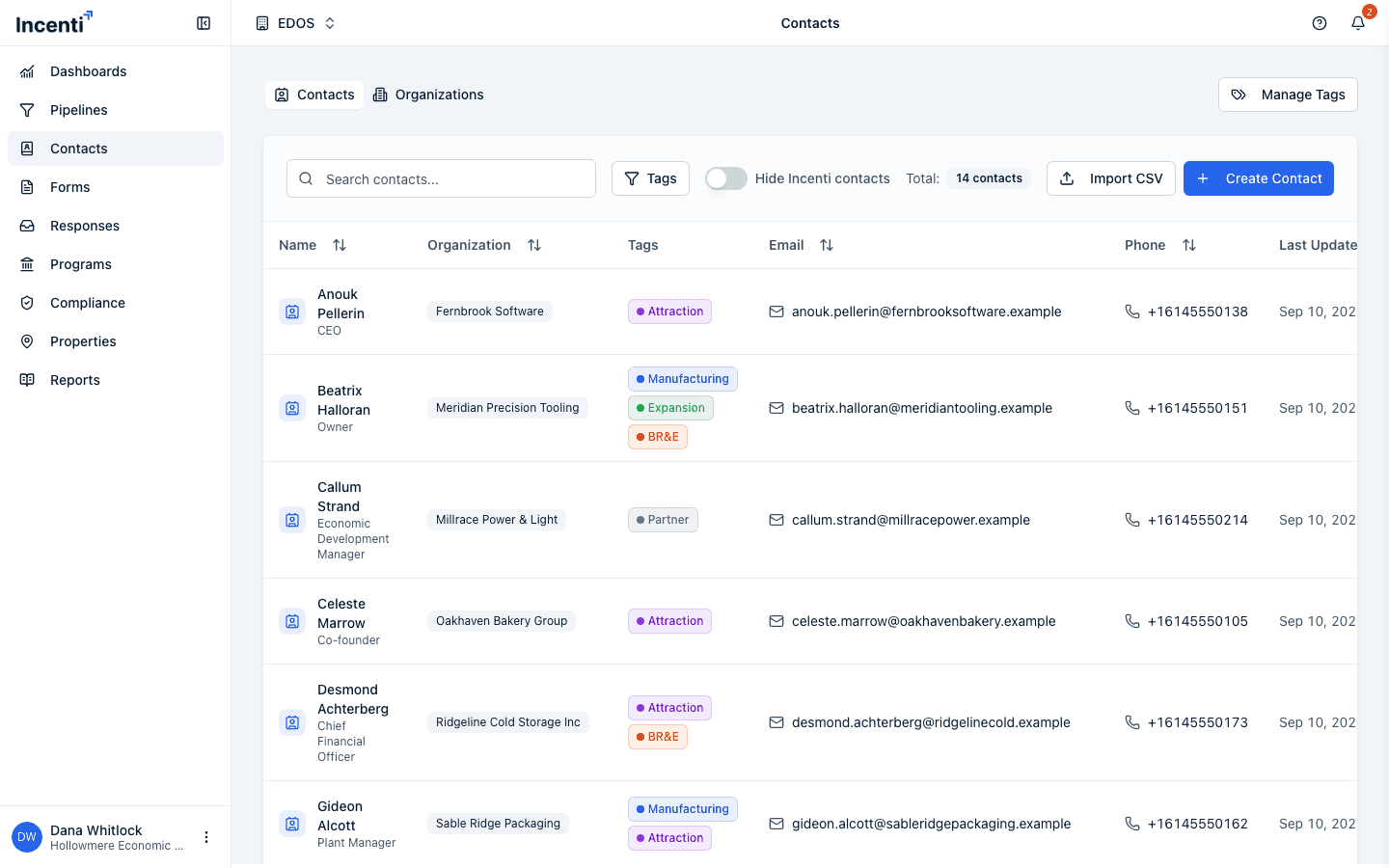
Search contacts... matches a contact's name, tag names, email, and phone. It does not match a contact's title or the organization they belong to — to find everyone at one company, open that organization and use its Contacts tab instead. The Tags filter narrows the list to contacts carrying any of the tags you check, and the Hide Incenti contacts toggle hides the shared Incenti records.
The table shows 10 contacts per page. When there's more than one page, Page 1 of N with Previous and Next buttons appears under the table. The Total: badge above the table counts everything matching your search and filters, not just the current page. When nothing matches you'll see "No contacts found" with either "Try adjusting your search" or, on an empty account, "Get started by creating your first contact" and a Create Contact button.
Browse the Organizations tab
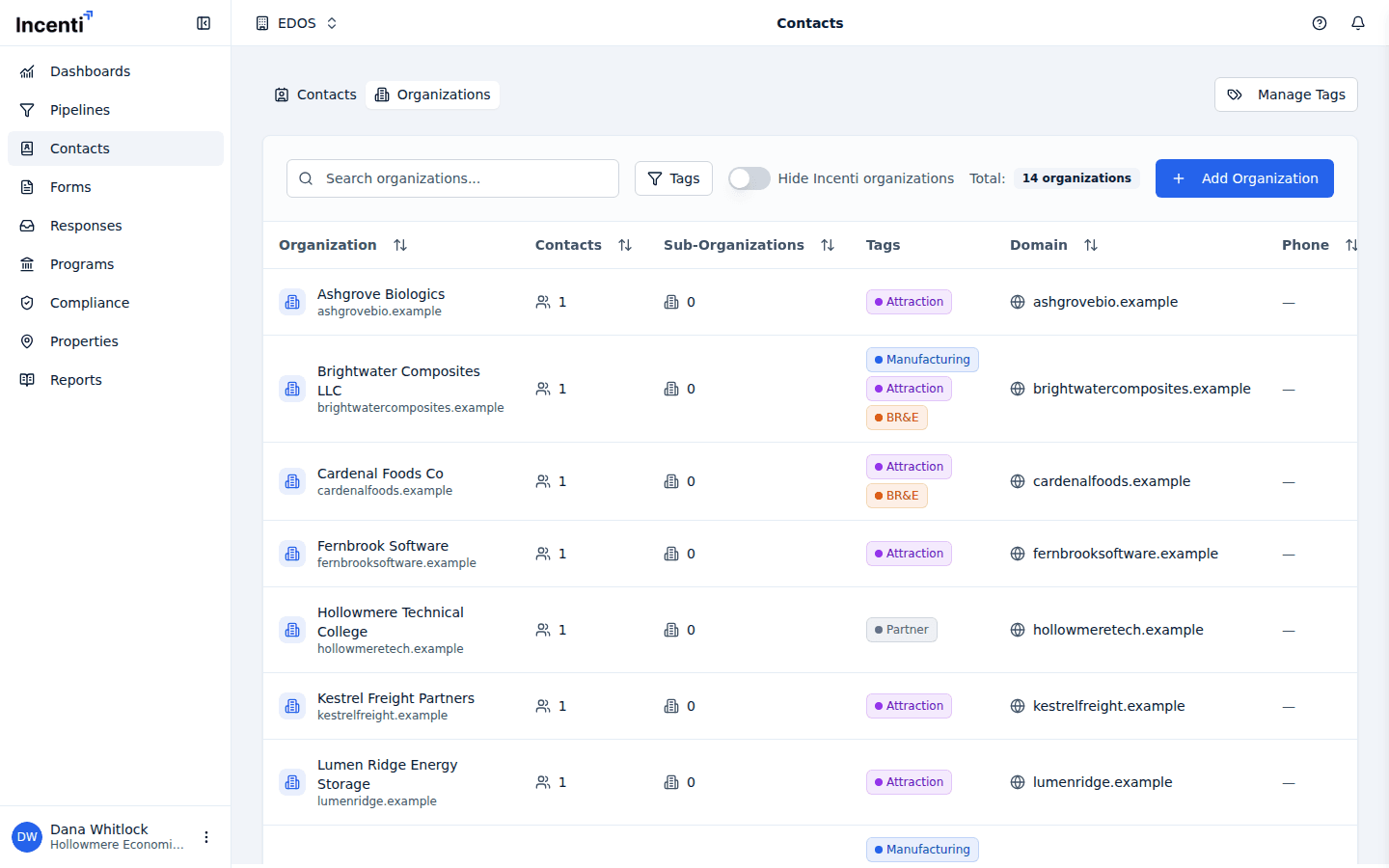
Switch to the Organizations tab for the organization list, with columns for Organization, Contacts, Sub-Organizations, Tags, Domain, Phone, Last Updated, and Created. It has its own Search organizations... box (matching name, tag names, domain, and phone), its own Tags filter, its own Hide Incenti organizations toggle, and the same 10-per-page paging. Its empty state reads "No organizations found".
Create a contact
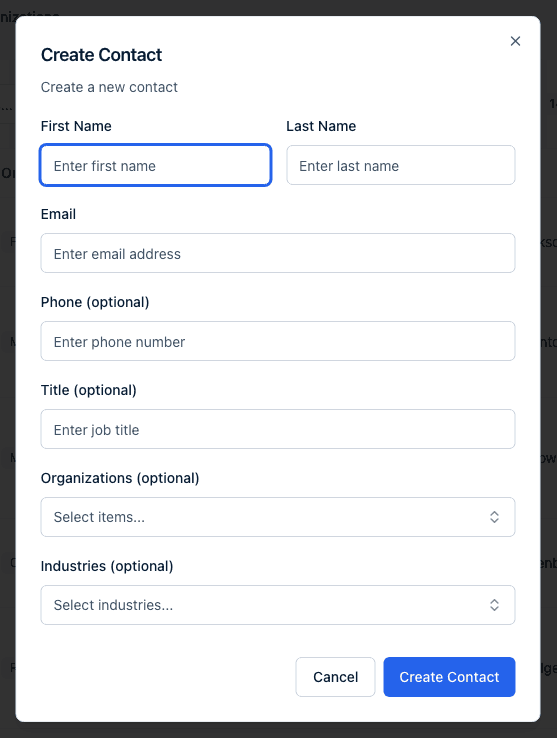
Click Create Contact. First Name, Last Name, and Email are required ("First name is required", "Last name is required", "Invalid email address"); Phone (optional), Title (optional), Organizations (optional), and Industries (optional) are not. If the industry you need isn't in the list, choose Request an Industry to send it to Incenti for review — it stays out of the picker until it's approved. Click Create Contact to save.
Whenever a contact is created — by hand, by import, or through a form response — we
also look for an organization whose Domain matches the part of the email address
after the @. If one exists, the new contact is linked to it automatically, even if
you didn't pick an organization. See
Import contacts from a CSV.
Import contacts from a CSV
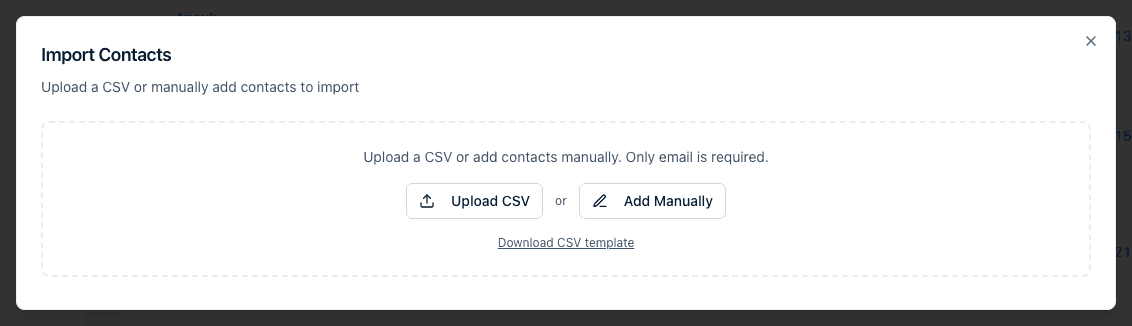
Click Import CSV to open the Import Contacts dialog, then Upload CSV to
import a spreadsheet or Add Manually to type contacts straight into the preview
table. The file must be a .csv with the exact column headers First Name, Last
Name, Email, and Organization Name, and at most 1,000 rows. Only the email
is required per row.
Import has several rules worth knowing before your first run — how rows that match an existing contact are treated, how organizations are matched, and what arrives when the job finishes. Import contacts from a CSV covers all of them.
Create an organization
From the Organizations tab, click Add Organization. Fill in Organization Name and optionally Description, Domain, Phone, Parent Organizations (to nest it under another organization as a sub-organization), and Industries, then click Create Organization. Setting Domain is worth the extra second: it's what lets new contacts at that company attach to the organization automatically.
Open a contact's detail page
Click a contact's name to open their detail page. Actions offers Edit Contact and Delete Contact — unless it's an Incenti contact, in which case there's no Actions button. The Overview tab shows:
- Contact Information — name, title, organization, email, phone, and tags (use Add Tag to add one).
- Statistics — the number of Documents and Responses on this contact.
- Industries — industries assigned to the contact.
- Details — custom fields you add yourself. Add Custom Field asks for a Field Name and a Value, both required ("Both field name and value are required"), and field names must be unique on the record ("A field with this name already exists"). Use Edit Custom Field to change one.
- Addresses — Add Address requires Address Line 1, City, State/Region, and Postal Code; Address Line 2 (optional) and Country (optional) aren't required. Pick an Address Type of Main, Mailing, Billing, or Other. Deleting an address asks you to confirm and can't be undone.
- Properties — shown only when the contact is connected, through a submitted response, to one or more properties in your properties module; it lists them on a small map.
The Documents tab holds files uploaded for the contact, and the Responses tab lists the form responses this contact submitted with their status and submission date ("Never" when a response hasn't been submitted yet). A contact's notes appear in their own card — see Notes — and tags work the same way here as everywhere else in the app — see Tags.
Open an organization's detail page
Click an organization's name to open its detail page. Actions offers Edit Organization and Delete Organization. The Overview tab shows Organization Information (name, domain, tags), a Primary Contact card, Statistics (counts of contacts, sub-organizations, and documents), Industries, Details custom fields, Addresses, and the same conditional Properties card described above.
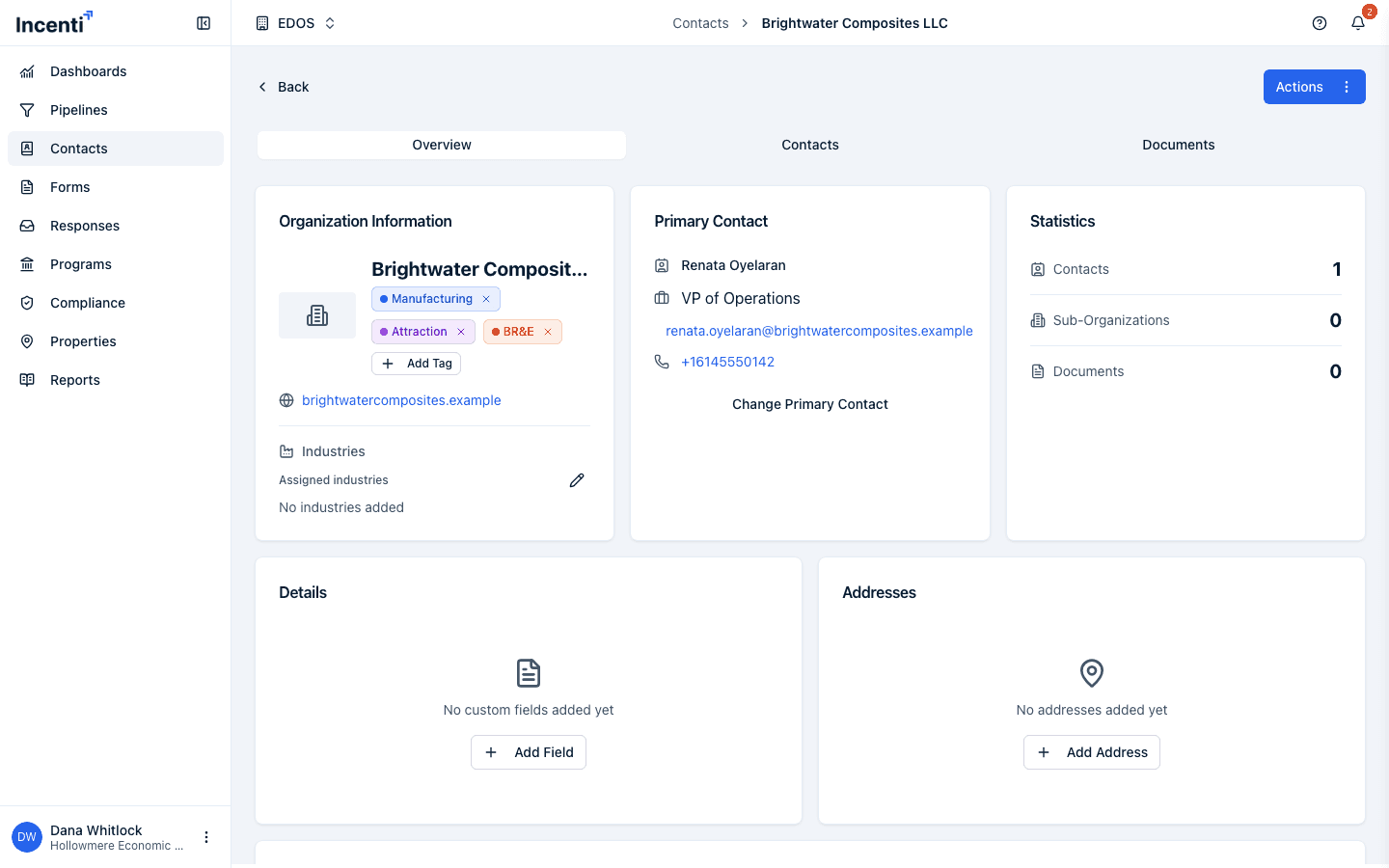
The Primary Contact card names the main point of contact at that organization. When none is set it reads "No primary contact set" with a Set Primary Contact button; once one is set, use Change Primary Contact to swap it. Either opens "Select a contact to set as the primary contact for this organization" — pick someone already linked to the organization and click Set as Primary. If the organization has no contacts yet, the dialog says "No contacts available. Add contacts to this organization first."
The Contacts tab lists everyone linked to the organization. Click Link Existing Contacts to open the Manage Contacts dialog, check or uncheck contacts, and click Save Changes (nothing changed gives you a "No changes made" message) — or click Create Contact to add a brand-new one already linked to this organization. The Documents tab holds files uploaded for the organization.
Work with sub-organizations
A Sub-Organizations tab appears on an organization's page only once it already has at least one sub-organization. To create the first one, open the organization that should sit underneath, choose Actions → Edit Organization, and add the parent under Parent Organizations.
Once the tab is there, it lists each sub-organization as a card, with Search sub-organizations..., Create Sub-Organization (a new organization already nested under this one), and Link Existing Organizations — which opens Manage Sub-Organizations ("Select or deselect organizations to link or unlink as sub-organizations") where you check and uncheck organizations and click Save Changes.
Delete a contact or organization
Delete Contact and Delete Organization ask you to confirm first. Deleting a contact removes it (and its addresses, tags, and organization links) from your lists, but it does not delete responses or opportunities the contact was already linked to — those keep their own record of the submission or relationship. Deleting an organization works the same way for its contacts and links.
The confirmation dialog says the record "will be permanently removed", but a delete is really a hide: the record stops appearing anywhere in the portal, and importing a CSV with the same email address later brings the same contact back, with its original name and history, rather than creating a new one. There's no Restore button in the portal — contact support if you need a deleted record back and can't re-import it.
What happens next
- A CSV import runs in the background. You'll see "Import started — you'll be notified when complete" right away, contacts appear in the list as the job works through the rows, and when it finishes you get both a bell notification ("Import Complete: N of M processed") and an email listing any rows that failed and why.
- Deleting a contact or organization takes effect immediately for everyone on your account.
- Creating a contact whose email domain matches an organization's Domain links the two straight away, with no further confirmation.
Common questions
Q: Why can't I find a contact by their job title or company name? A: The contacts search only matches name, tags, email, and phone. Titles and organizations aren't searched, even though both are shown in the table. To see everyone at a company, open the Organizations tab, open the organization, and use its Contacts tab.
Q: A contact I never linked to anything is showing under an organization — why?
A: Contacts are matched to organizations by email domain. If an organization has its
Domain set to example.com, every contact created with an @example.com address
is linked to it automatically. Open the contact, choose Actions → Edit
Contact, and change the Organizations field if that's not what you want.
Q: I see contacts with an "Incenti Contact" badge that I didn't create. What are those? A: They're shared into your account by Incenti and are read-only — you can view and tag them, but their page has no Actions button, so there's nothing to edit or delete. Use the Hide Incenti contacts toggle above the contacts table if you'd rather only see contacts your own account added.
Q: Can I import organizations from a CSV too? A: Not on their own, but the contact import creates them for you from the Organization Name column. Organizations with no contact to attach are added one at a time with Add Organization. See Import contacts from a CSV.
Q: A contact I deleted came back. How? A: Someone imported a CSV containing that email address. An import restores a previously deleted contact instead of creating a second one, so a stale spreadsheet can bring back records you cleaned up.
Q: How do I move a contact to a different organization? A: Open the contact, choose Actions → Edit Contact, and change the Organizations field — remove the old organization and pick the new one. You can also do it from the organization side with Link Existing Contacts on the organization's Contacts tab.
Related
Last updated on