Notifications and the bell
Read updates from the bell in the header, use the Notifications page's Inbox and Archived tabs, mark items read, archive them, and see which events notify you and which also send email.
Before you start
- Notifications are personal: what you see and mark read is yours only, and does not change what teammates see.
- The bell is in the top header on every page, so you don't need to be on the Notifications page to check it.
Read a notification
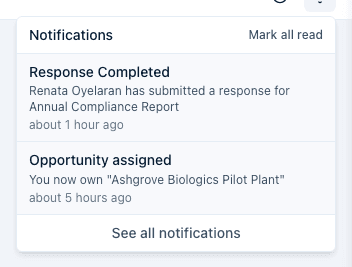
- Select the bell icon in the header. A red badge on the bell shows your unread count (99+ once you pass 99); the badge updates on its own as new notifications arrive, without a page refresh.
- The popover lists your unread notifications, each with a title, an optional message, and how long ago it happened. Opening it does not mark anything read — the list stays as it is until you act on it.
- Select a notification to open it. If it links to a related item — a response, an opportunity (a project in your pipeline), a task — you're taken there, and that one item is marked read and removed from this list.
- Select Mark all read at the top of the popover to clear every unread item at once without opening them.
- Select See all notifications at the bottom to open the full Notifications page. When you have nothing unread, the popover reads "You're all caught up / No new notifications."
The Notifications page
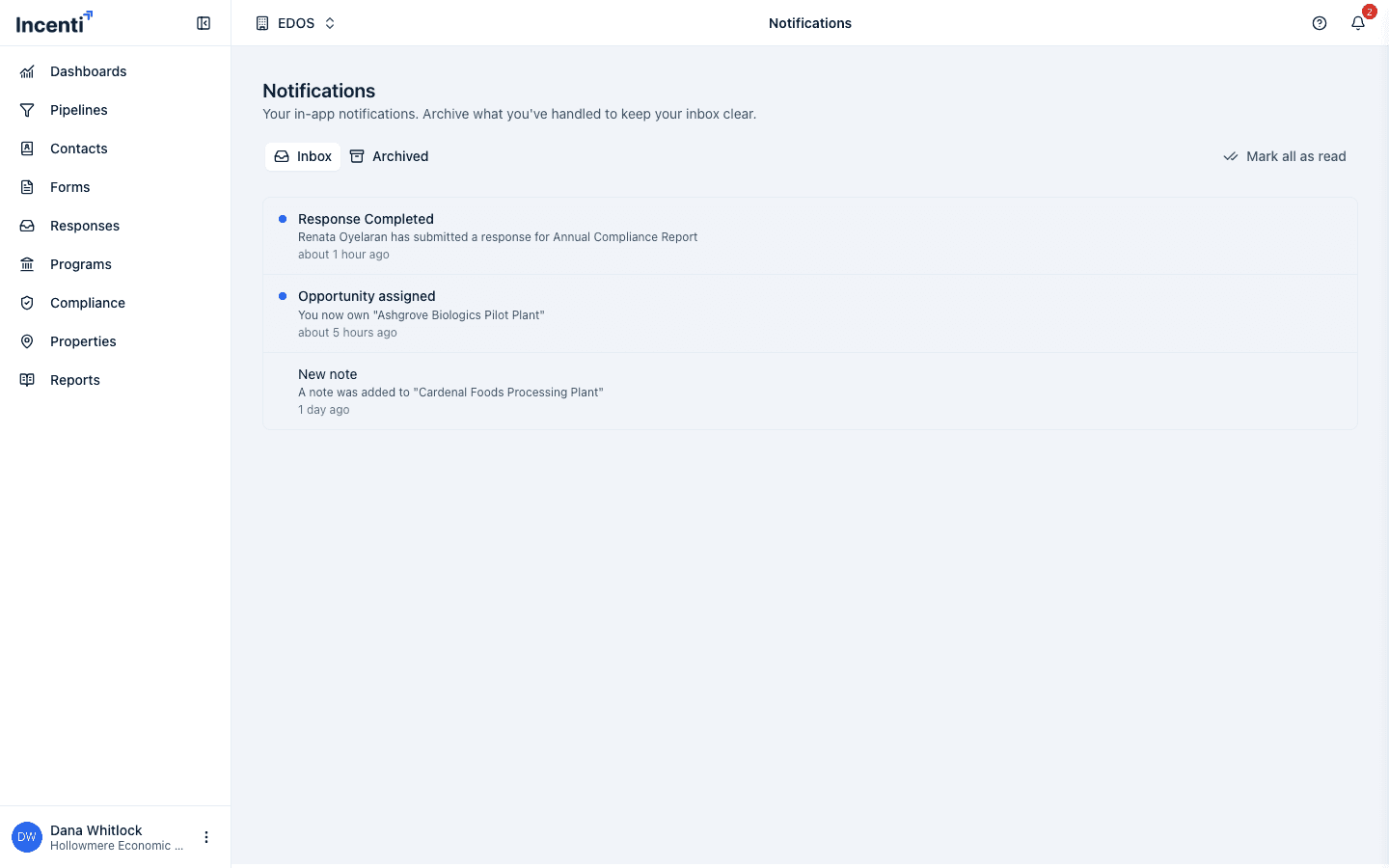
The Notifications page shows every notification you've received, not just the unread ones from the bell. It has two tabs:
- Inbox — every notification you haven't archived, read or unread. Unread rows are shaded and marked with a blue dot.
- Archived — notifications you've archived. They stay here so you can find them again later.
On this page:
- Selecting a row with a link opens it and marks it read, the same as the bell.
- Mark all as read, shown whenever your Inbox has unread items, marks every Inbox notification read without opening them.
- Hover a row and select the archive icon to move it from Inbox to Archived. In Archived, the same icon restores it back to Inbox.
- Select Load more at the bottom of a tab to fetch older notifications.
Which events send a notification
| You get a notification when… | Who receives it | Also emailed? |
|---|---|---|
| Someone submits a form response | Everyone on the form's account who has signed in at least once | Yes |
| A teammate signs in for the first time | Account admins | No |
| A task is assigned or reassigned to you | The assignee | No |
| A task you reported is marked complete | The task's reporter | No |
| You're set as (or changed to) an opportunity's owner | The new owner | No |
| An opportunity's status changes through Edit Opportunity | The opportunity's owner | No |
| A document is added to your opportunity | The opportunity's owner | No |
| A note is added to your opportunity | The opportunity's owner | No |
| AI scoring finishes on a response | The connected opportunity's owner, or the account admins when there is none | No |
| A response is accepted, shortlisted, or declined | The connected opportunity's owner, or the account admins | No, but the applicant is emailed |
| A form reaches its expiration and closes | Account admins | No |
| An opportunity enters Compliance for the first time | The opportunity's owner | No |
| A product reaches its user limit | Account admins | Yes |
| A document you uploaded is turned into a form and is ready to answer | The person who uploaded it | Yes |
| An Insights report is generated | Everyone on the account with the Insights product | No |
| A batch of response requests finishes sending | The person who sent it | Yes |
| A batch of response status updates finishes sending | The person who sent it | Yes |
The person who takes the action is never notified about their own action, with one exception: the delivery summaries above are receipts for a batch you started yourself, so they do come back to you.
A response notification goes to teammates who have signed in at least once — someone invited but not yet signed in gets nothing until their first sign-in.
Notifications you'll never see on the bell
Some emails never create a bell notification at all: your sign-in link and invitation, the response requests and status updates sent to people outside your account, and the "Contact Import Complete" summary. The full list of emails is on Emails Incenti sends.
What happens next
- Archiving only changes which tab a notification is in — it is never deleted, and you can restore it from Archived at any time. There is no way to delete a notification and no automatic clean-up, so your archive keeps everything.
- Read and archived state is per user. If a notification goes to several teammates (for example, a completed response), each person's read and archive state is independent.
- Where an event sends both an email and a bell notification, the two arrive separately; reading one does not mark the other.
- The bell refreshes on its own about once a minute and again whenever you come back to the tab, so a notification can show up a few seconds after the action that caused it.
Which notifications your products allow
Notifications follow the products granted to your user:
- With EDOS and Insights, you see everything in the table.
- With EDOS only, you see everything except the Insights report notification.
- With Insights only, you see the Insights report notification plus the two account-level ones: a teammate joining, and a product reaching its user limit.
- With no products granted yet, you see only those two account-level ones — which is why a brand-new user's bell can look almost empty.
Common questions
Q: I got an email but nothing in the bell. Why? A: A handful of emails — your sign-in and invitation links, the emails sent to applicants and contacts, and the contact-import summary — are sent directly and never create a bell notification. See Emails Incenti sends.
Q: Why did a notification arrive a minute after the thing that caused it? A: The bell reconciles with the server roughly once a minute and whenever the tab regains focus. Nothing is lost; it can just be a few seconds late.
Q: Did opening the bell mark everything read? A: No. Opening the popover only shows the list. A notification is marked read when you select it, or when you use Mark all read.
Q: Can I delete notifications? A: No — archiving is the only option, and archived notifications are kept indefinitely on the Archived tab.
Q: Can I turn notifications off? A: Not yet. There's currently no setting to opt out of specific notification types or channels — every event in the table above always creates a bell notification for its recipients.
Q: I uploaded a document to create a response and got an email. What was that? A: The scan that turns a document into a form runs in the background and can take a minute or two, so Incenti emails you and adds a bell notification when it's ready. See Create a response from a document.
Q: Why did I get "Insights report generated"? A: Someone on your account generated an Insights report. Everyone with the Insights product is notified except the person who generated it.
Q: I only ever get seat-limit notifications. Why? A: Your user probably has no products granted yet, which leaves only the two account-level notifications. Ask an Admin to check your Products. See Roles and permissions.
Q: Why did I get notified about a response I didn't submit? A: A completed form response notifies everyone on that account who has signed in before, not just the person who created the form. This is intentional so the whole team sees new activity.
Q: I archived a notification by mistake. Can I get it back? A: Yes. Open the Archived tab on the Notifications page and select the restore icon on that row to move it back to Inbox.
Related
Last updated on