Sign in to Incenti
Sign in with your work email, Google, or Microsoft account, confirm your identity from the emailed link, understand every error screen you might hit, and sign out when you're done.
Before you start
- You need an existing Incenti user account. An account admin adds new users under Users — see Invite and manage users.
- Have access to the email inbox for your Incenti account, or a Google or Microsoft account with the same email address.
- Your email address belongs to exactly one Incenti account. If you work with two organizations that both use Incenti, each needs its own address.
Steps
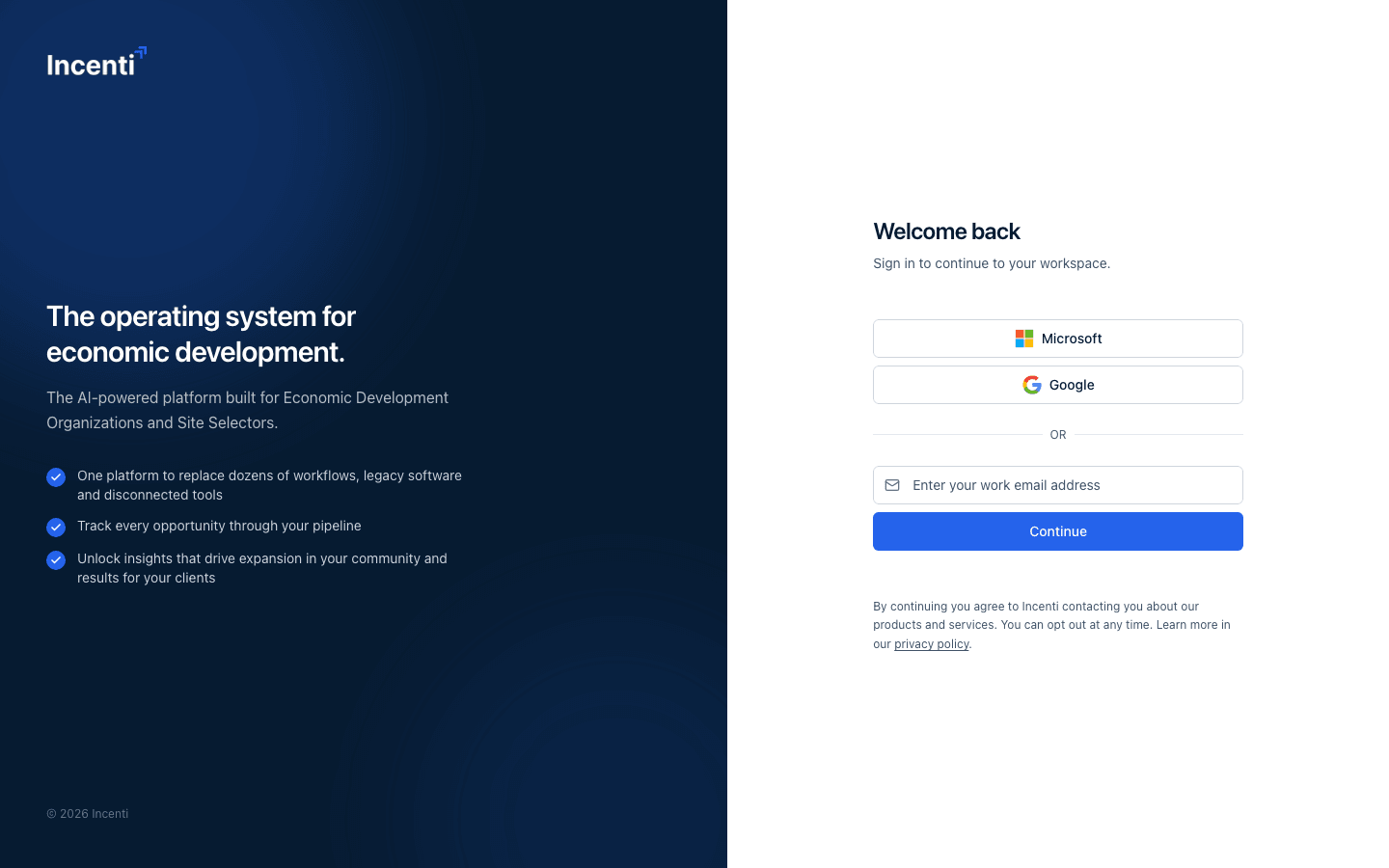
- Go to the sign-in page. You'll see two ways to continue: buttons for Microsoft and Google, and an email field under "or".
- To sign in with an email link: enter your address in Enter your work email address and select Continue.
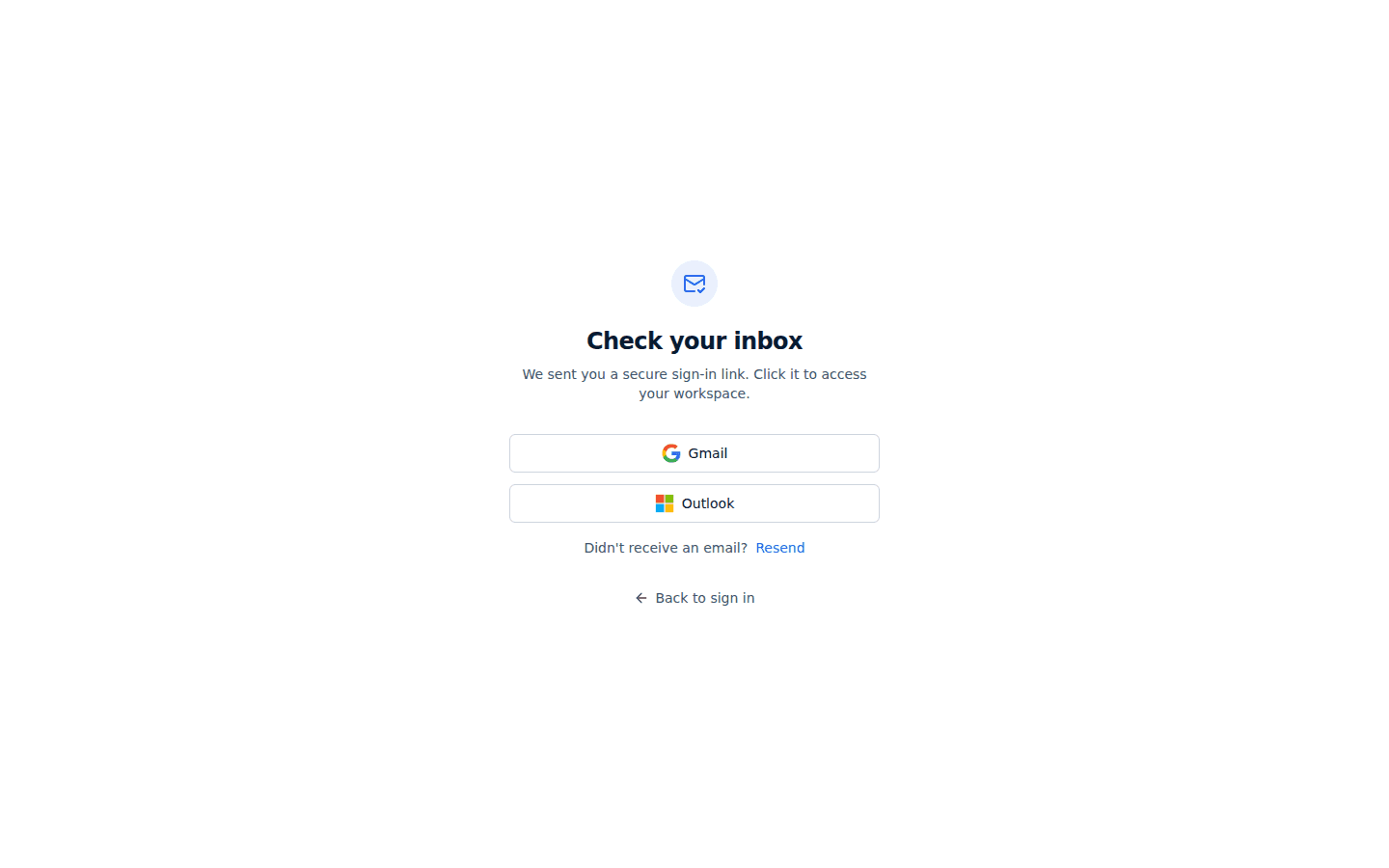
- You're taken to a Check your inbox screen that reads "We sent you a secure sign-in link. Click it to access your workspace." Open that email and click the link.
- To sign in with Microsoft or Google instead, select the matching button. You're sent to that provider's own sign-in screen, then brought back to Incenti automatically once you approve it there — no password on the Incenti side.
- If the email didn't arrive, use Resend on the Check your inbox screen. A toast confirms "Another email has been sent!"
Open the email quickly
The Check your inbox screen has two shortcuts under the message: Gmail opens a Google Mail search for recent Incenti mail in your account, and Outlook opens Outlook on the web for the address you entered. Both open in a new tab; neither is required — the link in your inbox works from any mail app.
Back to sign in at the bottom returns you to the sign-in page, which is what to use if you typed the wrong address.
How long links and sessions last
- A sign-in link is valid for 24 hours. After that, request a new one.
- Asking for another link does not cancel the previous one — any link sent in the last 24 hours still works, so treat them like passwords.
- Once you're in, you stay signed in for up to 30 days in that browser, with your access renewed about every hour in the background.
- If you opened an Incenti link while signed out, or your session expired while you were away, you are returned to that exact page after signing in.
More on this in Sessions and security.
Error screens and what they mean
| Screen | What it means | What to do |
|---|---|---|
| Access Denied (code 1000) | The link expired or has already been used, or a Google/Microsoft sign-in didn't complete | Select Try Again and request a new link |
| User Not Found (code 1001) | No Incenti user exists for that email address | Check the spelling, then ask an admin at your organization to add you |
| Account Not Yet Activated (code 1002) | Your organization's account hasn't been activated by Incenti yet | Contact Incenti support |
| User Account Disabled (code 1003) | An admin on your account has disabled your user | Ask an admin at your organization to enable you again |
You can also get an Unable to log in. message on the sign-in page itself, immediately after entering an address that no Incenti user has — that one appears before any email is sent.
Some of these screens offer a Contact Support or Contact Administrator button that opens your mail app addressed to a different domain than the one in these Knowledge Base pages. Use support@incenti.co — that is the address Incenti support monitors.
Google and Microsoft sign-in
Two extra rules apply to the provider buttons:
- The provider must report your email address as verified. If it doesn't, the sign-in is refused and you land on Access Denied.
- The address the provider returns must match an existing Incenti user. If a different address of yours is the one on your Incenti user, use that one.
What happens next
- Clicking the emailed link signs you in and takes you to the first module your account and user have access to, or back to the page you were headed for. See Welcome to Incenti.
- The first time you ever sign in, the admins on your account get a notification that you've joined.
- To sign out, open your profile menu (bottom of the sidebar) and choose Logout. You're signed out in that browser and returned to the sign-in page.
Some organizations sign in through a hosted sign-in page run for Incenti rather than the screen described above. If selecting Continue sends you to a different-looking page, that is expected; finish signing in there and you land back in Incenti.
Common questions
Q: I clicked the sign-in link but it says Access Denied. What do I do? A: The link is older than 24 hours or has already been used. Go back to the sign-in page, request a new link, and open it in the browser you want to be signed in to.
Q: How long is a sign-in link valid? A: 24 hours. Older links from earlier requests also keep working until they hit their own 24 hours, so use the most recent email.
Q: It says "Account Not Yet Activated" — what does that mean? A: Your organization's Incenti account hasn't been activated yet, so nobody on it can sign in. Email support@incenti.co.
Q: It says "User Account Disabled" — who do I contact? A: An admin on your own account. They can enable your user again from your profile. The button on that screen may open your mail app addressed to a different address than the one in these pages; Incenti support is support@incenti.co.
Q: Google says my email isn't verified and I can't get in. A: Incenti only accepts a Google or Microsoft sign-in when the provider says the address is verified. Verify it with Google or Microsoft, or sign in with the email-link option instead.
Q: Can I use one login for two organizations? A: No. Each email address belongs to exactly one Incenti account. Ask the other organization's admin to add you with a different address.
Q: I changed my email on my profile and now I can't sign in. A: Your profile email is your sign-in address, so the old one stops working as soon as you save the change. Request a sign-in link at the new address. See Update your profile and theme.
Q: How do I sign out? A: Open the user menu at the bottom of the sidebar and select Logout.
Related
Last updated on