Welcome to Incenti
An overview of the modules available in Incenti, what each one is for, where you land after signing in, and where to go next depending on what you are trying to do.
Before you start
- You need an Incenti account and to be signed in. See Sign in to Incenti.
- What you see in the sidebar depends on which products your account has and which of them are granted to you, and, for some modules, on your account type (economic development organization or site selector).
Where you land after signing in
Incenti has no separate home screen. Signing in takes you to the first module your account and your user have access to, in sidebar order:
Dashboards → Pipelines → Contacts → Chats → Forms → Responses → Programs → Compliance → Properties → Reports
So an account with Forms and Responses but no Dashboards lands on Forms. After that, Incenti does not remember where you were — signing in always goes to the first module in that order.
If none of those modules is available to you, you land on an empty page with only the sidebar and header. That is not a fault: it means no product has been granted to your user yet. Ask an admin on your account to check your Products, or contact Incenti support.
What each module does
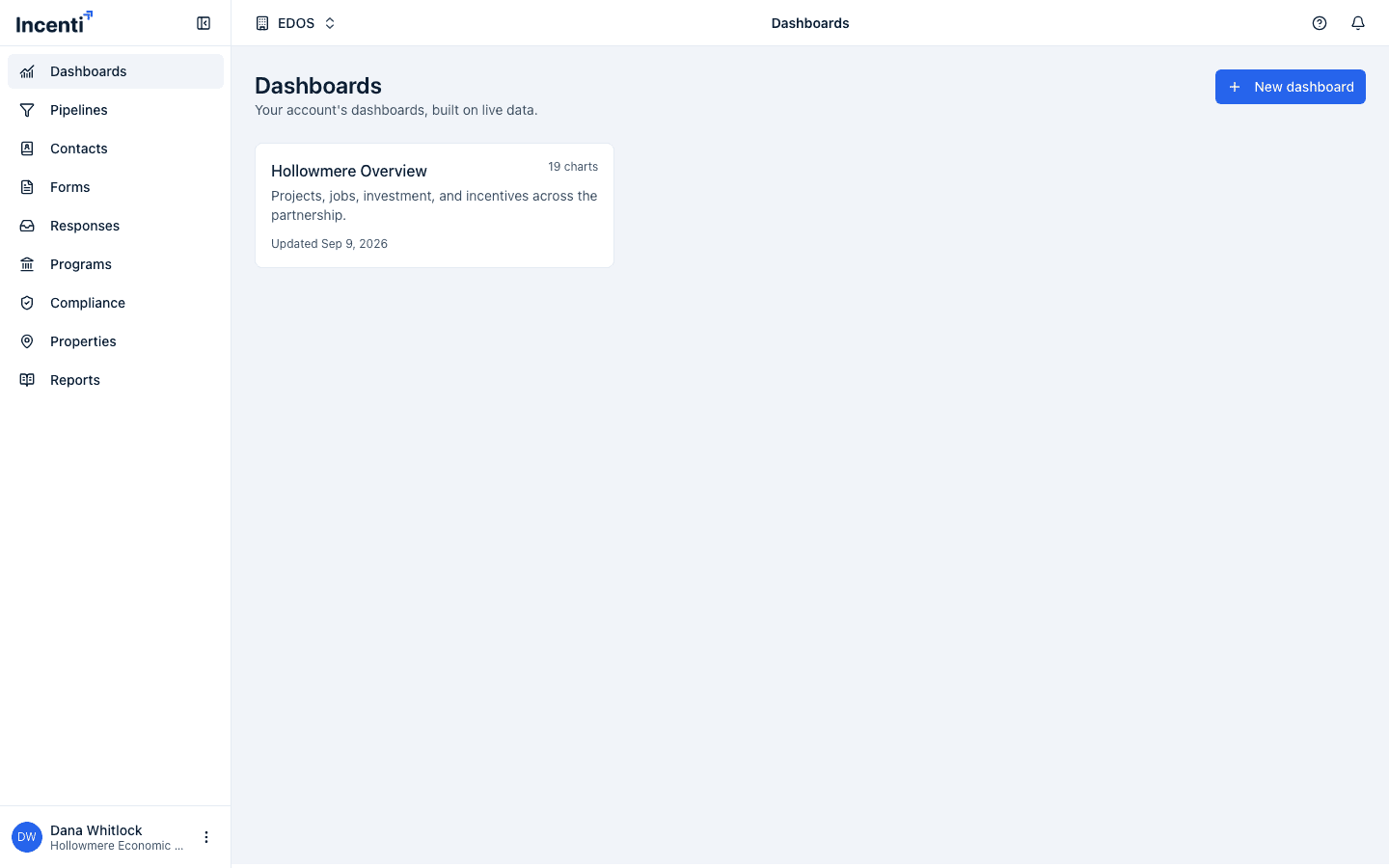
Dashboards
Charts and KPIs for your account's data. There are two experiences, and which one you get is set per account:
- Classic dashboards — a dashboard Incenti has built and connected for you. If your account has more than one, the first opens automatically and a switcher lets you change between them. See Classic dashboards.
- Dashboards 2.0 — dashboards you build yourself, with charts you add by hand or ask the assistant to build, a filter bar, and drill-down into the records behind a number. See Edit a dashboard.
Pipelines
Track opportunities through customizable pipeline stages on a board or table view.
Contacts
Keep a directory of the people and organizations you work with.
Forms
Create and publish forms — from a blank form, a template, or an uploaded document — and share them for people to fill out.
Responses
Review responses people have submitted to your forms, and start responses directly from an uploaded document.
Programs
Manage your incentive programs. Only shown on economic development organization accounts.
Reports
Build loan amortization, fiscal impact, and economic impact reports, publish them, and export each one as a PDF or a CSV. Every export is also filed as a document on your account.
Compliance and Properties
- Compliance tracks projects that have won an incentive award through their commitments.
- Properties holds the sites and buildings you market.
Chats
A data assistant you can ask questions about your account's opportunities, responses, tasks, contacts, and forms. Chats is enabled per account; if you do not see it, Incenti has not enabled it for your account yet. Contact support to ask about it.
Insights
A separate workspace for economic, demographic, and incentive data, reached from the workspace switcher in the header rather than from the sidebar. It replaces the main sidebar with its own while you are in it:
- Ask — put a question in plain language and get an answer built from the data. See Ask Insights a question.
- Explore — states, metros, counties, cities, and the 400-plus federally designated Economic Development Districts, with their metrics, scores, and maps. See Explore a location and EDD regions.
- Analyze — compare your location against competitor locations on the metrics that matter to a project. See Analyze competitors.
- Incentives — verified state incentive programs and a dataset of historical incentive awards. See Incentive intelligence.
- Reports — generate a shareable profile, comparison, or incentive landscape report for a place. See Insights reports.
Insights is a separate product from EDOS. Your account has to be entitled to it and your user has to be granted it before the workspace switcher appears.
Why don't I see a module my colleague has?
Module visibility is controlled three ways:
- What your account has purchased. Products such as EDOS and Insights are granted to your account by Incenti.
- What is granted to you. Each user is granted specific products when they are added (or afterward, from their user page), and a module only appears if a product you have access to includes it.
- What Incenti has enabled for your account. Chats and the Dashboards 2.0 experience are switched on per account.
Your account type matters too: Programs is only offered to economic development organizations.
If you expect to see a module and don't, ask your account admin to check your product access, or contact Incenti support.
Common questions
Q: Where do I start if I'm new to Incenti? A: Start with Forms in the sidebar if you need to collect information. If you're researching a location or incentive data, switch to the Insights workspace using the switcher in the header — it isn't reached from the main sidebar.
Q: I signed in and the page is blank. What's wrong? A: Signing in sends you to the first module you have access to, and a blank page means there is none — your user has no products granted yet. Ask an admin on your account to add them on your profile.
Q: Why do I see different modules than another user on my account? A: Module access is granted per user, not automatically to everyone on the account. See "Why don't I see a module my colleague has?" above.
Q: How do I switch between the main portal and Insights? A: Use the workspace switcher in the header. Insights has its own sub-navigation (Ask, Explore, Analyze, Incentives, Reports) that replaces the main sidebar while you're in it. The switcher only appears if your account and your user have the Insights product.
Q: My Dashboards page has no "New dashboard" button. Why? A: Your account is on the classic dashboards experience, where Incenti builds and connects the dashboards for you. See Classic dashboards.
Related
Last updated on