Fill out and submit a form
Open a form link, move between pages, fill in required fields, upload files, and submit — including the file limits, the validation messages you may see, and what you can change afterwards.
Before you start
- You need a link to the form, typically shared as
.../fm/{id}. You don't need an Incenti account to fill out or submit a public form. - Have any files the form asks you to upload ready — the form tells you which fields are required as you go.
Steps
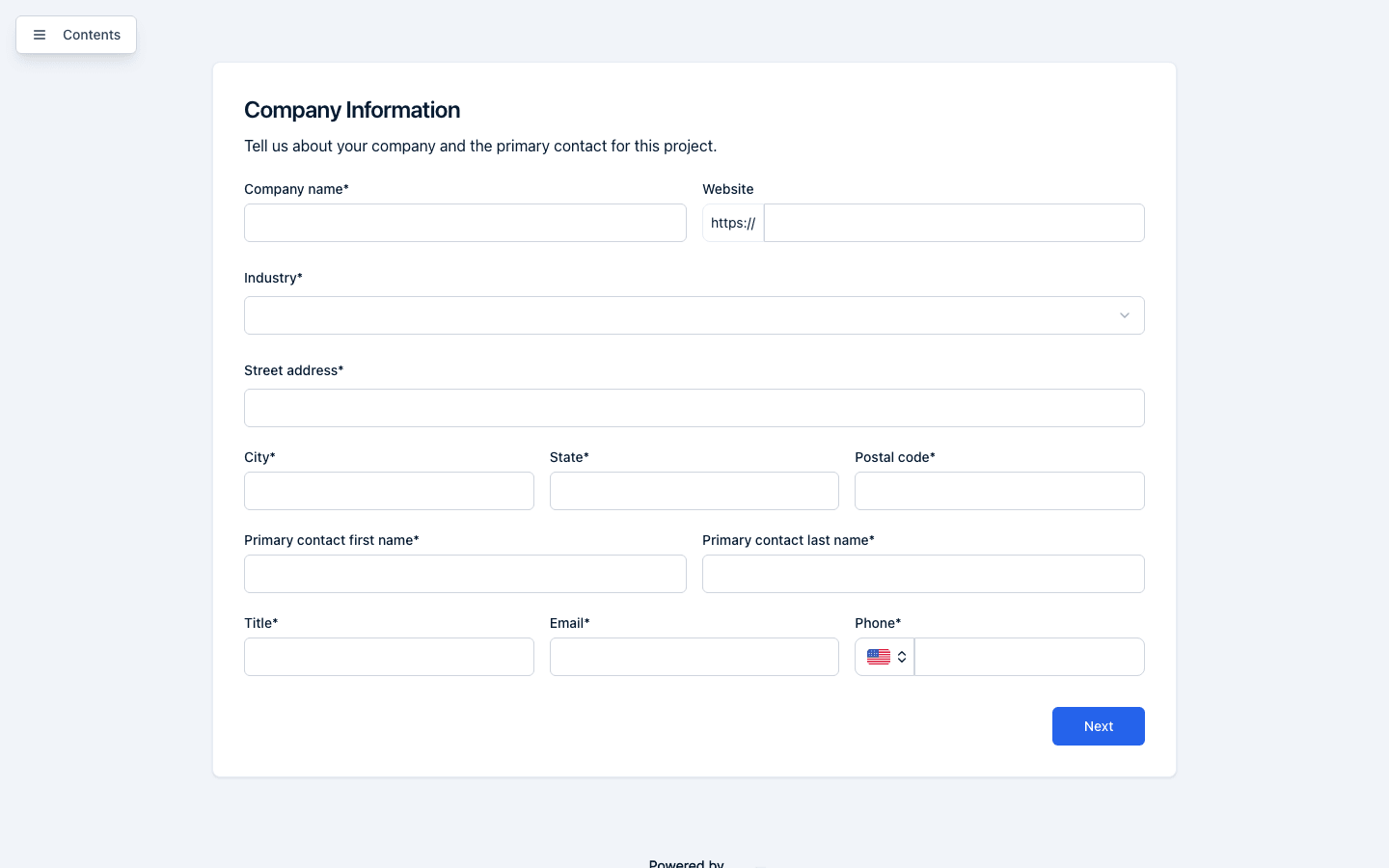
- Open the link you were sent. The form loads with the account's logo at the top (when the account has one set) and, if the form has more than one page, a Contents button you can use to jump between pages (unless the form's owner turned the table of contents off). On a narrow phone screen Contents collapses to an icon.
- Fill in the fields on the page. Required fields are marked with an asterisk after the label. As you type, your answers are periodically saved in the background — see What happens next.
- To attach a file, click Upload File on any upload field. Once a file is selected it uploads automatically; the field then shows the file's type (for example PDF) and file name, with an X button to remove it and choose a different file.
- If the form has more than one page, click Next to move forward or Previous to go back. A progress bar appears above multi-page forms once you're past the first page. Contents puts a green tick beside every page whose required fields are complete.
- On the last page, the button reads Submit instead of Next. Click it to submit your answers.
- If any required fields are still empty, a Form Validation Required dialog opens instead of submitting. It lists every incomplete field, grouped by page, with a Go to Page button next to each page — click it to jump straight there. The dialog also shows a running count, for example "3 required fields need to be completed." Click Continue Editing to close it and keep filling in the form.
Uploading files
- One file per upload question. If the organization needs several documents, the form will have several upload questions.
- Up to 25 MB per file. A larger file is refused with "This file is too large. The maximum size is 25 MB." and nothing is uploaded.
- Accepted file types: PDF, Word (
.doc,.docx), Excel (.xls,.xlsx), PowerPoint (.ppt,.pptx), OpenDocument (.odt,.ods,.odp), plain text (.txt), CSV, images (.jpg,.jpeg,.png,.gif,.bmp,.svg,.webp), and compressed archives (.zip,.7z,.rar,.tar,.gz,.tgz). Anything else is refused with "This file type isn't supported. Upload a PDF, Word, Excel, PowerPoint, OpenDocument, text, CSV, image, or compressed (zip, 7z, rar, tar, gz) file." - Two other messages mean the upload itself went wrong rather than your file being unsuitable: "The upload service is busy right now. Please try again in a moment." and "Upload failed. Check your connection and try again." Both are worth simply retrying.
- Clicking the X removes the file and deletes it — there's no undo, so you'll need to upload it again.
Validation messages you may see
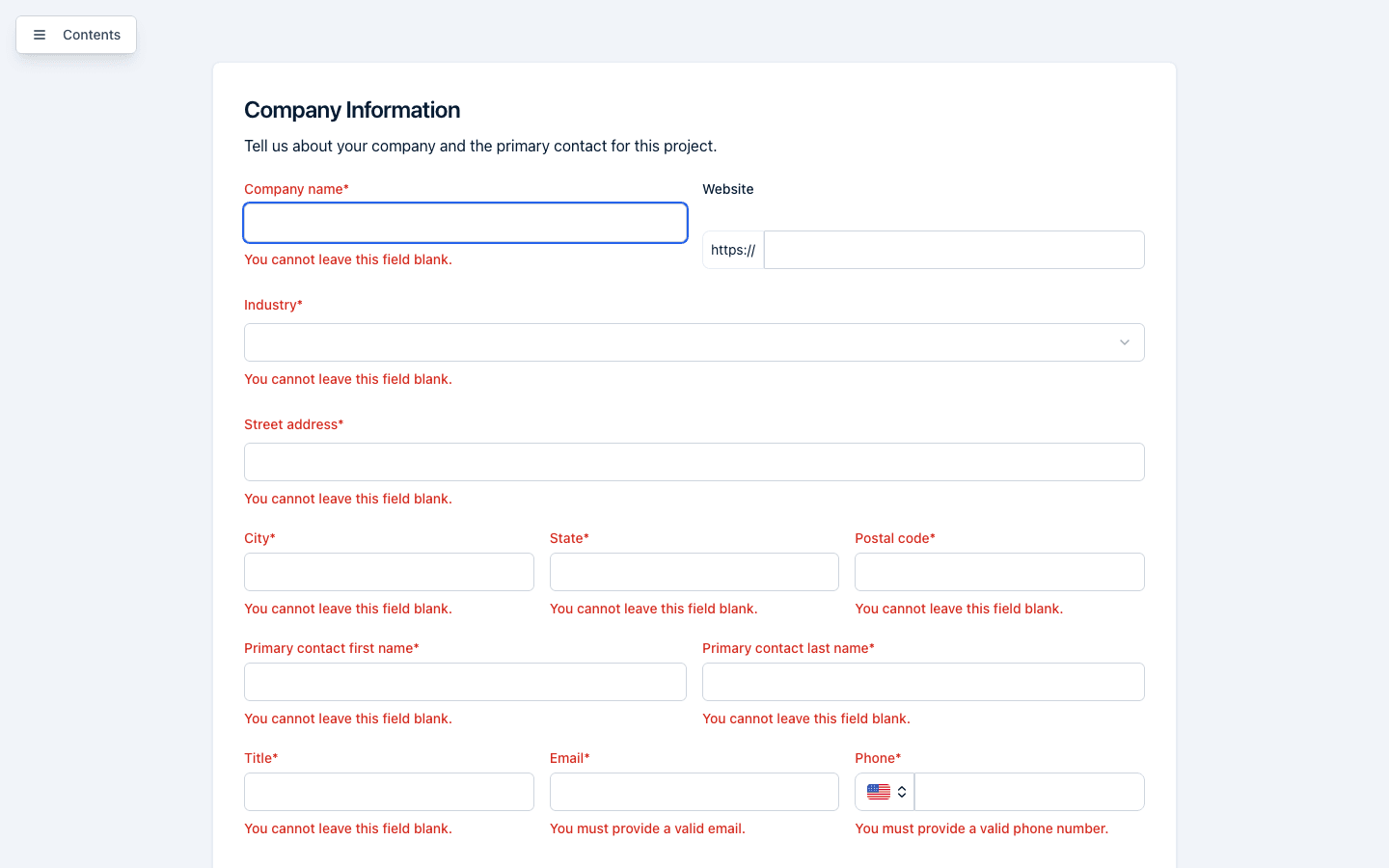
Each message appears in red directly under the field it belongs to:
| Message | What it means |
|---|---|
| You cannot leave this field blank. | A required question has no answer. |
| You must provide a valid email. | The email address isn't a complete address. |
| You must provide a valid URL. | The web address isn't usable. The field already supplies https://, so type the rest without it. |
| You must provide a valid date. | The date wasn't recognised. Use the calendar. |
| You must provide a valid phone number. | The number doesn't match the selected country. |
| You must select an option. / You must select at least one option. | A required dropdown or checkbox question has nothing chosen. |
| You must upload a file. | A required upload question has no file attached. |
| You must select at least one industry. | A required industries question has nothing chosen. |
What happens next
- Your answers are saved as you go. The form auto-saves in the background a couple of seconds after you stop typing or change a field, and shows a small Saving... or Unsaved changes indicator in the top-right corner while it does. Every change is also kept on this device as a backup, so a save that fails, or an Incenti update released while you're mid-fill, doesn't cost you your answers — see Save progress and come back later for what you'll see when that happens. If you try to close or navigate away from the tab while changes are unsaved, your browser will warn you before letting you leave.
- Submitting shows a confirmation screen. After a successful submit you'll see "Thank you!" with the message: "We've successfully received your response. A member of our team will review it and reach out to you." If something goes wrong during submit, you'll see an "Uh oh" / "Something went wrong. Let's try that again." screen with a Try again button.
- Your answers are re-checked when you submit. The organization's form rules are applied again on their side and every required field you could see is checked, so a stale browser tab can't slip an incomplete response through. That check is what puts you on the "Uh oh" screen when something is still missing — go back, complete the highlighted fields, and submit again.
- The organization you submitted to is notified. Once your response is submitted, every active user on the account that owns the form receives an email and an in-app notification that a new response has come in, with a link to view it.
- If you enter the same email again on this form, you may see a warning. If a response already exists for the email address you entered, one of two things happens: if that earlier response is still a draft, you're offered a Resume your draft? dialog with Not now and Resume draft buttons, so you don't create a duplicate; if that earlier response was already submitted (or is further along in the organization's review), you'll see a "You've already submitted" screen instead of the form, explaining that a response was already received from that email address and to contact the organization that sent you the form if you believe that's a mistake.
- A closed form shows a message instead of the form. If the link is for a form that isn't accepting responses, you'll see one of two messages instead of the form fields: "This form is not yet available" (with the text "[Form name] is not accepting responses yet.") if the form hasn't been published yet, or "This form is no longer available" (with the text "Thank you for your interest. [Form name] is no longer accepting responses.") if it has been closed.
What you can change after submitting
- Through the form link: nothing. Reopening your saved link after you've submitted shows the "Thank you!" screen rather than your answers. There's no edit button and no way back into the form. Contact the organization if something needs correcting — they can edit the response on their side.
- If you have your own Incenti account: you can still edit. A response your account submitted stays editable from the portal's Submitted tab at any status, even after the organization has accepted or declined it. See Continue a form in Incenti when you are signed in.
If you are signed in to Incenti
If you happen to already be signed in to Incenti under a different organization than the one that owns the form, you'll see a "Fill this out in Incenti?" prompt offering to continue filling out the form inside the portal instead. You can dismiss it with Stay here and keep filling out the form exactly as described above.
Choosing Stay here doesn't make the response anonymous. Because you're signed in, the response is still recorded as yours: it turns up on your account's Submitted tab, and the receiving organization sees your Incenti user as the one who filled it in. Use a browser where you aren't signed in if you'd rather the response wasn't attributed to you.
Common questions
Q: Do I need to create an account to fill out this form? A: No. Public forms don't require you to sign in or create an Incenti account to fill them out or submit them.
Q: Will I lose my progress if I close the tab and come back later?
A: No. Your in-progress answers are saved automatically as you fill out the form, and a
copy is also kept on this device as a backup in case a save doesn't make it through. To
pick up where you left off, reopen the same link (with the ?appId=... in it), or, on
forms that ask for your email, enter the same email address you used before and you're
offered Resume draft. If your browser warns you about unsaved changes when you try
to leave, wait a moment for the Saving... indicator to finish before closing the
tab. See Save progress and come back later for
the details.
Q: Is there a limit on the file size I can upload? A: Yes — 25 MB per file. A larger file is refused with "This file is too large. The maximum size is 25 MB." and nothing is uploaded, so try compressing it or splitting it up.
Q: My upload says the file type isn't supported — what can I upload? A: PDF, Word, Excel, PowerPoint, OpenDocument, plain text, CSV, common image formats, and compressed archives (zip, 7z, rar, tar, gz). Converting an unusual format to PDF is usually the quickest fix.
Q: It says "You must provide a valid URL" — do I need https://?
A: No. The field already shows https:// in front of the box, so type only the
rest of the address (example.com/projects) without repeating it.
Q: Does the organization see the files I uploaded? A: Yes. Anything you attach is delivered with your response and is stored alongside their other documents.
Q: Can I go back and change my answers after I clicked Submit? A: Not through the form link — reopening it shows the "Thank you!" screen. Ask the organization that sent you the form to make the correction. If you have your own Incenti account and submitted from the portal, you can still edit the response from your Submitted tab.
Q: Why does the progress bar not reach 100% on the last page? A: The bar tracks how many pages you've completed, so it only fills completely once you've submitted the last one. Seeing it short of the end on the final page is normal.
Q: Why do questions or whole pages appear and disappear as I answer? A: The organization set up conditional logic, so parts of the form are revealed by particular answers. Anything you can't see isn't required of you.
Q: I'm on my phone and don't see "Contents". A: It collapses to an icon on narrow screens. Tap the icon in the same corner to open the page list.
Q: I got "Something went wrong" when I submitted. What should I do? A: Click Try again. If it keeps happening, go back through the pages and check for a required field you haven't answered — your answers are re-checked when you submit, and a missing one lands you on that screen. Your draft is saved either way, so nothing is lost.
Q: It says "Reload to continue" instead of submitting — will I lose what I typed? A: No. That means Incenti released an update while you had the form open, so this tab can no longer save or submit until it reloads. It isn't something the organization did, and the questions haven't changed. Your answers are already kept on this device. Click Reload and they'll come back into the form automatically — see Save progress and come back later for what that screen means.
Q: A red notice says it couldn't save my answers — should I keep going? A: Yes, you can keep filling out the form. The form already retried a few times; your answers stay in the form and on this device, your next change triggers another save, and you can also click Retry yourself. See Save progress and come back later for the details.
Q: I got a message that I've already submitted, but I don't think I have. What do I do? A: The "You've already submitted" message means a response already exists for the email address you entered on this form. If you believe that's a mistake, reach out to the organization that sent you the form link.
Related
Last updated on