Save progress and come back later
Understand how a public form auto-saves your answers to the server, the on-device copy that protects them if a save fails or Incenti updates while you're on it, the two ways to get back to a draft, and what is and isn't kept if you leave before submitting.
Before you start
- You're filling out a public form and want to stop partway through and finish later. You don't need an Incenti account for any of this.
- This page assumes you've already opened a form link — see Fill out and submit a form if you haven't started yet.
Steps
- Just keep filling out the form. There's nothing to click to turn saving on — it happens automatically as you type and move between fields.
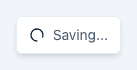
- Watch the indicator in the top-right corner. While you have changes that haven't been saved yet, it reads Unsaved changes. A couple of seconds after you stop typing or change a field, it switches to Saving... with a small spinner, and your answers (including any files you've uploaded) are saved as a draft.
- Every change is also kept on this device — this specific browser, on this computer or phone — a moment before it reaches the server. It's a safety net, not another place your answers are sent to: see If a save fails or the form was updated for what it's for and when you'll see it.
- To leave and come back later, use one of these two ways back in:
- Keep the link in your browser. Once your first answer saves, the page's web
address gains an
?appId=...part. That address now points to your specific draft. Bookmark it, copy it, or just leave the tab open — reopening that exact address reloads your saved answers, picking up on whichever page you were on. - Re-enter your email. On forms that ask for your email address (and where the
organization set that field up as your contact email — not every form does), come
back to the original form link (even without the
?appId=...part) and type the same email address you used before. A Resume your draft? dialog appears; click Resume draft to reload your saved answers.
- Keep the link in your browser. Once your first answer saves, the page's web
address gains an
- If you close the tab while the indicator still says Unsaved changes, your browser will ask whether you're sure you want to leave. Wait a moment for it to switch to Saving... before closing if you want to be sure nothing is lost.
What happens next
- Your draft is not reviewed until you submit. Saving a draft only stores your answers so you can come back to them. Nobody at the organization is notified, and nothing counts as a submission, until you reach the last page and click Submit. Until then the draft appears in their responses list only as In Progress, and only if they filter for drafts.
- Files you've uploaded are saved with your draft. If you attached a document and then leave, it's still attached when you come back.
- Jumping pages with Contents pauses the save that was about to happen, but nothing
is lost. Auto-save waits briefly after you stop typing before saving. If you click
Contents and jump to a different page before that save fires, the pending save is
dropped rather than completed. Your last edit is still kept on this device, though: if
you keep working in the same tab it goes up with your next save, and if you close the
tab first, opening your
?appId=...link again on this device offers it back to you as restored answers — see If a save fails or the form was updated. - The two ways back in are independent. The
?appId=...link always works, with or without an email field on the form. The email-based Resume draft option only works on forms whose email field the organization set up as your contact email — not every form has one. - If the form closes while your draft is still open, you won't be able to submit it. Your answers stay saved, but the form will show a message instead of the form fields the next time you open it. See Why a form says it is closed for what that means and what to do.
If a save fails or the form was updated
- A save that fails is retried automatically. If your connection drops or something briefly goes wrong, the form tries again on its own — up to three more times, roughly a second, three seconds, and nine seconds apart. Your answers stay in the form and on this device the whole time; you don't need to do anything while this happens.
- If every retry fails, a red-outlined notice replaces the indicator. It reads "We couldn't save your answers. They're kept on this device." and has a Retry button. Nothing is lost — your answers are still in the form and on this device. The form doesn't keep trying by itself at this point: click Retry once you're back online, or just keep typing; your next change triggers another save that picks everything up.
- "We restored answers from this device that hadn't been saved." Any time the form
loads and finds answers on this device that are newer than what's saved on the
server — for example after a reload, or if you reopen your
?appId=...link before an earlier change finished saving — it puts them back into the form and shows this notice with Discard and Keep buttons. Keep saves them to the server right away. Discard drops them and goes back to whatever was last saved on the server. If you ignore the notice and just keep typing, those restored answers count as unsaved changes and go up with your next auto-save regardless. - If Incenti releases an update while you have the form open, you'll see a "Reload to continue" dialog. Incenti updates its software regularly; a tab opened before an update can no longer save to the updated service, so a dialog appears that you can't dismiss except by clicking Reload: "This form was updated while you were working. Reload to continue; your answers are saved on this device." This isn't something the organization that sent you the form did, and it doesn't change the questions. It can happen while auto-saving or when you click Submit. Click Reload — your answers come back automatically as restored answers (see above), so you won't need to retype anything.
- This on-device copy is separate from your saved draft, and stays on this device. The copy itself is never sent anywhere — the normal save is what carries your answers to the server — and it doesn't show up if you open your link on a different computer or phone; only your last successfully saved draft does. It's cleared once you submit successfully or click Discard.
- An unsaved copy on this device doesn't stick around as long as a saved draft does.
Before your first save succeeds (before the page has a
?appId=...address), the copy on this device is tied to the form itself and is dropped after 7 days if it's never saved. On a shared computer, that is the one copy someone else opening the same form in that browser within those 7 days could be offered. Once your first save lands, it's tied to your specific response instead and, like your saved draft on the server, it doesn't expire.
Drafts and deadlines
- Drafts don't expire. Nothing sweeps them away after a period of
inactivity, and nobody deletes them for being old. A draft you started months
ago is still there behind its
?appId=...link. - The form's deadline is what matters, not your draft's age. If the organization set an expiration, your draft stops being submittable the minute it passes — even with the draft open in front of you. Your answers stay saved either way.
- Nothing warns you that a deadline is near. There's no countdown on the form and no reminder email, so if the request email you received mentioned a date ("Responses will no longer be accepted after …"), that's your only notice.
- A reopened form accepts your draft again. If the organization reactivates the form, open your saved link and carry on — see Why a form says it is closed.
Common questions
Q: I closed the tab, is my work gone?
A: No. Your answers are saved automatically as you go, a couple of seconds after each
change — that's what the Saving... indicator in the top-right corner means. As
long as you saw that indicator at least once before closing the tab, your draft is
kept. Get back to it using the form's link with ?appId=... in it, or, on forms that
support it, by re-entering your email on the original link.
Q: I lost the link, how do I get back to my draft? A: Go back to the original form link and type the same email address you used before. On forms that support resuming by email you'll be offered Resume draft, which reloads your saved answers. If that dialog doesn't appear, there's no way to look up a draft without its exact link — contact the organization that sent you the form and ask them to resend it.
Q: Does the organization see my draft? A: Only if they go looking. A draft is stored alongside the organization's other responses and is labelled In Progress; their responses list hides drafts unless they filter for them. Nobody is notified and nothing is reviewed until you click Submit on the last page.
Q: Do you send me a copy or a link to my draft by email?
A: No. Incenti never emails you your draft or its link, so the only way back in
is the ?appId=... address in your browser, or re-entering your email on forms
that support Resume draft. Bookmark the address as soon as the first save
happens.
Q: Can someone else at my company continue my draft?
A: Only if you send them the exact link with ?appId=... in it — anyone who
opens it picks up your saved answers. There's no other way to hand a draft over,
and entering your email address on a fresh copy of the form won't find it for
them.
Q: Does my draft expire if I leave it for a long time? A: No. Drafts aren't cleaned up or aged out. What can stop you is the form's own deadline: once it passes, the form stops accepting responses and you can't submit the draft until the organization reopens it.
Q: Can I have two drafts?
A: Yes, and it's easy to do by accident. Each link with a different ?appId=... is
its own separate draft, so it's possible to end up with more than one by starting
over instead of reopening your saved link. If the form supports resuming by email and
you're offered Resume your draft? but choose Not now, continuing on that
page also creates a second draft under the same email. To avoid duplicates, always
choose Resume draft when it's offered.
Q: It says my answers were restored from this device — what does that mean?
A: It means the form found answers on this device that hadn't made it to the server
yet — usually because a save failed, you reloaded after a "Reload to continue"
prompt, or you reopened your ?appId=... link before an earlier change finished
saving. Those answers are put back into the form for you. Click Keep to save them
now, or Discard to drop them and go back to your last saved draft. If you keep
typing without choosing either, they're saved automatically with your next change.
Q: It says "Reload to continue" — will I lose what I typed? A: No. That message means Incenti released an update while you had the form open, so this tab can no longer save until it reloads. It isn't something the organization did, and the questions haven't changed. Your answers are already kept on this device. Click Reload, and they'll come back into the form automatically as restored answers — you don't need to retype anything.
Q: The form says it couldn't save my answers. A: The form retries a failed save automatically a few more times over roughly the next fifteen seconds. If it still can't save, the Saving... indicator is replaced with "We couldn't save your answers. They're kept on this device." and a Retry button. Your answers are safe on this device either way — click Retry once you're back online, or keep filling out the form and your next change will trigger another save.
Q: Will my restored or unsaved answers show up if I open my link on a different
computer?
A: No. The on-device copy that backs up unsaved answers stays on the device you were
using — it never moves to another browser or computer on its own. Only answers that
already made it to a successful save show up when you open your ?appId=... link
somewhere else.
Related
Last updated on