Continue a form in Incenti when you are signed in
If you already have an Incenti account and open another organization's form link while signed in, you can continue filling it out inside the portal instead — with suggestions, Autofill, and the AI assistant to help — and submit it from there.
Before you start
- This only applies if you already have your own Incenti account (for example, as a site selector or a company that uses Incenti) and are signed in to it in the same browser you open the form link in.
- You do not need an Incenti account to fill out or submit a public form. If you don't have one, or aren't signed in, skip this page and see Fill out and submit a form.
Steps
- Open the form link you were sent, typically shared as
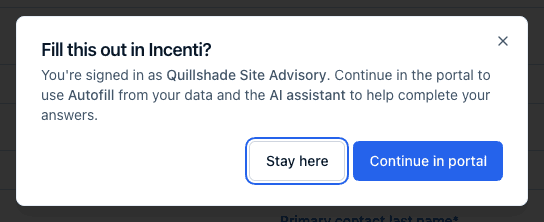
.../fm/{id}. - If you're signed in to Incenti under an account other than the one that owns this form, a dialog opens as soon as the form loads: Fill this out in Incenti?, with the text "You're signed in as {Account name}. Continue in the portal to use Autofill from your data and the AI assistant to help complete your answers."
- Click Continue in portal to move to the portal. Your whole browser tab navigates there, and the response opens ready to type into.
- Answer the questions. Everything saves automatically as you go — the header shows Saving… and then Saved — so you can leave and come back from your Submitted tab at any time. An empty question your own records or your Answers Library can answer shows a Use chip underneath; click Autofill with AI to fill what it can from your records and let AI propose the rest, or use the AI chat on the right to ask questions or request changes — see Autofill a response and Ask AI about your responses.
- Once every required question is answered, click Submit in the header. That sends the response exactly as submitting the public form would.
- Click Stay here instead if you'd rather keep filling out the form the ordinary way, without an Incenti account — see Fill out and submit a form for that flow.
Editing after you submit
- From the portal, you can keep editing at any status. Open the response from your Submitted tab and click Edit. This works even after the receiving organization has marked it accepted, shortlisted, or declined.
- The organization isn't told about your edit. No email and no bell notification goes out, and the status they set doesn't change, so let them know yourself if the change matters.
- If the form is scored, a manual edit doesn't trigger a rescore. Only an edit made through the response's AI chat queues one.
- Through the public form link, you can't edit after submitting. Reopening
the
?appId=link of a submitted response shows the "Thank you!" screen.
What happens next
- The response lives under your account's Responses list, on the Submitted tab, since your account is the one answering someone else's form — see Received and Submitted responses.
- Once you submit it, the organization whose form it is sees it under their own Received tab.
- If you had already started filling out the form anonymously on this page before signing in — or before the dialog appeared — that draft comes with you into the portal, as long as no one else has already claimed it.
- If the portal can't be reached, you'll see a toast: "Couldn't open the portal. You can keep filling the form here." The dialog closes and you stay on the form, with nothing lost.
Common questions
Q: Why did I get this prompt? A: Incenti noticed you're already signed in to a different organization's account in this browser while opening a form that belongs to someone else. It offers to let you finish the form inside the portal, where you can use Autofill and the AI assistant.
Q: I clicked Stay here — can I switch later? A: Yes. As long as you're still signed in, reloading the same form link shows the dialog again, so you can choose Continue in portal at any point.
Q: I clicked Stay here — why does the response still show under my account's Submitted tab? A: Because you were signed in when the response was created, it's recorded as yours regardless of which button you chose. It appears on your Submitted tab, and the receiving organization sees your Incenti user as the one who filled it in. Use a browser where you aren't signed in if you'd rather it wasn't attributed to you.
Q: Can I edit my submission after I've submitted it from the portal? A: Yes. Open it from your Submitted tab and click Edit — that works at any status, including after the organization has accepted or declined it. The public form link, by contrast, shows the "Thank you!" screen once you've submitted.
Q: Will the organization know I edited it later? A: No. Editing sends no email and no notification, and doesn't reset the status they set. Tell them yourself if the change is material.
Q: Do I need to be signed in to fill out a form? A: No. Public forms don't require an Incenti account at all. This prompt only appears as an option for people who already happen to have one and are signed in.
Q: The prompt didn't appear even though I have an account — why? A: Two common reasons: you aren't signed in to Incenti in this browser (signing in elsewhere doesn't count), or the account you're signed in as is the same one that owns this form — an organization never sees this prompt on its own forms.
Related
Last updated on