Require two-factor sign-in for your account
Require a passkey or authenticator app for everyone in your account, see who has set one up, stop the requirement, and reset a member.
Incenti offers two-factor sign-in with an authenticator app or a passkey, and an account admin can require it for everyone in their account. This page covers the admin side. What each member does is on Set up two-factor sign-in.
Before you start
- You must be an Admin on the account. Members don't see the section on this page.
- Two-factor sign-in adds a second step after someone signs in with an emailed code, Google, or Microsoft. The second step is a passkey (a fingerprint, face, or screen lock) or a code from an authenticator app.
- A requirement applies to every member of your account, admins included, including you. Nobody is exempt.
- Stopping the requirement asks for your own second step, so set up a method of your own first, on your profile's Settings tab.
- The Incenti Portal does not email your members when you turn the requirement on. Tell them first, so the next sign-in doesn't surprise anyone.
Require two-factor sign-in
- Open the account menu at the bottom of the sidebar and choose Account.
- Open the Settings tab. Under Two-factor sign-in, Required for everyone shows Not required.
- Select Require two-factor sign-in.
- Read the confirmation, "Everyone in this account, admins included, will need a passkey or an authenticator app to sign in. Anyone without one is asked to set one up the next time they sign in. People who are signed in now stay signed in until their session ends." If you have no method yourself, it adds "You haven't set up a method yet. You'll be asked to set one up the next time you sign in." Select Require it.
- A toast reads "Two-factor sign-in is required". The badge changes to Required, with "Since" and the date it began beside it.
What happens to members
- A member who has a passkey or an authenticator app is asked for it every time they sign in, after their emailed code, Google, or Microsoft. A passkey sign-in already counts as both steps.
- A member with no method yet signs in as usual, then lands on Set up two-factor sign-in, which says "Your account requires two-factor sign-in." They can't reach anything else in the Incenti Portal until they add a passkey or an authenticator app. This includes people you invite later: a new member sets up a method at their first sign-in.
- People already signed in keep working until their session ends. A session lasts 30 days from last use, so someone who uses the Incenti Portal regularly may not be asked until they next sign in.
- API keys and connections to AI assistants are separate credentials and keep working. Creating a key still needs a signed-in session.
- Members can't turn two-factor sign-in off while the account requires it. Their profile shows On, with "Required by your account".
See who has it set up
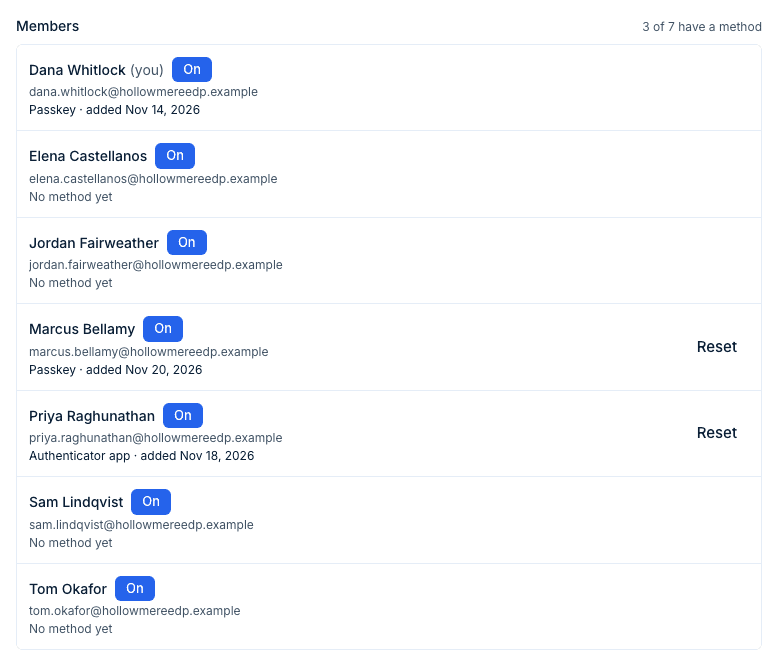
Under Members, a line such as "3 of 5 have a method" counts the people who have at least one method. Each member shows an On or Off badge, and either No method yet or the kind of each method with the date they added it: Passkey or Authenticator app. You see kinds and dates only. You never see anyone's codes, setup keys, backup codes, or passkey names.
While the account requires it, every member shows On. A member who also shows No method yet hasn't set one up. If they are signed in from before the requirement, they'll be asked at their next sign-in. Anyone whose own setting is on, with the account not requiring it, also shows On.
Stop requiring it
- On the account's Settings tab, select Stop requiring.
- The dialog asks, "Stop requiring two-factor sign-in?" and says, "Members can still use two-factor sign-in, and anyone who turned it on for themselves keeps it on." It also asks you to confirm it's you with your second step.
- Enter a code from your authenticator app, or select Use a backup code instead to enter one of your backup codes, or select Use your passkey. Then select Stop requiring.
- A toast reads "Two-factor sign-in is no longer required".
If you have no method of your own, the dialog says "Stopping the requirement needs your own second step. Set up a passkey or an authenticator app in your profile's Settings first." Set one up, then try again. Turning the requirement on asks for nothing extra.
Stopping the requirement doesn't change anyone's own setting. Members who turned two-factor sign-in on for themselves keep it, and their methods stay.
Reset a member's two-factor sign-in
Reset a member who lost their device and has no backup codes.
- On the account's Settings tab, find the member under Members and select Reset. You can also open the member's profile from Users and select Reset two-factor sign-in on their Two-factor sign-in card. Reset shows only for a member who has a method, and never for yourself.
- The dialog, Reset two-factor sign-in for the member's name, lists what it removes, for example "This removes 1 passkey and their authenticator app." Their backup codes stop working and their own two-factor setting is cleared. The dialog also says a reset signs them out everywhere. Select Reset.
- A toast reads "Two-factor sign-in was reset".
A reset signs the member out everywhere, so every browser they were signed in on stops working at once. Incenti emails them, saying who reset it and that they were signed out. If the account requires two-factor sign-in, they set up a new method the next time they sign in. If it doesn't, they can set one up again from their profile.
You can't see or recover a member's secret or backup codes, only reset them. You can't reset your own two-factor sign-in. If you are the only admin and you are locked out, email support@incenti.co. Incenti staff reset it after confirming who they are speaking to.
What happens next
- Members get emails from Incenti when they turn two-factor sign-in on or off, add a method, or are reset. See Emails Incenti sends.
- Sign-ins and sessions otherwise work as before. See Sessions and security.
Common questions
Q: Does requiring two-factor sign-in sign everyone out? A: No. People who are signed in keep working until their session ends. They are asked for a method at their next sign-in, and anyone with no method sets one up then.
Q: Does it apply to me as an admin? A: Yes. It applies to every member of the account, admins included.
Q: A member lost their phone and has no backup codes. What do I do? A: Reset them from the account's Settings tab or from their profile. That removes their methods and signs them out everywhere. They sign in again with an emailed code, Google, or Microsoft, then set up a new method.
Q: Why can't I stop requiring two-factor sign-in? A: It needs your own second step first. If the dialog says to set up a method, add a passkey or an authenticator app on your profile's Settings tab, then try again. Five wrong codes lock the code entry for 15 minutes.
Q: Can I see my members' codes or backup codes? A: No. You see which kinds of method each member has and when they added them, and you can reset a member. Codes, setup keys, backup codes, and passkeys are never shown.
Q: Can I require a second step by email or text message? A: No. The two methods are a passkey and an authenticator app.
Q: I don't see the Two-factor sign-in section on the account Settings tab. A: Only an account Admin sees it, on their own account's page.
Related
Last updated on