Set up two-factor sign-in
Add a passkey or an authenticator app, turn on two-factor sign-in, use the second step when you sign in, and recover when you lose a device.
Incenti offers two-factor sign-in with an authenticator app or a passkey, and an account admin can require it for everyone in their account. This page is for you as a person signing in. If you are an account admin and want to require it for your whole account, see Require two-factor sign-in for your account.
Before you start
- Two-factor sign-in adds a second step after you sign in with an emailed code, Google, or Microsoft. A method is how you answer that second step: a passkey (your fingerprint, face, or screen lock) or an authenticator app (a code from an app on your phone).
- You can set up either method or both. Setting a method up does not by itself make the Incenti Portal ask for it. You choose to turn on two-factor sign-in, or your account admin requires it.
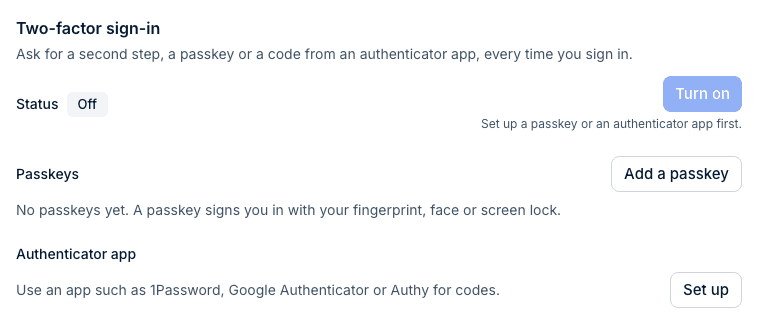
- Everything here is on your own profile. Open the user menu at the bottom of the sidebar, choose Profile, then open the Settings tab. Under Two-factor sign-in you'll see your status, your passkeys, and your authenticator app.
- To add your first method you need to have signed in within the last day. If you haven't, the dialog says "For your security, sign in again to add a passkey." (or "...an authenticator app."), and Sign in again takes you to the sign-in page and back to your profile.
Set up a passkey
A passkey signs you in with the same fingerprint, face, or screen lock you use to unlock your device. There is nothing to type and nothing to copy.
- On the Settings tab, under Passkeys, select Add a passkey.
- Type a Name you'll recognize, such as the device it lives on. The box is filled in for you; edit it if you like.
- Select Add passkey. Your browser opens its own prompt. Depending on your device, it offers Touch ID, Windows Hello, a phone nearby, or a security key. Approve it.
- The passkey appears in the list with the date you added it. A Synced badge means your device keeps it in sync with your other devices; This device means it stays on this one.
- To change a passkey's name later, select Rename.
A passkey belongs to the Incenti Portal's own address, so it can't be used on any other site. If you don't see Add a passkey at all, passkeys are not available where you are signed in.
Safari saves passkeys to iCloud Keychain. If it offers only a phone or a security key, turn on iCloud Keychain (on a Mac: System Settings, your name, iCloud, Passwords & Keychain), or use an authenticator app instead.
Sign in with a passkey
A passkey works on the sign-in page only after you have added one on your profile. Until then there is nothing for it to use, so sign in another way first. Once you have a passkey:
- From the Work email field: select the field. Where your browser supports it, your saved Incenti passkeys appear in its autofill list. Choose one and approve the prompt.
- From the link or button: select Use a passkey at the end of the line under Send code, and approve the prompt. After a passkey has signed you in on a device, that device shows a full Sign in with a passkey button under Continue with Microsoft and Continue with Google instead of the link.
You are signed in at once, and a passkey counts as both steps, so the Incenti Portal asks for nothing more. If you close the prompt, or the device has no passkey for Incenti, a message says "No passkey on this device. Add one from your profile after you sign in."
Browsers don't tell a site whether you have a passkey for it, so on a device where none is saved, the prompt may offer only a phone or a security key. That means this device has no Incenti passkey yet, not that passkeys don't work on it. Sign in another way, then add one from your profile.
Set up an authenticator app
An authenticator app is an app that shows a new 6-digit code every 30 seconds. Apps such as 1Password, Google Authenticator, and Authy work.
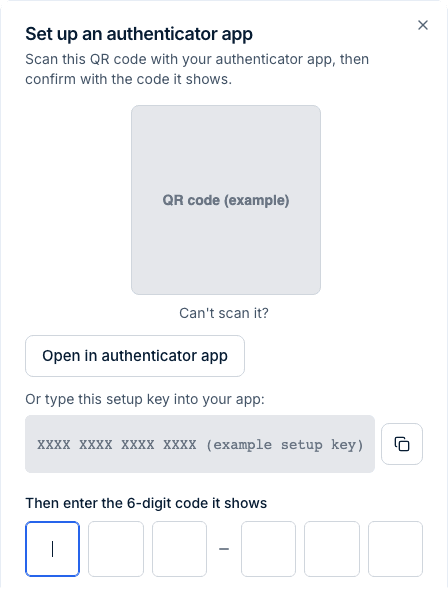
- On the Settings tab, under Authenticator app, select Set up.
- In the dialog, Set up an authenticator app, scan the QR code with your app. If you can't scan it, select Open in authenticator app, or type the setup key shown under it into your app.
- Under Then enter the 6-digit code it shows, type the code your app is showing right now. The Incenti Portal checks it as soon as the sixth digit is in.
- A Save your backup codes screen shows 10 backup codes. Each one works once and is for the day you can't reach your app. Use Copy all or Download to keep them somewhere safe, away from your phone, then select I've saved these. They are shown only this once.
The setup key and the backup codes are as good as your phone. Don't share them, and don't leave them in an email or a shared document. Incenti staff and your account admin can never see them.
You can have only one authenticator app at a time. To use a different phone or app, remove the current one and set up a new one.
Turn on two-factor sign-in
- On the Settings tab, find Status. It reads Off until you turn it on.
- Select Turn on. The button is greyed out, with "Set up a passkey or an authenticator app first.", until you have at least one method.
- Status changes to On and a toast reads "Two-factor sign-in is on". Incenti emails you to say so.
If your account admin has required two-factor sign-in, Status is On and says "Required by your account". You can't turn it off yourself, and there is no Turn on to select.
Sign in with the second step
With two-factor sign-in on, you sign in as usual: an emailed code, Continue with Google, or Continue with Microsoft. Then a Confirm it's you screen says "One more step to finish signing in." You are not signed in until you answer it.
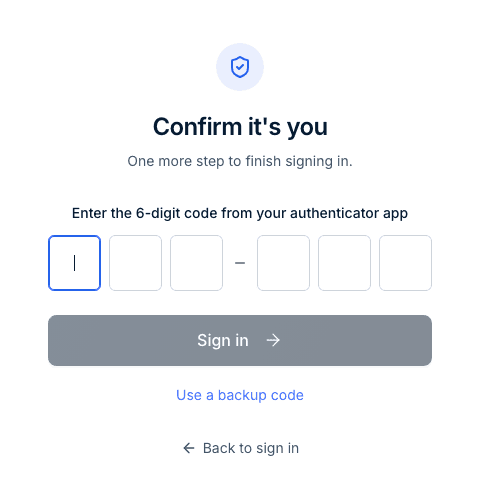
- Authenticator app: type the 6-digit code from your app. The Incenti Portal signs you in as soon as the sixth digit is in.
- Backup code: select Use a backup code, type one of your 10 codes, and select Sign in. Each backup code works once. To go back, select Use your authenticator app instead.
- Passkey: select Use a passkey and approve the prompt. If a passkey is your only method, this is the one button on the screen.
The second step is asked once each time you sign in, not on every visit. Your session then lasts 30 days from your last use, as it does without two-factor sign-in. There is no "trust this device" option.
If a code is wrong
- A wrong code shows "That code isn't right. Try again." A wrong backup code shows "That backup code isn't right, or it was already used."
- 5 wrong codes in a row lock the second step for 15 minutes. You'll see "Too many wrong codes. Try again in 15 minutes." Authenticator codes and backup codes are both held until the 15 minutes pass. The lock covers codes only, so a passkey still works.
- After too many wrong tries on one sign-in, the screen says "Too many wrong tries. Sign in again." with a Sign in again link.
- If you wait more than 10 minutes on the screen, you land back on the sign-in page with "Your sign-in timed out. Sign in again."
Add another method
Once you have a method, adding another one asks you to confirm it's you first.
- Select Add a passkey or Set up as before. A Confirm it's you dialog says "Before adding another sign-in method, confirm with one you already have."
- Answer it with a code from your authenticator app, a backup code, or your passkey.
- Carry on with the steps above.
Whenever a method is added, Incenti emails you. If the email is a surprise to you, contact your account administrator or support@incenti.co straight away.
Remove a method, get new backup codes, or turn it off
Each of these first asks you to confirm it's you with a code, a backup code, or a passkey.
- Remove a method: select Remove next to a passkey or the authenticator app, and complete the second step. Removing the authenticator app also stops its backup codes working. You can't remove your last method while two-factor sign-in is on. The Incenti Portal says "You can't remove your last method while two-factor sign-in is on. Add another one first."
- Get new backup codes: select Get new backup codes on the Authenticator app row. This asks for a code from the app or a backup code, not a passkey. The new codes replace your old ones, which stop working. The row shows how many backup codes you have left.
- Turn off two-factor sign-in: select Turn off, answer the second step, and select Turn off again. A toast reads "Two-factor sign-in is off" and Incenti emails you. If your account requires two-factor sign-in, there is no Turn off.
If you lose your device
- You have a backup code. Sign in as usual, and on the Confirm it's you screen select Use a backup code. Then, on your profile's Settings tab, remove the lost method and set up a new one, and get new backup codes.
- You have no backup codes and no other method. Ask an account admin on your account to reset your two-factor sign-in. See Require two-factor sign-in for your account. A reset removes your passkeys and your authenticator app and signs you out everywhere, and Incenti emails you to say so. Sign in again with an emailed code, Google, or Microsoft, then set up a new method. If you are the only admin on your account, email support@incenti.co. Incenti will confirm who you are before resetting it.
If your account requires it
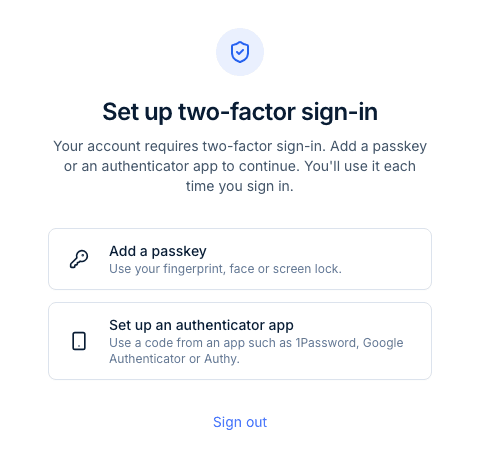
When an account admin requires two-factor sign-in, it applies to everyone on the account, admins included. If you have no method yet, you sign in as usual and then land on Set up two-factor sign-in, which says "Your account requires two-factor sign-in." and asks you to add a passkey or an authenticator app to continue. You can't reach anything else in the Incenti Portal until you do, except Sign out. Once a method is added, you go on to where you were headed. Anyone who was already signed in when the requirement started stays signed in until their session ends.
What happens next
- Turning two-factor sign-in on or off, adding a method, and a reset each send you an email from Incenti. See Emails Incenti sends.
- The second step is asked on each new sign-in, whether you used an emailed code, Google, or Microsoft. A passkey sign-in already covers both steps.
- API keys you create for an AI assistant or your own tools are separate from your sign-in, and keep working. Creating a key needs a signed-in session, so it sits behind the second step.
Common questions
Q: Do I have to use two-factor sign-in? A: Not unless your account admin requires it. You can turn it on for yourself on your profile's Settings tab, and an admin can require it for everyone in the account.
Q: Does Incenti text me a code? A: No. Two-factor sign-in uses a passkey or a code from an authenticator app. There is no text message or emailed second code, and no "trust this device" option.
Q: "Use a passkey" offers only a phone or a security key. Why? A: This device has no passkey for Incenti yet. A passkey works only once you've added one on your profile, on a browser that can use passkeys. In Safari, turn on iCloud Keychain first. Until then, sign in with an emailed code, Google, or Microsoft, then add a passkey from your profile.
Q: I lost my phone. How do I get in? A: Sign in, then choose Use a backup code on the Confirm it's you screen and type one of your 10 backup codes. With no backup codes, ask an admin on your account to reset your two-factor sign-in. See If you lose your device.
Q: It says "Too many wrong codes. Try again in 15 minutes." What now? A: 5 wrong codes in a row lock the code entry for 15 minutes. Wait, then try again with the newest code from your app, or use a passkey if you have one, since the lock covers codes only.
Q: Why can't I turn two-factor sign-in off? A: Your account requires it. It says "Required by your account" next to Status. Ask an account admin if it should be stopped, and see Require two-factor sign-in for your account.
Q: Why can't I remove my passkey? A: It is your last method while two-factor sign-in is on. Add another method first, then remove it.
Q: I got an email saying a sign-in method was added and it wasn't me. A: Contact your account administrator or support@incenti.co straight away. Adding a method needs a second step, so someone may have your device or your codes.
Q: Can Incenti or my admin see my codes or backup codes? A: No. An admin can see which kinds of method you have and when you added each, never a code, a key, or a passkey's contents.
Related
Last updated on